How to remove a third-party anti-virus application from your computer
You can find the list of incompatible applications in the following articles:
How to remove a third-party anti-virus application using Microsoft Windows tools
This method does not require you to install or start additional applications, but it may not completely remove the anti-virus application. Remaining files may interrupt the installation or affect the operation of your Kaspersky application.
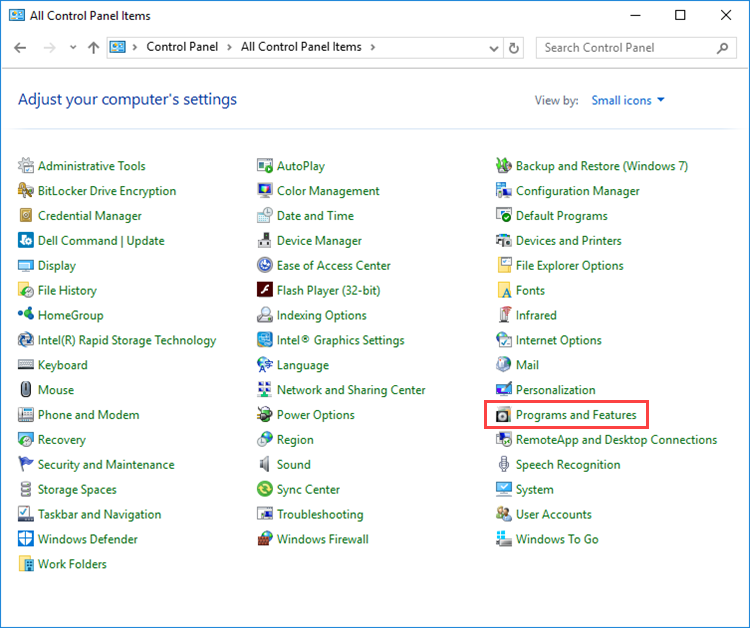
- Open Control Panel. See the Microsoft support website for instructions.
- Go to Programs and Features.
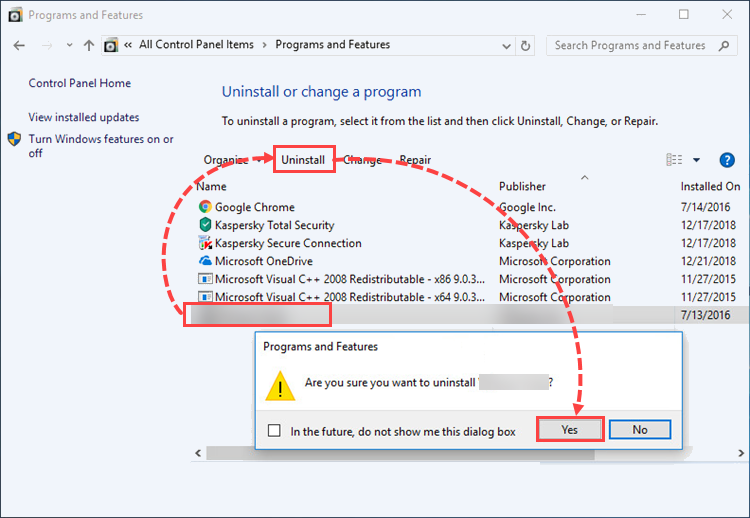
- Select the application you want to remove and click Uninstall → Yes.
- Click OK in the dialog box with the message that the uninstallation was successful.
How to remove a third-party anti-virus application using special tools from anti-virus developers
We recommend using this method, as it is the safest and allows you to completely remove third-party anti-virus applications from your computer.
| Vendor | Tool | Instructions |
|---|---|---|
| Avast | avastclear | Instructions
|
| AVG | avgclear | Instructions |
| ESET | ESET Uninstaller | Instructions
|
| F-Secure | Uninstallation tool | Instructions |
| G-Data | AVCleaner | — |
| Norton | Norton Remove and Reinstall | Instructions
|
| Panda | Panda Generic Uninstaller | Instructions |
| Super Anti-Spyware
|
SUPERAntiSpyware Uninstaller Assistant (32-bit)*
SUPERAntiSpyware Uninstaller Assistant (64-bit)* |
Instructions |
| Dr.Web | Dr.Web Remover | — |
| Trend Micro | Trend Micro Remnant File Remover Tool | Instructions |
| McAfee | McAfee Consumer Product Removal tool | Instructions |
| Bitdefender | Bitdefender Uninstall Tool | Instructions |
If the tool for your anti-virus application is not provided in the table, try looking it up on the vendor's website or use one of the popular uninstallers.
Popular uninstallers
You can completely remove third-party anti-virus applications from your computer using popular uninstallers. An uninstaller is an application designed specifically to remove other applications. This method allows you to completely remove third-party anti-virus applications from your computer, but requires you to install the uninstaller tool beforehand.
What to do if an error occurs when uninstalling
If an error occurs when uninstalling a third-party anti-virus:
- Restart your computer.
- Log in as an administrator.
- Check if the application you are trying to delete is running. If it is running, stop it.
- Remove the application using the regular Windows tools. For instructions, see the Microsoft support website.
If the issue persists, send a request to the application vendor’s technical support or to Microsoft.