How to generate a report using Get System Info
After the installation of a Kaspersky application, the operating system or the application may work incorrectly due to incompatibility of software or drivers installed on your computer with the Kaspersky application.
To find out the cause of the problem and solve it, Kaspersky Customer Service may need a Get System Info (GSI) report.
If the Kaspersky Customer Service engineer didn't specify the type of the report, please create a standard GSI report for home or business solutions.
How to get a standard GSI report
- Download the archive or executable file:
- for home — GSI-6.2.2.58.zip or GSI-6.2.2.58.exe.
- for business — GSIB-6.2.2.58.zip or GSIB-6.2.2.58.exe.
- Extract the files from the archive.
- Run GSI-6.2.2.58.exe or GSIB-6.2.2.58.exe as an administrator on the problematic computer.
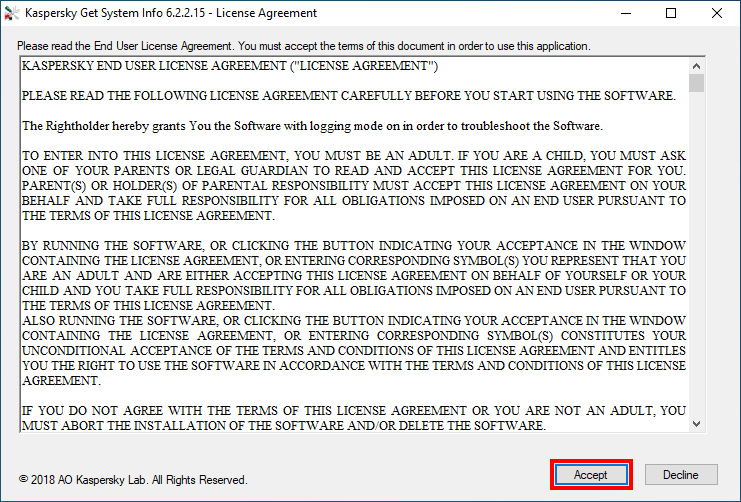
- Carefully read the license agreement and, in case you agree to the terms and conditions, click Accept.
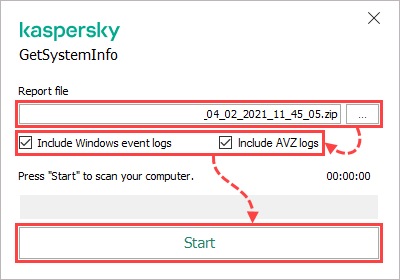
- By default, the Get System Info report is saved to Desktop under the name GSI6_<COMPUTER NAME>_<user name>_MM_DD_YYYY_<creation_time>.zip. To save the report to a different place, click
 and select the folder.
 - If necessary, select the checkbox:
- Include Windows event logs, if you are using GSI-6.2.2.58.exe. The Windows event log will be attached to the GSI report.
- Include AVZ logs, if you are using GSIB-6.2.2.58.exe. The AVZ log will be attached to the GSI report.
- Click Start. The report will be generated for approximately ten minutes.
If the Microsoft.NET Framework 2.0 component is not installed, you can use an older version of this tool, GetsystemInfo5.2.zip (GetSystemInfo5.2.exe).
How to run GSI remotely in Kaspersky Security Center
These instructions concern:
- Kaspersky Security Center 14.2 (version 14.2.0.23324)
- Kaspersky Security Center 14 (version 14.0.0.10902)
- Kaspersky Security Center 13.2 (version 13.2.0.1511)
- Kaspersky Security Center 13.1 (version 13.1.0.8324)
- Kaspersky Security Center 13 (version 13.0.0.11247)
To run GSI remotely in Kaspersky Security Center:
- Download the Get System Info installer for business.
- Open Kaspersky Security Center.
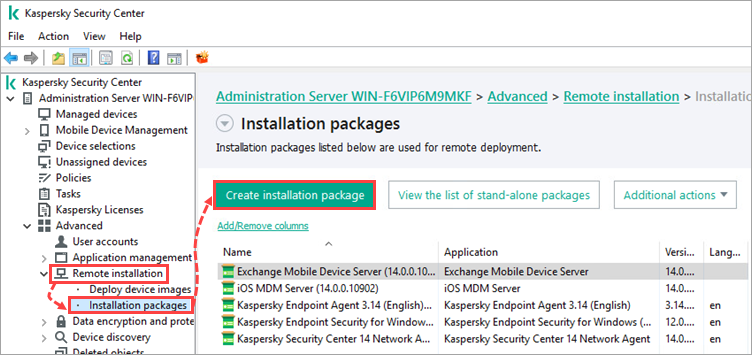
- Go to Advanced → Remote installation → Installation packages and click Create installation package.
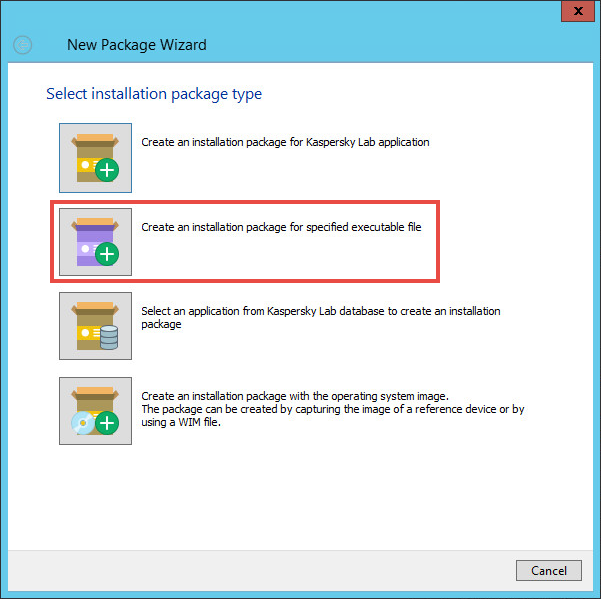
- Select Create an installation package for specified executable file.
- Enter the name for the installation package.
- Click Browse, open the GSI location folder and select GSIB-6.2.2.58.exe.
- In the Executable file command line (optional) field, enter: /rwel /silent /output <"path to the shared or local report folder">.
A path to the shared folder must only contain Latin letters.
- Click Next.
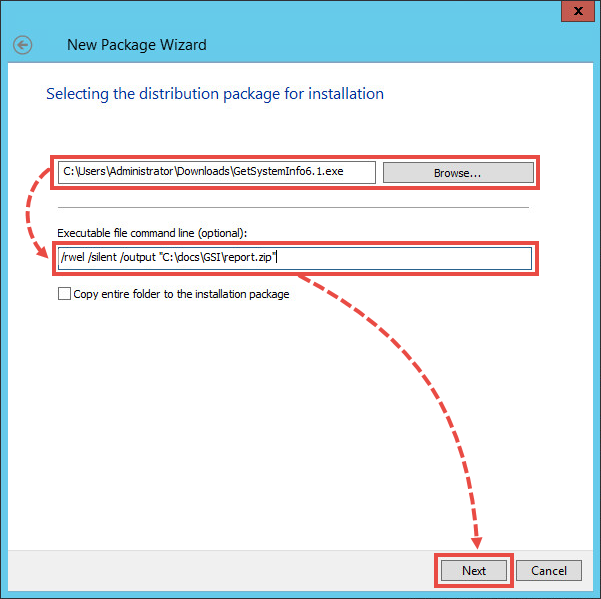
- Wait until the installation package is created and click Finish.
- Right-click the created installation package and select Install application.
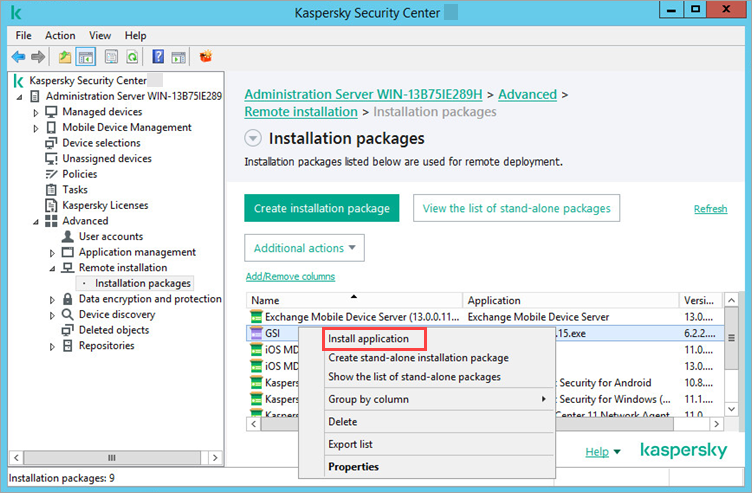
- Follow the steps of Installation Wizard.
- At the Select accounts to access devices step, specify the account with the access to the shared folder which is included in the local administration group.
- Wait for the remote installation task to be created and click Finish.
How to run GSI from the command line
Run Get System Info from the command line with the parameters:
| Parameter | Purpose |
|---|---|
| /rwel | collects operating system logs: "Application", "System", "Kaspersky Event Log"
|
| /silent | runs the Get System Info tool in silent mode: the report is automatically generated and saved to Desktop as a zipped archive. |
| /output <path to the file> | saves the report to the custom folder
|
You can use /silent and /output <path to the file> parameters together.
An example of the command to run the utility in silent mode, specifying the path to the report file and saving the operating system logs:
Version 6.2.2.58 release information
Version 6.2.2.58
In this version, we have updated the AVZ tool protocol to version 5.93 and fixed the known limitations:
- Encoding disruption of the klnagchk report if the operating system language selected is not English.
- Operation of the utility on devices with a long device or operating system user name.
GetSystemInfo End User License Agreement
KASPERSKY END USER LICENSE AGREEMENT (“LICENSE AGREEMENT”)
PLEASE READ THE FOLLOWING LICENSE AGREEMENT CAREFULLY BEFORE YOU START USING THE SOFTWARE.
The Rightholder hereby grants You the Software with logging mode on in order to troubleshoot the Software.
TO ENTER INTO THIS LICENSE AGREEMENT, YOU MUST BE AN ADULT. IF YOU ARE A CHILD, YOU MUST ASK ONE OF YOUR PARENTS OR LEGAL GUARDIAN TO READ AND ACCEPT THIS LICENSE AGREEMENT FOR YOU. PARENT(S) OR HOLDER(S) OF PARENTAL RESPONSIBILITY MUST ACCEPT THIS LICENSE AGREEMENT ON YOUR BEHALF AND TAKE FULL RESPONSIBILITY FOR ALL OBLIGATIONS IMPOSED ON AN END USER PURSUANT TO THE TERMS OF THIS LICENSE AGREEMENT.
BY RUNNING THE SOFTWARE, OR CLICKING THE BUTTON INDICATING YOUR ACCEPTANCE IN THE WINDOW CONTAINING THE LICENSE AGREEMENT, OR ENTERING CORRESPONDING SYMBOL(S) YOU REPRESENT THAT YOU ARE AN ADULT AND ARE EITHER ACCEPTING THIS LICENSE AGREEMENT ON BEHALF OF YOURSELF OR YOUR CHILD AND YOU TAKE FULL RESPONSIBILITY FOR ALL OBLIGATIONS IMPOSED ON AN END USER PURSUANT TO THE TERMS OF THIS LICENSE AGREEMENT.
ALSO RUNNING THE SOFTWARE, OR CLICKING THE BUTTON INDICATING YOUR ACCEPTANCE IN THE WINDOW CONTAINING THE LICENSE AGREEMENT, OR ENTERING CORRESPONDING SYMBOL(S) CONSTITUTES YOUR UNCONDITIONAL ACCEPTANCE OF THE TERMS AND CONDITIONS OF THIS LICENSE AGREEMENT AND ENTITLES YOU THE RIGHT TO USE THE SOFTWARE IN ACCORDANCE WITH THE TERMS AND CONDITIONS OF THIS LICENSE AGREEMENT.
IF YOU DO NOT AGREE WITH THE TERMS OF THIS LICENSE AGREEMENT OR YOU ARE NOT AN ADULT, YOU MUST ABORT THE INSTALLATION OF THE SOFTWARE AND/OR DELETE THE SOFTWARE.
SECTION A. GENERAL PROVISIONS
1. Definitions
1.1. Software means GetSysteInfo software including any related materials.
1.2. Rightholder (owner of all rights, whether exclusive or otherwise to the Software) means AO Kaspersky Lab, a company incorporated according to the laws of the Russian Federation.
1.3. Computer(s) means hardware(s), including personal computers, laptops, workstations, personal digital assistants, "smart phones", hand-held devices, or other electronic devices for which the Software was designed where the Software will be installed and/or used.
1.4. End User (You/Your) means individual(s) installing or using the Software on their own behalf or who are legally using a copy of the Software; or, if the Software is being downloaded or installed on behalf of an organization, such as an employer, "You" further means the organization for which the Software is downloaded or installed and it is represented hereby that this organization has authorized the person accepting this License Agreement to do so on its behalf. For purposes hereof the term "organization", without limitation, includes any partnership, limited liability company, corporation, association, joint stock company, trust, joint venture, labor organization, unincorporated organization, or governmental authority.
2. Grant of License
2.1. The Rightholder hereby grants You a non-exclusive license to store, load, install, execute, and display (to “use”) the free of charge Software that will substantially perform within the scope of functionality set forth on https://support.kaspersky.com.
2.2. This free of charge Software can be used to obtain system information required for removal of technical problems originated while using Rightholder's software products and, in particular, originated from conflicts between Rightholder's software products and other vendors' software.
2.3. Use of the Software does not guarantee removal of technical problems described above 2.2.
2.4. You have the right to make a copy of the Software solely for back-up purposes and only to replace the legally owned copy if such copy is lost, destroyed or becomes unusable. This back-up copy cannot be used for other purposes and must be destroyed when you lose the right to use the Software or when Your license expires or is terminated for any other reason according to the legislation in force in the country of your principal residence or in the country where You are using the Software.
2.5. From the time of the Software installation You have the right to receive product consulting which is available at https://community.kaspersky.com.
3. Activation and Term
3.1. The Software can be used upon your acceptance of this License Agreement perpetually.
3.2. Without prejudice to any other remedy in law or in equity that the Rightholder may have, in the event of any breach by You of any of the terms and conditions of this License Agreement, the Rightholder shall at any time without notice to You be entitled to withdraw the granted license to use the Software without refunding the purchase price or any part thereof.
4. Technical Support\Customer Service
4.1. No Technical Support\Customer Service is provided.
5. Limitations
5.1. You shall not emulate, clone, rent, lend, lease, sell, modify, decompile, or reverse-engineer the Software or disassemble or create derivative works based on the Software or any portion thereof with the sole exception of a non-waivable right granted to You by applicable legislation, and you shall not otherwise reduce any part of the Software to human-readable form or transfer the licensed Software, or any subset of the licensed Software, nor permit any third party to do so, except to the extent the foregoing restriction is expressly prohibited by applicable law. Neither the Software's binary code nor source may be used or reverse-engineered to re-create the program algorithm, which is proprietary. All rights not expressly granted herein are reserved by Rightholder and/or its suppliers, as applicable. Any unauthorized use of the Software shall result in immediate and automatic termination of this License Agreement and the license granted hereunder and may result in criminal and/or civil prosecution against You.
5.2. You shall not transfer the rights to use the Software to any third party.
5.3. You shall not rent, lease or lend the Software to any third party.
5.4. You shall not use the Software with the purpose of executing illegal actions, including tracking and obtaining confidential information for use against a third party.
5.5. Violation of the intellectual rights to the Software shall result in civil, administrative or criminal liability in accordance with the law.
6. Limited Warranty and Disclaimer
6.1. You acknowledge, accept and agree that no software is error-free and You are advised to back up the Computer with the frequency and reliability suitable for You.
6.2. You acknowledge that the Software will be provisioned with Rightholder standard settings applied by default and that it is Your sole responsibility to configure the Software to satisfy Your own requirements.
6.3. THE SOFTWARE IS PROVIDED "AS IS" AND THE RIGHTHOLDER MAKES NO REPRESENTATION AND GIVES NO WARRANTY AS TO ITS USE OR PERFORMANCE, EXCEPT FOR ANY WARRANTY, CONDITION, REPRESENTATION OR TERM THE EXTENT TO WHICH CANNOT BE EXCLUDED OR LIMITED BY APPLICABLE LAW, THE RIGHTHOLDER AND ITS PARTNERS MAKE NO WARRANTY, CONDITION, REPRESENTATION, OR TERM (EXPRESSED OR IMPLIED, WHETHER BY STATUTE, COMMON LAW, CUSTOM, USAGE OR OTHERWISE) AS TO ANY MATTER INCLUDING, WITHOUT LIMITATION, NON-INFRINGEMENT OF THIRD-PARTY RIGHTS, MERCHANTABILITY, SATISFACTORY QUALITY, INTEGRATION, OR APPLICABILITY FOR A PARTICULAR PURPOSE. YOU ASSUME ALL FAULTS, AND THE ENTIRE RISK AS TO PERFORMANCE AND RESPONSIBILITY FOR SELECTING THE SOFTWARE TO ACHIEVE YOUR INTENDED RESULTS, AND FOR THE INSTALLATION OF, USE OF, AND RESULTS OBTAINED FROM THE SOFTWARE. WITHOUT LIMITING THE FOREGOING PROVISIONS, THE RIGHTHOLDER MAKES NO REPRESENTATION AND GIVES NO WARRANTY THAT THE SOFTWARE WILL BE ERROR-FREE OR FREE FROM INTERRUPTIONS OR OTHER FAILURES OR THAT THE SOFTWARE WILL MEET ANY OR ALL OF YOUR REQUIREMENTS WHETHER OR NOT DISCLOSED TO THE RIGHTHOLDER.
7. Exclusion and Limitation of Liability
7.1. TO THE MAXIMUM EXTENT PERMITTED BY APPLICABLE LAW, IN NO EVENT SHALL THE RIGHTHOLDER OR ITS PARTNERS BE LIABLE FOR ANY SPECIAL, INCIDENTAL, PUNITIVE, INDIRECT, OR CONSEQUENTIAL DAMAGES WHATSOEVER (INCLUDING, BUT NOT LIMITED TO, DAMAGES FOR LOSS OF PROFITS OR CONFIDENTIAL OR OTHER INFORMATION, FOR BUSINESS INTERRUPTION, FOR LOSS OF PRIVACY, FOR CORRUPTION, DAMAGE AND LOSS OF DATA OR PROGRAMS, FOR FAILURE TO MEET ANY DUTY INCLUDING ANY STATUTORY DUTY, DUTY OF GOOD FAITH OR DUTY OF REASONABLE CARE, FOR NEGLIGENCE, FOR ECONOMIC LOSS, AND FOR ANY OTHER PECUNIARY OR OTHER LOSS WHATSOEVER) ARISING OUT OF OR IN ANY WAY RELATED TO THE USE OF OR INABILITY TO USE THE SOFTWARE, THE PROVISION OF OR FAILURE TO PROVIDE SUPPORT OR OTHER SERVICES, INFORMATION, SOFTWARE, AND RELATED CONTENT THROUGH THE SOFTWARE OR OTHERWISE ARISING OUT OF THE USE OF THE SOFTWARE, OR OTHERWISE UNDER OR IN CONNECTION WITH ANY PROVISION OF THIS LICENSE AGREEMENT, OR ARISING OUT OF ANY BREACH OF CONTRACT OR ANY TORT (INCLUDING NEGLIGENCE, MISREPRESENTATION, ANY STRICT LIABILITY OBLIGATION OR DUTY), OR ANY BREACH OF STATUTORY DUTY, OR ANY BREACH OF WARRANTY OF THE RIGHTHOLDER OR ANY OF ITS PARTNERS, EVEN IF THE RIGHTHOLDER OR ANY PARTNER HAS BEEN ADVISED OF THE POSSIBILITY OF SUCH DAMAGES.
7.2. IN THE EVENT ANY DISCLAIMER, EXCLUSION OR LIMITATION IN THIS LICENSE AGREEMENT CANNOT BE EXCLUDED OR LIMITED ACCORDING TO APPLICABLE LAW THEN ONLY THAT DISCLAIMER, EXCLUSION OR LIMITATION SHALL NOT APPLY TO YOU AND YOU CONTINUE TO BE BOUND BY ALL THE REMAINING DISCLAIMERS, EXCLUSIONS AND LIMITATIONS.
8. GNU and Other Third-Party Licenses
8.1. The Software may include some software programs that are licensed (or sublicensed) to the End User under the GNU General Public License (GPL) or other similar free software licenses which, among other rights, permit the End User to copy, modify and redistribute certain programs, or portions thereof, and have access to the source code ("Open-Source Software"). If these licenses require that for any software, which is distributed to someone in an executable binary format, that the source code also be made available to those users, then the source code could be found either supplied with the Software, or could be made available by sending a request to source@kaspersky.com. If any Open-Source Software licenses require that the Rightholder provide rights to use, copy or modify an Open-Source Software program that are broader than the rights granted in this License Agreement, then these rights shall take precedence over the rights and restrictions herein.
9. Intellectual Property Ownership
9.1. You agree that the Software and the authorship, systems, ideas, methods of operation, documentation and other information contained in the Software are proprietary intellectual property and/or the valuable trade secrets of the Rightholder or its Partners and that the Rightholder and its Partners, as applicable, are protected by civil and criminal law, and by the law of copyright, trade secret, trademark and patents of the Russian Federation, European Union and the United States of America, as well as other countries and international treaties. This License Agreement does not grant to You any rights to the intellectual property including any trademarks or service marks of the Rightholder and/or its partners ("Trademarks"). You may use the Trademarks only insofar as to identify printed output produced by the Software in accordance with accepted trademark practice, including identification of the Trademark owner's name. Such use of any Trademark does not give you any rights of ownership in that Trademark. The Rightholder and/or its partners own and retain all right, title, and interest in and to the Software, including without limitation any error corrections, enhancements, Updates or other modifications to the Software, whether made by the Rightholder or any third party, and all copyrights, patents, trade secret rights, trademarks, and other intellectual property rights therein. Your possession, installation or use of the Software does not transfer to you any title to the intellectual property in the Software, and you will not acquire any rights to the Software except as expressly set forth in this License Agreement. All copies of the Software made hereunder must contain the same proprietary notices that appear on and in the Software. Except as stated herein, this License Agreement does not grant you any intellectual property rights in the Software and you acknowledge that the License granted under this License Agreement only provides you with a right of limited use under the terms and conditions of this License Agreement. Rightholder reserves all rights not expressly granted to you in this License Agreement.
9.2. You agree not to modify or alter the Software in any way. You may not remove or alter any copyright notices or other proprietary notices on any copies of the Software.
10. Governing Law
10.1. Except as provided in Section A Clauses 10.2 and 10.3 below, this License Agreement shall be governed by and construed in accordance the laws specified below for the country or territory in which you obtained the Software, without reference to or application of conflicts of laws principles:
a. Russia. If you obtained the Software in Russia, the laws of the Russian Federation.
b. United States, Puerto Rico, American Samoa, Guam, and U.S. Virgin Islands. If you obtained the Software in the United States, Puerto Rico, American Samoa, Guam or the U.S. Virgin Islands, the laws of the Commonwealth of Massachusetts, USA, provided, however, that the laws of the U.S. state where you live will govern claims under state consumer protection, unfair competition, or similar laws. To the fullest extent permitted by law, the Rightholder and you expressly agree hereby to waive any right to a trial by jury.
c. Canada. If you obtained the Software in Canada, the laws of the Province of Ontario.
d. Mexico. If you obtained the Software in Mexico, the federal laws of the Republic of Mexico.
e. European Union (EU). If you obtained the Software in a member country of the EU, the laws of Germany.
f. Australia. If you obtained the Software in Australia, the laws of the State or Territory in which you obtained the license.
g. Hong Kong Special Administrative Region (SAR) and Macau SAR. If you obtained the Software in Hong Kong SAR or Macau SAR, the laws of Hong Kong SAR.
h. Taiwan. If you obtained the Software in Taiwan, the laws of Taiwan.
i. Japan. If you obtained the Software in Japan, the laws of Japan.
j. Any Other Country or Territory. If you choose to obtain the Software in another country, the substantive laws of the country where the purchase took place will be in effect.
10.2. Notwithstanding the foregoing, if the mandatory laws or public policy of any country or territory in which this License Agreement is enforced or construed prohibit the application of the law specified herein, then the laws of such country or territory shall instead apply to the extent required by such mandatory laws or public policy. Similarly, if you are an individual consumer, the provisions of Section A Clause 10.1 shall not affect any mandatory right you may have to take action in your country of residence under the laws of that country.
10.3. This License Agreement shall not be governed by the United Nations Convention on Contracts for the International Sale of Goods, the application of which is expressly excluded.
10.4. The End User is responsible for contacting only the Rightholder or its Partners directly if having any problems with the product.
11. Class Action Waiver and Binding Arbitration
11.1. If you reside in the United States, this Paragraph 11 applies to you. If a dispute, claim, or controversy of any kind with respect to any Rightholder product, service, or any part of this License Agreement, arises between You and Rightholder or You and a third-party affiliate of Rightholder, and both parties couldn't resolve the dispute informally within a reasonable period of time, You and the other party agree to binding individual arbitration before the American Arbitration Association ("AAA") under the Federal Arbitration Act ("FAA"), and not to sue in court in front of a judge or jury. Any proceedings, including but not limited to class action lawsuits, class-wide arbitrations, private attorney-general actions, the combining of individual actions without the consent of all parties, or any other legal procedure where someone acts in a representative capacity, are not permitted. By accepting this License Agreement, You agree not to begin or participate in any of the above mentioned class and multi-party proceedings, and any action pursued by You and remedy, if any awarded to You, must be on an individual basis, as provided in this paragraph. In the event of a binding individual arbitration proceeding between parties, a neutral arbitrator will decide and the arbitrator's decision will be final except for a limited right of appeal under the FAA. If any conflict exists between this License Agreement and the rules of the AAA, this License Agreement shall govern.
11.2. Any dispute, claim, or controversy concerning Rightholder's intellectual property rights, their enforcement, validity, etc., and any claim pertaining to any form of unauthorized use, including but not limited to theft and piracy, of any Rightholder product or service are not subject to this arbitration clause.
12. Rightholder Contact Information
Should you have any questions concerning this License Agreement, or if you desire to contact the Rightholder for any reason, please contact our Customer Service Department at:
AO Kaspersky Lab, Bldg. 3, 39A, Leningradskoe Shosse
Moscow, 125212
Russian Federation
E-mail: info@kaspersky.com
Web site: www.kaspersky.com
SECTION B. CONDITIONS REGARDING DATA PROCESSING
Please read the conditions of the Section "Conditions regarding data processing". This Section describes data received from you and/or from Your Computer and manner by which Rightholder will process data for the performance of this License Agreement. If the Software is used within a legal entity or on the Computer used by several individuals, You must ensure that they have understood and accepted the conditions of the Section "Conditions regarding data processing" before they use the Software.
1. For the Rightholder and/or its Partners to fulfill their obligations under this License Agreement, the Rightholder needs to receive and process information described in the Section B Clause 1 for the declared purposes. Such information may be considered personal according to applicable laws of certain countries.
• Providing You with the core functionality of the acquired Software.
The core functionality of the Software as described in the User Manual is to collect system information from the User’s Computer. To provide this core functionality, while You are using the Software the Rightholder has to receive from Your device and process information about the Computer, about installed software, about the services, specifically:
• Information about the computer:
o Information about the BIOS
o Information about the central processing unit (CPU)
o Information about the printers being used: information about the number of print jobs since the last restart of the printer, code indicating the status of the printer at the time the information is provided, flag indicating whether a network or local printer is used, name of the print queue manager (PrintProcessor), flag indicating whether buffering and queuing is supported, name of the print server to which the network printer is connected, flag indicating whether the printer is available as a shared resource, and name of the shared printer
o Information about video controllers: information about the status of the device, flag indicating that the device is using a user-specified configuration, values of the current device settings and operation mode, date and time of the last modification of the device driver, version of the video driver, path to the video adapter's INF file and section of the INF file with information for the video adapter, name of the video device's installed driver, architecture code, and code indicating the type of the video device's memory, description of the video processor
o Information about video monitors: unique monitor identifier and status of the device at the time the information is provided
o Information about audio cards: unique ID of the device, status and state at the time the information is provided
o Information about logical disks: description, name of the first class in the inheritance chain, unique identifier, type of logical disk, type of file system partition, amount of free disk space, code indicating the type of disk, name of logical disk, size of logical disk, header of the volume on the logical disk, serial number of the logical disk
o Information about network adapters: information about the name of the adapter, accessibility code and status; identifier indicating the type of network used, identifier for installation of the adapter in the system, MAC address of the adapter, name of the adapter manufacturer, name of the network connection shown to the user, code indicating the state of the network adapter's connection to the network, estimate of the current capacity (bps), status of the adapter at the time the information is provided, date and time when the adapter was last restarted, IP address of the default gateway, flag indicating whether DHCP is used, expiration date and time of the IP address issued by the DHCP server, date and time of receipt of the IP address from DHCP, IP address of the DHCP server, DNS name of the domain that the host belongs to, list of DNS name suffixes added to the end of the host name in the process of resolving the domain name, flag indicating that WINS is used, DNS name of the host, list of IP addresses used for DNS queries, identifier for registration of the IP address for a domain, list of IP addresses associated with the adapter, IP Connection Metric, flag indicating that TCP/IP is used, values of settings and device state parameters
• Computer name
• Name of the domain or work group that the computer belongs to, code indicating the computer's role in the domain or work group
• Information about the computer manufacturer, name of the computer according to the manufacturer's version, contact information for the computer's technical support
• Name of the current user, domain or computer description
• Information about environment variables
• Information about Warning or Error system events in the last three 24-hour periods at the time the information is provided:
o Event subcategory and textual description of the subcategory
o Value of the last 16 bits of the event property
o Event identifier
o Code indicating the event type
o Name of WinNT event log
o Message shown in the event log, and event identifier
o Name of source that the event pertains to
o Event creation time and time at which the event was recorded in the log
o Name of the user in the system at the time the event occurred
• Information about user accounts:
o Name of Windows account in the domain
o Account description
o Name of domain that the account pertains to
o Date and time at which the account was created
o Flag indicating whether the account is local
o User security identifier
o Code indicating the type of security identifier
o Current object state
• Information about installed products that is necessary for the Right Owner to identify its products installed on the user's computer:
o Product name
o String for product uninstallation
o Name of product vendor
o Product version
o Installation date
o Full path to product directory
o Product locale
• Information about registry keys containing group policy settings. Information about Microsoft Windows Explorer plugins installed with the Right Owner's products. Registry keys:
o HKEY_LOCAL_MACHINE, SOFTWARE\Microsoft\Windows\CurrentVersion\Policies\System.
o HKEY_CURRENT_USER, SOFTWARE\Microsoft\Windows\CurrentVersion\Run.
o HKEY_CURRENT_USER\Software\Microsoft\Windows\CurrentVersion\RunOnce.HKEY_LOCAL_MACHINE\SOFTWARE\Microsoft\Windows\CurrentVersion\Run.
o HKEY_LOCAL_MACHINE\ SOFTWARE\Microsoft\Windows\CurrentVersion\RunOnce.
o HKEY_USERS\DEFAULT\SOFTWARE\Microsoft\Windows\CurrentVersion\Run.
o HKEY_USERS\DEFAULT\SOFTWARE\Microsoft\Windows\CurrentVersion\RunOnce.
o HKEY_USERS\S-1-5-18\SOFTWARE\Microsoft\Windows\CurrentVersion\Run.
o HKEY_USERS\S-1-5-18\Software\Microsoft\Windows\CurrentVersion\RunOnce.
o HKEY_USERS\S-1-5-19\SOFTWARE\Microsoft\Windows\CurrentVersion\Run.
o HKEY_USERS\S-1-5-19\Software\Microsoft\Windows\CurrentVersion\RunOnce.
o HKEY_USERS\S-1-5-20\SOFTWARE\Microsoft\Windows\CurrentVersion\Run.
o HKEY_USERS\S-1-5-20\Software\Microsoft\Windows\CurrentVersion\RunOnce.
o HKEY_USERS\DEFAULT\SOFTWARE\Classes\exefile\shell\open\command.
o HKEY_USERS\DEFAULT\SOFTWARE\Microsoft\Command Processor.
o HKEY_USERS\DEFAULT\SOFTWARE\Microsoft\Windows NT\CurrentVersion\Windows.
o HKEY_USERS\DEFAULT\SOFTWARE\Microsoft\Windows\CurrentVersion\Policies\System.
o HKEY_USERS\DEFAULT\SOFTWARE\Policies\Microsoft\Windows\Control Panel\Desktop.
o HKEY_USERS\S-1-5-18\SOFTWARE\Classes\exefile\shell\open\command.
o HKEY_USERS\S-1-5-18\SOFTWARE\Microsoft\Command Processor.
o HKEY_USERS\S-1-5-18\SOFTWARE\Microsoft\Windows NT\CurrentVersion\Windows.
o HKEY_USERS\S-1-5-18\SOFTWARE\Microsoft\Windows\CurrentVersion\Policies\System.
o HKEY_USERS\S-1-5-18\SOFTWARE\Policies\Microsoft\Windows\Control Panel\Desktop.
o HKEY_USERS\S-1-5-19\SOFTWARE\Classes\exefile\shell\open\command.
o HKEY_USERS\S-1-5-19\SOFTWARE\Microsoft\Command Processor.
o HKEY_USERS\S-1-5-19\SOFTWARE\Microsoft\Windows NT\CurrentVersion\Windows.
o HKEY_USERS\S-1-5-19\SOFTWARE\Microsoft\Windows\CurrentVersion\Policies\System.
o HKEY_USERS\S-1-5-19\SOFTWARE\Policies\Microsoft\Windows\Control Panel\Desktop.
o HKEY_USERS\S-1-5-19_Classes\SOFTWARE\Classes\exefile\shell\open\command.
o HKEY_USERS\S-1-5-19_Classes\SOFTWARE\Microsoft\Command Processor.
o HKEY_USERS\S-1-5-19_Classes\SOFTWARE\Microsoft\Windows .NT\CurrentVersion\Windows.
o HKEY_USERS\S-1-5-19_Classes\SOFTWARE\Microsoft\Windows\CurrentVersion\Policies\System.
o HKEY_USERS\S-1-5-19_Classes\SOFTWARE\Policies\Microsoft\Windows\Control Panel\Desktop.
o HKEY_USERS\S-1-5-20\SOFTWARE\Classes\exefile\shell\open\command.
o HKEY_USERS\S-1-5-20\SOFTWARE\Microsoft\Command Processor.
o HKEY_USERS\S-1-5-20\SOFTWARE\Microsoft\Windows NT\CurrentVersion\Windows.
o HKEY_USERS\S-1-5-20\SOFTWARE\Microsoft\Windows\CurrentVersion\Policies\System.
o HKEY_USERS\S-1-5-20\SOFTWARE\Policies\Microsoft\Windows\Control Panel\Desktop.
o HKEY_USERS\S-1-5-20_Classes\SOFTWARE\Classes\exefile\shell\open\command.
o HKEY_USERS\S-1-5-20_Classes\SOFTWARE\Microsoft\Command Processor.
o HKEY_USERS\S-1-5-20_Classes\SOFTWARE\Microsoft\Windows .NT\CurrentVersion\Windows.
o HKEY_USERS\S-1-5-20_Classes\SOFTWARE\Microsoft\Windows\CurrentVersion\Policies\System.
o HKEY_USERS\S-1-5-20_Classes\SOFTWARE\Policies\Microsoft\Windows\Control Panel\Desktop.
o HKEY_LOCAL_MACHINE\SOFTWARE\Microsoft\Windows\CurrentVersion\ShellServiceObjectDelayLoad.
o HKEY_USERS\DEFAULT\SOFTWARE\Microsoft\Active Setup\Installed Components.
o HKEY_USERS\DEFAULT\SOFTWARE\Microsoft\Internet Explorer\Extensions.
o HKEY_USERS\S-1-5-18\SOFTWARE\Microsoft\Active Setup\Installed Components.
o HKEY_USERS\S-1-5-18\SOFTWARE\Microsoft\Internet Explorer\Extensions.
o HKEY_USERS\S-1-5-19\SOFTWARE\Microsoft\Active Setup\Installed Components.
o HKEY_USERS\S-1-5-19\SOFTWARE\Microsoft\Internet Explorer\Extensions.
o HKEY_USERS\S-1-5-20\SOFTWARE\Microsoft\Active Setup\Installed Components.
o HKEY_USERS\S-1-5-20\SOFTWARE\Microsoft\Internet Explorer\Extensions.
o HKEY_LOCAL_MACHINE, SOFTWARE\Microsoft\Internet Explorer\Main, Start Page.
• Information about public folders:
o Alias for full path to public folder
o Local path to folder
o Description
o Flag indicating a limit on the number of simultaneous connections to a folder
o Current status of folder access
o Information about open ports
o Protocol identifier (TCP or UDP)
o ID of the process using the port to establish a connection
o IP address and numbers of open ports of the participants in an established connection
o Connection state
• Information about executable files on the computer:
o Value of %TEMP% variables
o Full path to the folder without using environment variables
• Information about executable files in the folder:
o File name.
o Version of the product that the file pertains to
o File version
o File type
o Name of the directory where the file is placed
o File size on disk
o Size of compressed file on disk, if the file is compressed
o File creation date
o File modification date
o File accessed date
o Identifier indicating that the file is a read-only, archived, compressed, hidden, system, or temp file
o Name of the product that the file pertains to
o File description
o Copyright
o File hash (MD5)
• Value of the registry key: HKEY_LOCAL_MACHINE\SOFTWARE\KasperskyLab\Components\34\1103\1.0.0.0\Statistics\AVState
• Value of the registry key:
HKEY_LOCAL_MACHINE\System\CurrentControlSet\Control
• Value of the registry key:
HKEY_LOCAL_MACHINE\System\CurrentControlSet\Services
• Value of the registry key:
HKEY_LOCAL_MACHINE\SOFTWARE\Wow6432Node\Microsoft\Windows\CurrentVersion\Uninstall\
• Value of the registry key:
HKEY_LOCAL_MACHINE\SOFTWARE\Microsoft\Windows\CurrentVersion\Uninstall\
• Value of the registry key:
HKEY_CLASSES_ROOT\Installer\Products\
• Value of the registry key:
HKEY_LOCAL_MACHINE\SOFTWARE\Microsoft\NET Framework Setup\NDP\
• Reports from the Right Owner’s Klnagchk utility (if detected on the system)
• Report files for updates of the Right Owner's products
• Detected dump files for the Right Owner's products from the “\Tiny Dumps” directory
• Detected report files from the Right Owner's KAVRemover utility
• Information about settings for Internet Explorer, Mozilla and Chrome at the time the information is provided
• Event logs:
o Windows event log (files with extensions evt and evtx)
o SQL server
o KAVRemover utility
o Installation of the Right Owner's products
o AVZ utility
• Information about modules (exe, dll) loaded into memory: path to the process file; process PID in the address space that the module is loaded in
• Information about the module's developer; module description; MD5; size in bytes; date of creation and modification of the module file, attributes
• Information about Windows Explorer extension modules: path to the module file; module CLSID; module description; information about the module's developer
• Information about printing system extensions: name; type; description; information about the developer; redirector
• Information about Windows scheduled tasks: task name; path to executable file that will be started as part of the task; x86 or x64, description, and information about the vendor of the executable file being started as part of the task
• Information about the Local Service Provider (LSP/SPI)
• Information about the state of ports on the user's computer: port number, state (ESTABLISHED, LISTENING, TIME_WAIT); Application running on the indicated port, its description, x86 or x64, information about the application vendor
• List of files from the Downloaded Program Files directory
• List of Control Panel applets installed on the user's computer
• Information about processes started on the user’s computer: path to the installer; whether the installer is x86 or x64; information about the developer, CLSID of the installer
• Information about changes made to the HOST file on the user's computer
• Information about modules registered as protocol handlers (AP GZIP Encoding/Decoding Filter, ftp: Asynchronous Pluggable Protocol Handler or http: Asynchronous Pluggable Protocol Handler)
• Information about shared resources on the user's computer
• %WinDir%\inf\setupapi*.log and %WinDir%\setup*.log
• Information about the Right Owner's products installed on the computer:
o Information about dumps and logs on the user's system in the %WinDir% and %WinDir%\Minidump, %TEMP% directories
• Information about software on the user’s computer that is incompatible with the Right Owner's products:
o Information about system drivers that is incompatible with the Right Owner's products
o Information about third-party drivers that are incompatible with the Right Owner's products
o Information about third-party applications currently running that are incompatible with the Right Owner's product
o Information about services currently running that are incompatible with the Right Owner's product
• The application diagnoses the Internet connection using Microsoft Windows built-in tools:
o Tracing the route of packets in an IP network up to Kaspersky Lab’s public update servers (tracert "dnl-00.geo.kaspersky.com") and Kaspersky Lab’s public activation servers (tracert "activation-v2.kaspersky.com")
o Information about all TCP/IP network settings (ipconfig /all)
2. If You decide not to provide the information necessary for the Rightholder to perform its obligations under this License Agreement as indicated in the Section “Conditions regarding data processing,” You do not agree to the conditions of this License Agreement. In this case, please discontinue installation and/or remove the Software.
3. When You provide Your data through the Software to the Rightholder, the Rightholder handles it according to its Privacy Policy, which describes, in particular, the manner by which the Rightholder protects Your data, where the Rightholder processes Your data, and your rights as the data subject. You can find and read its complete content at www.kaspersky.com/Products-and-Services-Privacy-Policy.
4. You accept and acknowledge that the Rightholder processes data under legal bases specified in Article 6 (1) of the EU General Data Protection Regulation (GDPR), including contract and legitimate interest; therefore, in the event that your license expires, certain data already received may still be processed under legitimate interest for the purposes described in the Privacy Policy at https://www.kaspersky.com/Products-and-Services-Privacy-Policy, except where such legitimate interest is overridden by the interests or fundamental rights and freedoms of the User. If You wish to object to such data processing, You must inform us in the manner specified in the Privacy Policy. You acknowledge that when your license expires, the Rightholder will not receive new data from You.
5. By sending the log file, you confirm the absence of the confidential information in the log file.
© 2018 AO Kaspersky Lab