How to start a Windows PC in Safe Mode
Start your PC in Safe Mode if you need to troubleshoot issues. When you start Windows in Safe Mode, a limited selection of drivers and files is used. This decreases the likelihood of errors occurring during startup and allows you to fix issues in the operating system.
To start the computer in Safe Mode, you must know the password for the account with local administrator privileges.
How to start a PC running Windows 10 and 11 in Safe Mode
Boot the computer in Safe Mode.
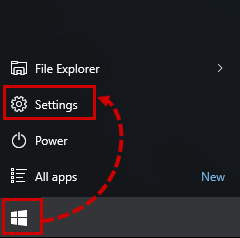
- Click Start → Settings.
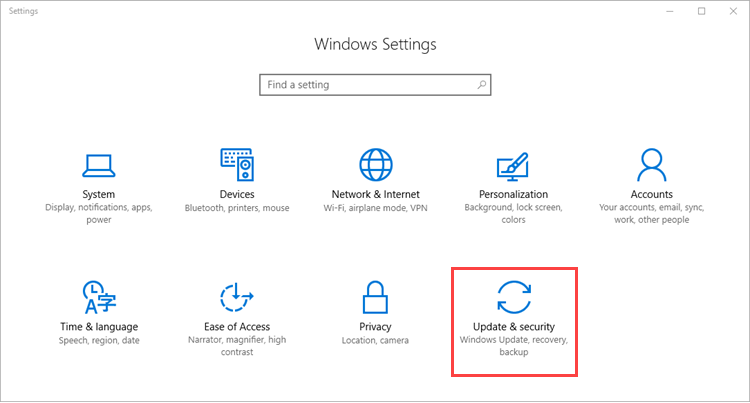
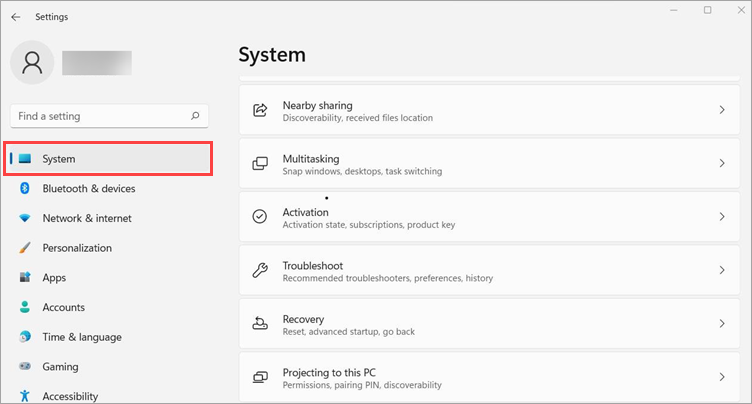
- If you are using:
- Windows 10, click Update & security.
- Windows 11, click System.
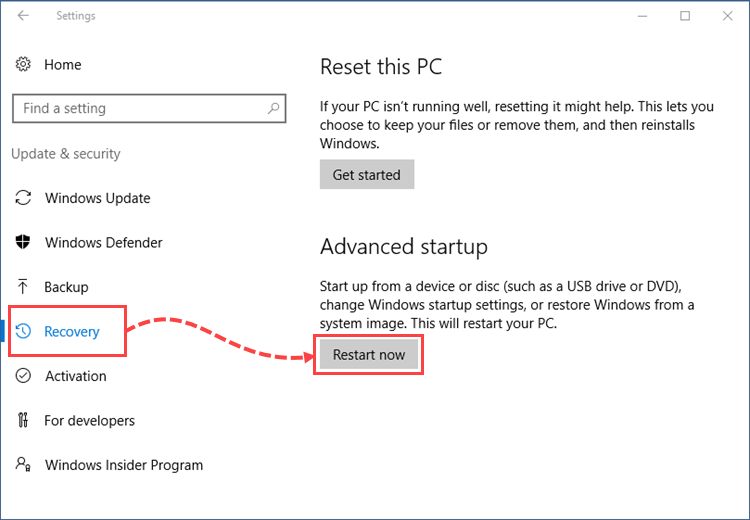
- Windows 10, click Update & security.
- Go to the Recovery section and click Restart now.
- Click Troubleshoot.
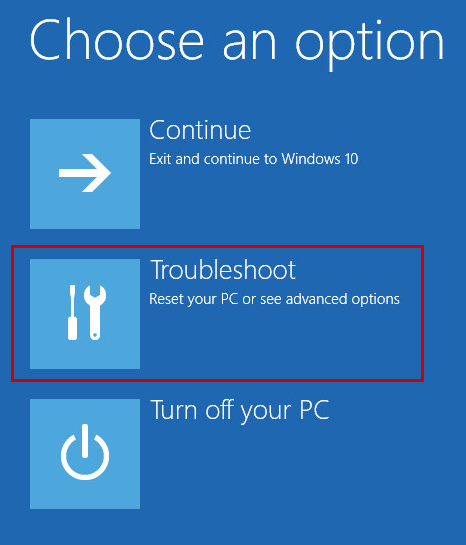
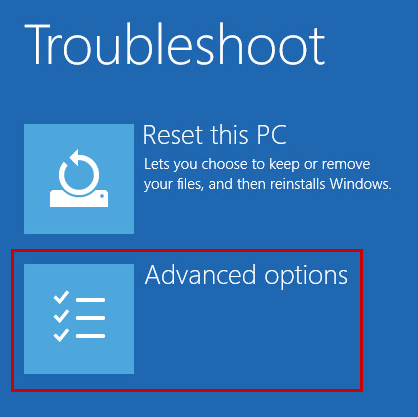
- Select Advanced options.
- Click Startup Settings.
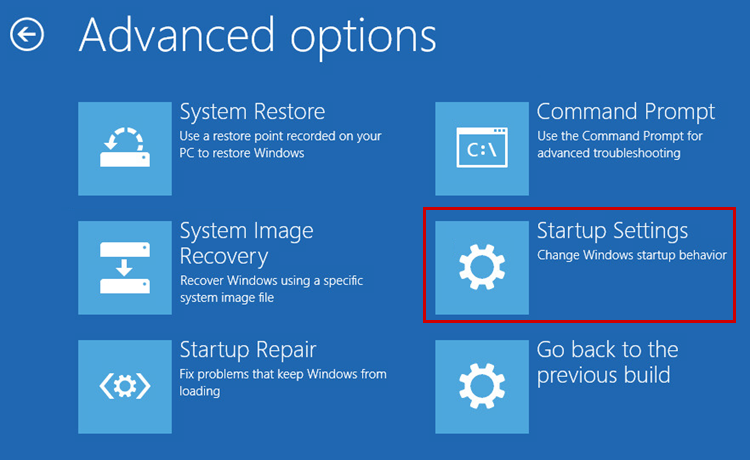
- If there is no Startup Settings option available, click See more recovery options → Startup Settings.
- Click Restart.
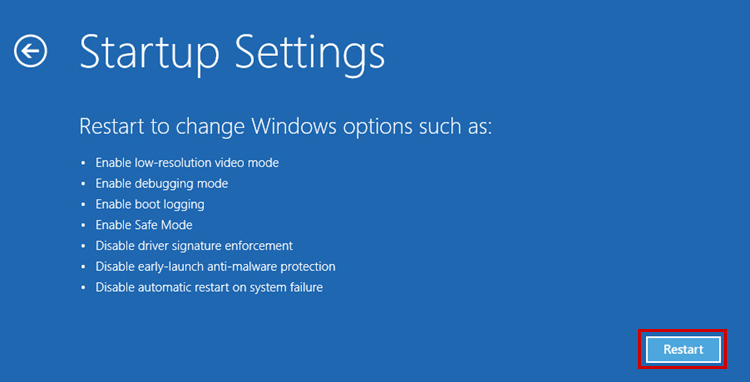
- Wait until the startup options appear on the screen and press F4 or the ‘4’ button on the keyboard to boot the PC in Safe Mode.
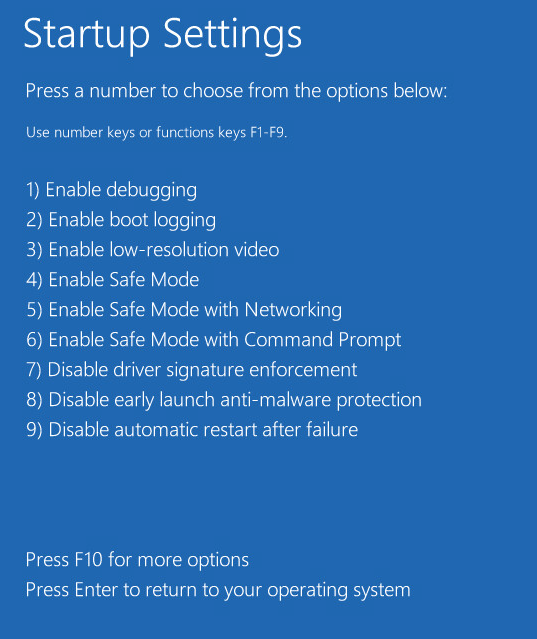
The computer will start in Safe Mode. Restart your PC once you have finished working in Safe Mode.
How to start your PC in Safe Mode from the sign-in screen / from a black or blank screen
If you can’t open the Settings section or Windows does not start, you can reboot your device in Safe Mode using the instructions on the Microsoft Support website:
- For Windows 10
- For Windows 11
How to start a PC running Windows 8/8.1 in Safe Mode
- Hover your mouse over the lower right corner of the screen and click Settings.

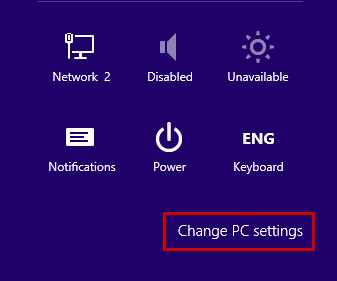
- Click Change PC settings.
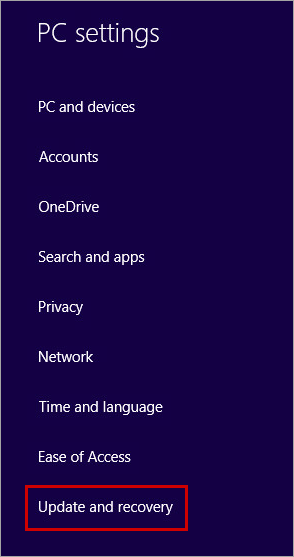
- Go to the Update and recovery section.
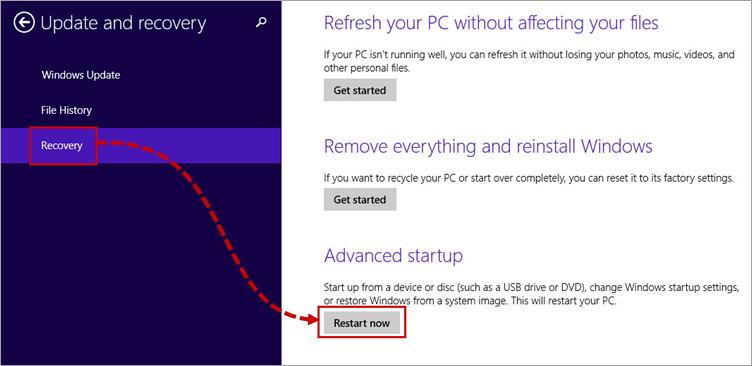
- Go to the Recovery section and click Restart now.
- Click Troubleshoot.
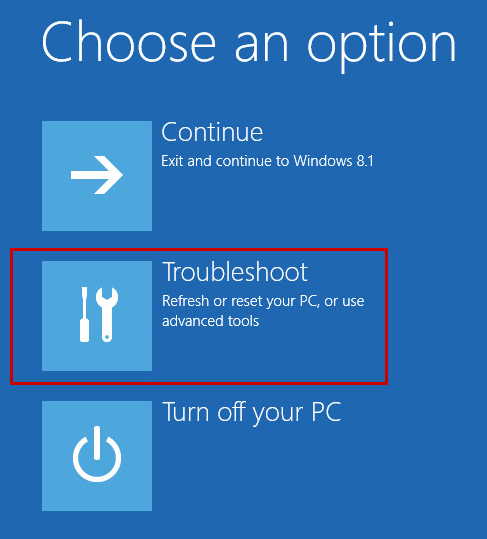
- Select Advanced options.
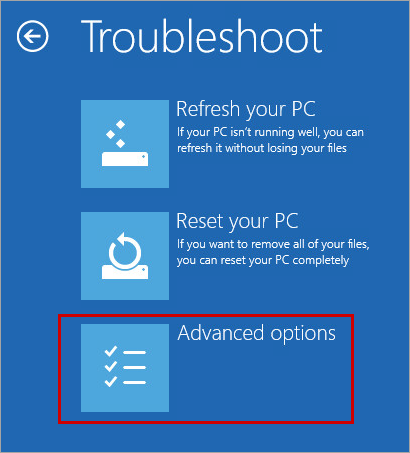
- Click Startup Settings.
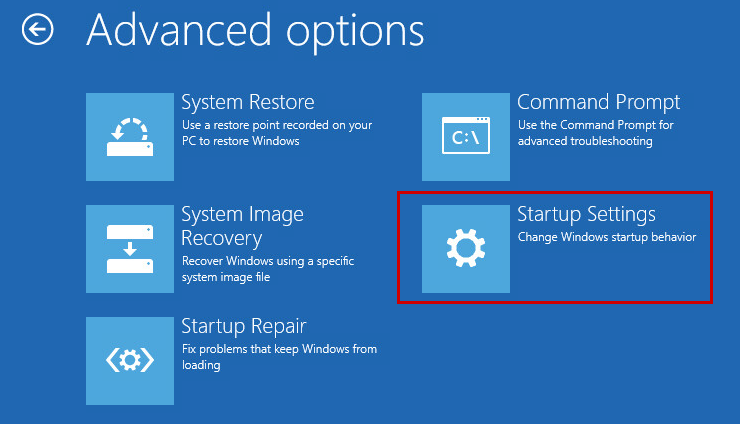
- Click Restart.
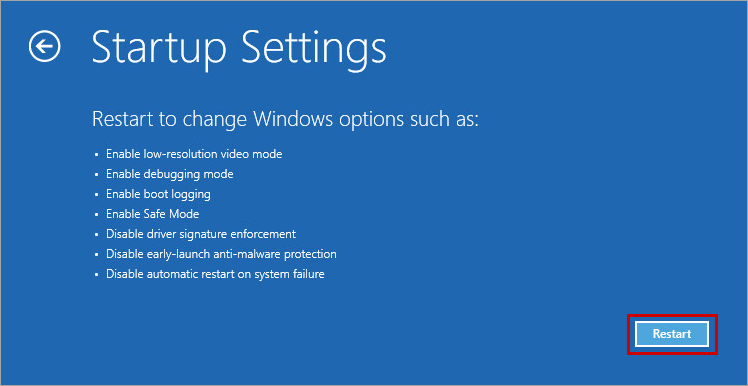
- Wait until the startup options appear on the screen and press F4 or the ‘4’ button on the keyboard to boot the PC in Safe Mode.
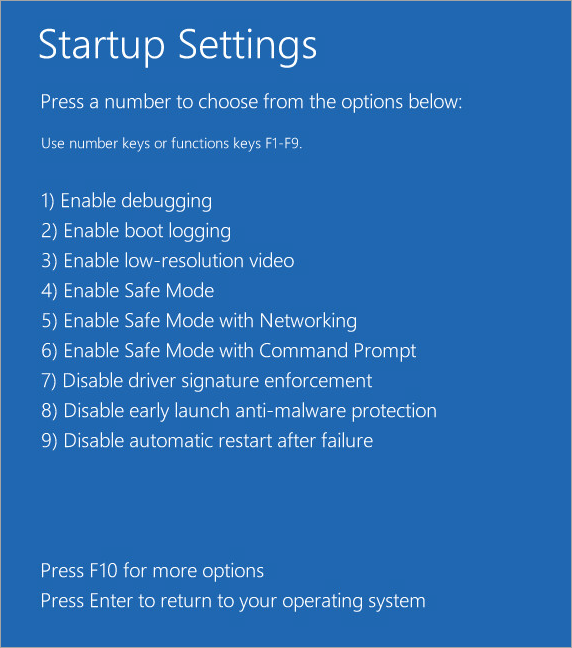
The computer will start in Safe Mode. Restart your PC once you have finished working in Safe Mode.
How to start a PC running Windows 7 / Vista in Safe Mode
- Click Start in the lower-left corner.
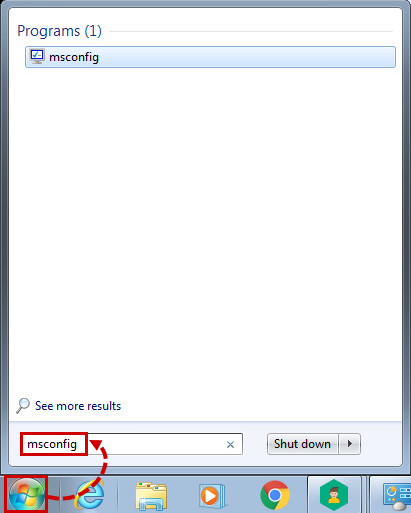
- Enter the ‘msconfig’ command in the search bar and press Enter on the keyboard.
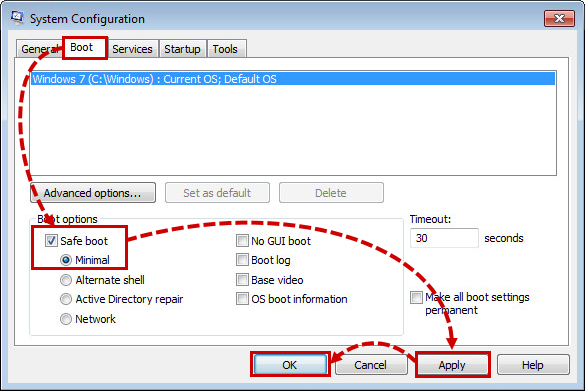
- Go to the Boot tab and select the Safe boot check box. Select Minimal and click Apply → OK.
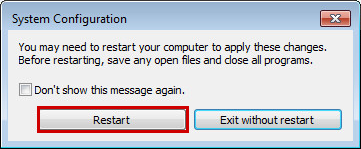
- Click Restart.
- When you have finished working in Safe Mode, clear the Safe boot check box and restart the computer.
How to start a PC running Windows XP in Safe Mode
- In the lower left corner, click Start and select Run.
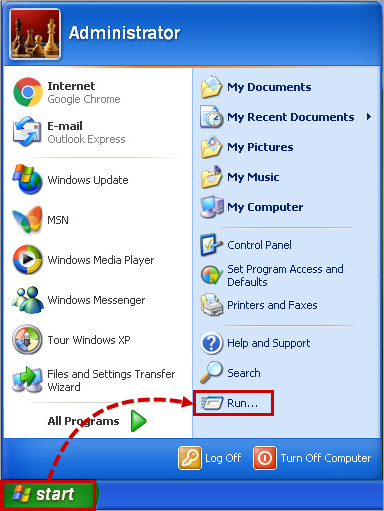
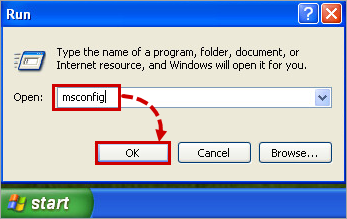
- Type ‘msconfig’ and click OK.
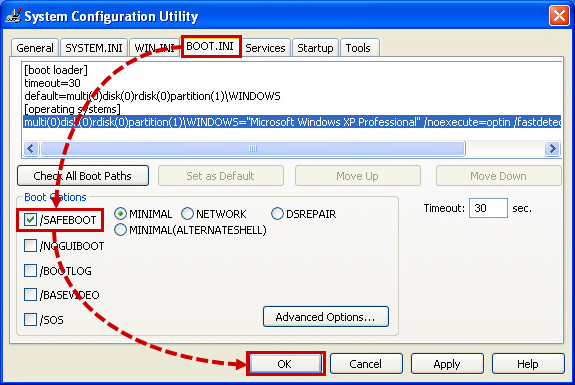
- Go to the Boot.ini tab and select the /Safeboot check box. Click ОК.
- Restart your PC.
- When you have finished working in Safe Mode, clear the /Safeboot check box and restart the computer.
How to select a hard drive at startup and enter Safe Mode
- Start or reboot the PC.
- Press the key that brings up the boot menu where you can select the physical device on which the operating system is located. The key depends on your computer’s manufacturer. For example, on an HP computer, you need to press F9.
- Select the hard drive the PC should boot from and press Enter on the keyboard.
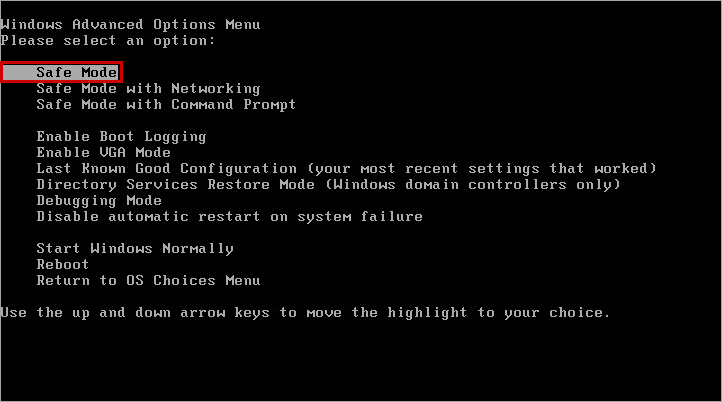
- Press and hold F8 on the keyboard.
You must press F8 before Window starts up (before the Windows logo appears on the screen) to bring up the advanced startup options menu.
- Select Safe Mode and press Enter.
What to do if you cannot start the PC in Safe Mode
If an error occurred when trying to boot your PC in Safe Mode, it’s possible that the registry branch Safeboot has been damaged. Restore the Safeboot registry branch using a previously exported .reg file. To do so:
- Download the SafeBoot.zip archive.
- Extract the files.
- Run the .reg file that corresponds to your operating system:
- Windows XP: SafeBootWinXP.reg
- Windows Vista: SafeBootWinVista.reg
- Windows 7: SafeBootWin7.reg
- Windows 8/8.1/10/11: SafeBootWin8.reg
- Click Yes to allow the application to make changes on your computer.
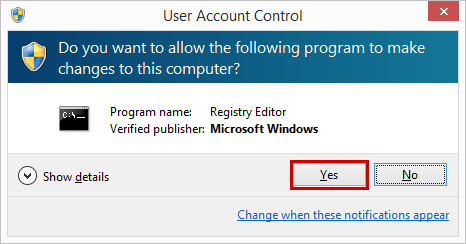
- Click Yes.
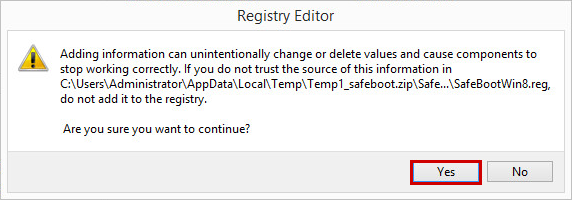
- Boot the computer in Safe Mode.
If the issue persists, contact Microsoft technical support.