How to take a screenshot
To identify the cause of a problem, Kaspersky Customer Service engineers may ask ask you to send a screenshot the error message or settings window.
How to take a screenshot on a Windows PC
- Reproduce the issue so that the error message appears on the screen or open a requested window.
- Use the built-in Snipping Tool to take a screenshot. For a guide on using the Snipping Tool, see the article on the Microsoft support site.
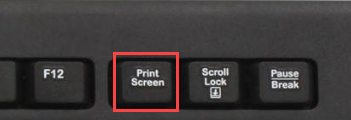
- Press the Print Screen button on the keyboard (usually, this button can be found next to F12).
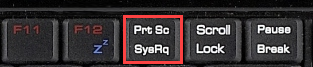
- On some keyboards, the button name may be shortened to Prt Sc or Prt Scr Sys Rq.
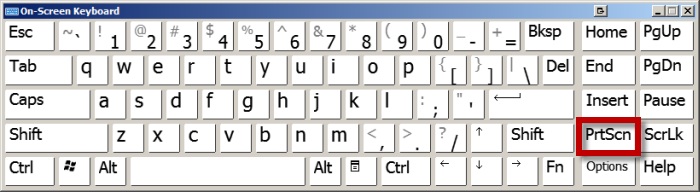
- If there is no Print Screen button on your keyboard, use the on-screen keyboard. See the guide on using an On-Screen keyboard at the Microsoft support site.
- Run the Paint graphic editor. For a guide on using Paint, see Microsoft support site.
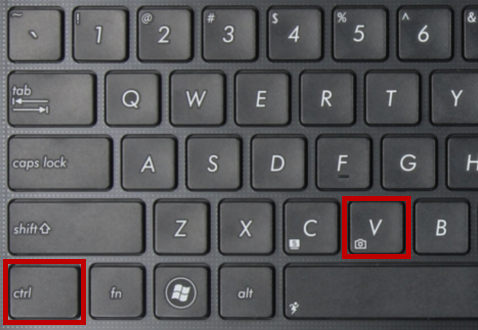
- In the Paint window, select Edit →Paste or press the combination Ctrl + V on the keyboard.
- In the File menu, select Save as.
- Type the name for the file and save it in the JPG format (it requires less disk space than the default BMP format).
How to take a screenshot on a Mac computer
To take a screenshot of the whole screen:
- Reproduce the issue so that the error message appears on the screen.
- Press the combination cmd (⌘) + shift + 3 on the keyboard.
- The image will be automatically saved to Desktop. The file will be created in the .png format and saved under the unique name (Screen shot [date] at [time].png.
To take a screenshot of a specific menu:
- Press the combination cmd (⌘) + shift + 4 + Space bar on the keyboard. Move the camera pointer over the menu and press the mouse button.
- The image will be automatically saved to Desktop. The file will be created in the .png format and saved under the unique name (Screen shot [date] at [time].png.
How to take a screenshot on an Android device
- Reproduce the issue so that the error message appears on the screen.
- Simultaneously press the volume down button and the Lock button.

The images you have taken will be available in Gallery.
If this method did not work, please see the documentation for your device or contact the technical support of your device.
How to take a screenshot on an iOS device
How to take a screenshot on Touch ID devices with the top button
- Reproduce the issue so that the error message appears on the screen.
- Simultaneously press the Home and the top button.

The images you have taken will be available in Photos.
How to take a screenshot on Touch ID devices with the side button
- Reproduce the issue so that the error message appears on the screen.
- Simultaneously press the Home and the side button.

The images you have taken will be available in Photos.
How to take a screenshot on Face ID devices
- Reproduce the issue so that the error message appears on the screen.
- Simultaneously press the side button and the volume up button.

The images you have taken will be available in Photos.
How to transfer a screenshot from the phone to your PC
Screenshots can be transferred from your phone to your computer in several ways.
Method 1. Via USB
- On a Windows PC, open File Explorer. To do so, press the
 +E combination on your keyboard. On a Mac computer, open Finder by clicking the Desktop or the
  icon in the Dock bar.
 - Go to This PC or Computer.
- Using the USB cable, connect your phone to any available USB port on your computer. The connected device will appear in the Devices and drives section.
- Double-click the icon of the connected device.
- Open the folder with photos. For iOS, the folder name can be /DCIM, for Android devices it may be either SDcard/DCIM or Phone/DCIM.
- Once you found the necessary image, copy and paste it to your Desktop or any folder on the PC.
The screenshot will be saved on your PC.
Method 2. Via Bluetooth between a Windows PC and Andorid devices
- Turn on Bluetooth in settings of your phone.
- Pair the phone and your PC via Bluetooth. See the guide at the Microsoft support website.
- On your mobile phone, open Gallery.
- Tap and hold the image you need for a while.
- Select Share or Send
 → Send file via Bluetooth or Bluetooth.
 - Accept and receive the file on your PC and save it in any location or on the Desktop. See the guide at the Microsoft support website.
The screenshot will be saved on your PC.
For a guide on sharing files between Mac and iOS devices via Bluetooth, see the instruction.
Method 3. Via email
- On your mobile, open an email app or its web version.
- Create a new letter.
- In the To field, type your email address.
- Attach the image to the letter from Gallery. To do this, click the
 icon (or a similar one) and select the screenshot you need.
 - Send the letter.
- Open your email on the PC.
- Find the letter you sent and download the attached image.
The screenshot will be saved on your PC.