How to get a full memory dump when Windows 7, 8, 8.1, 10, or 11 crashes with a blue screen
Latest update: August 31, 2023
ID: 10659
After installing a Kaspersky application, your operating system might fall into blue screen of death (BSoD). It may be caused by the conflict between a Kaspersky application and other applications or drivers installed on your computer.
If such an issue occurs:
- Enable physical memory restrictions.
- Generate a full memory dump.
- Send the full memory dump file to Kaspersky Customer Service.
How to enable physical memory restrictions
- Press
 +R on the keyboard.
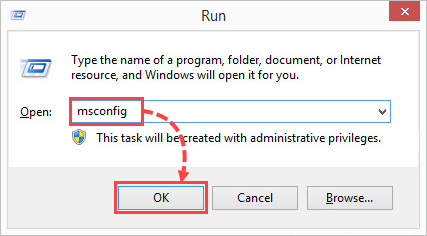
 - Type msconfig and click OK.
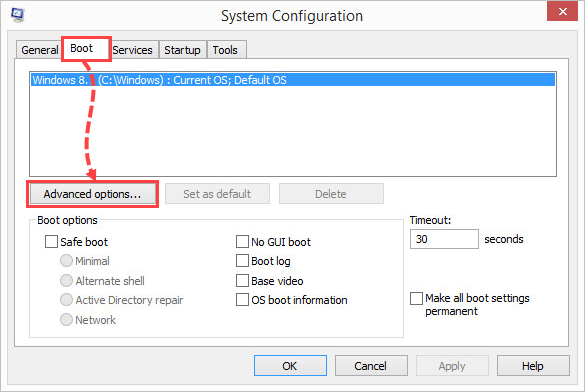
- Go to the Boot tab and click Additional options.
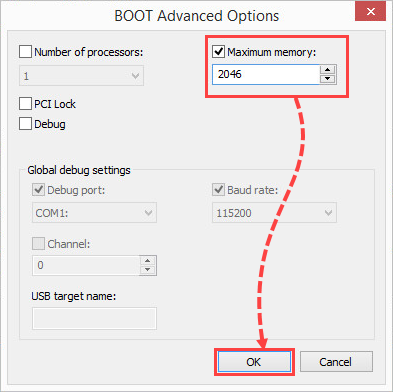
- Select the Maximum memory checkbox and enter 2046. Click OK.
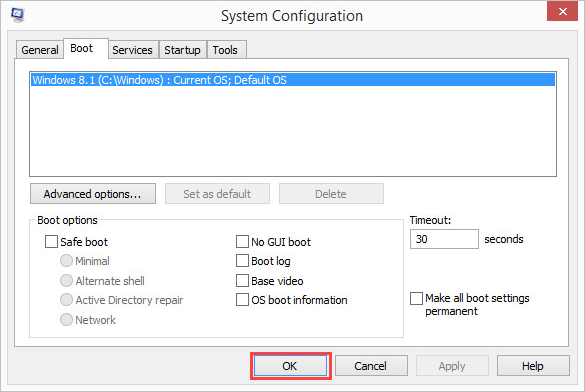
- Click OK
- Click Restart to apply the changes.
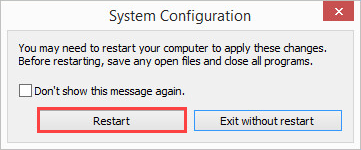
Physical memory restrictions have now been enabled.
How to get a full memory dump on Windows 7, 8, 8.1, 10
- Free at least 25 GB on a system drive (usually, disk C:\).
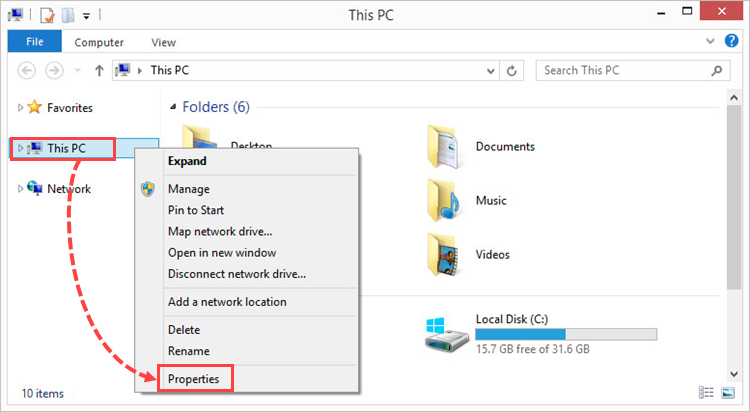
- Press +E combination on your keyboard.
- Right-click This PC and select Properties from the shortcut menu.
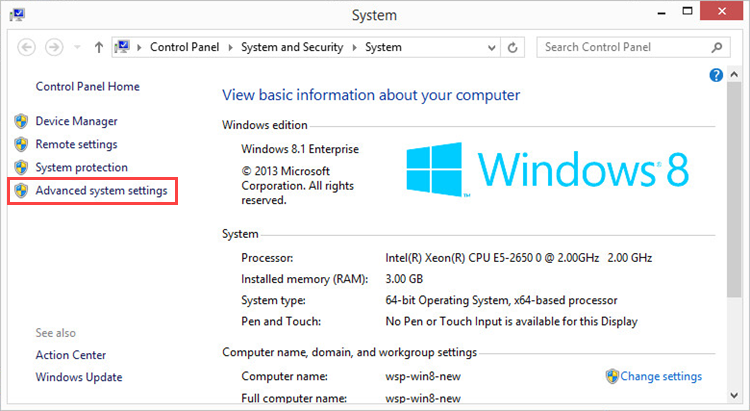
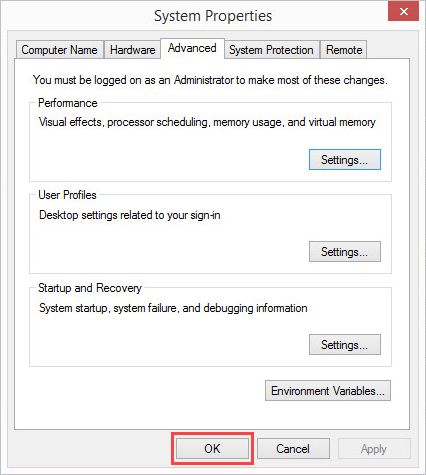
- Select Advanced system settings.
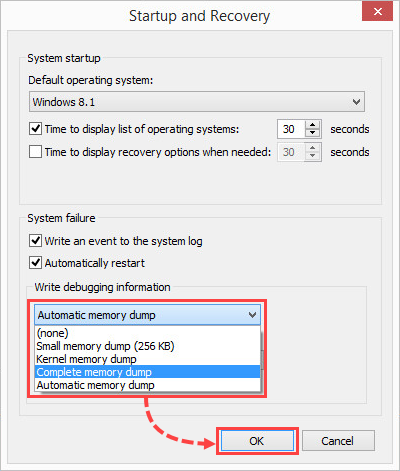
- In the Startup and recovery section, click Settings.
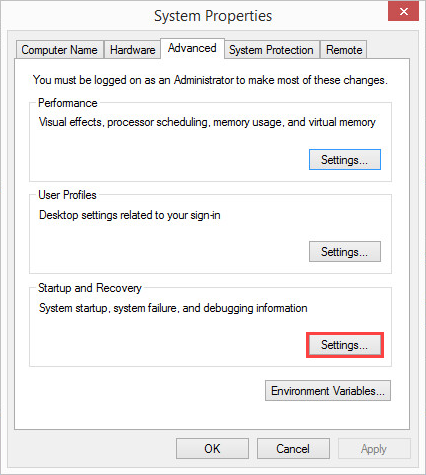
- In the Write debugging information section, select Complete memory dump from the drop-down menu.
- Click OK
- Click OK
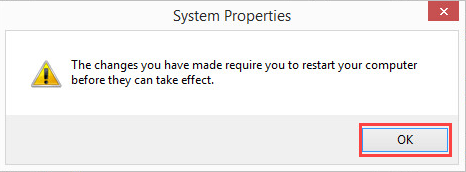
- Click OK.
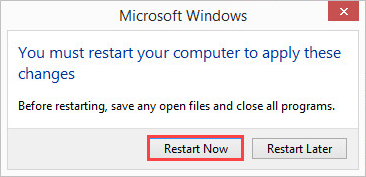
- Click Restart now.
- After restarting the computer, reproduce the issue once again.
The full dump file has been created. By default, the dump file is saved in the Windows folder on the system drive with the name MEMORY.DMP.
How to get a full memory dump on Windows 11
- Free at least 25 GB on a system drive (usually, disk C:\).
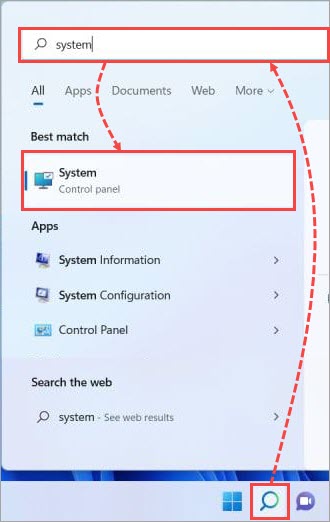
- Click the search icon on the Windows taskbar.
- Type “system” in the search field and select System.
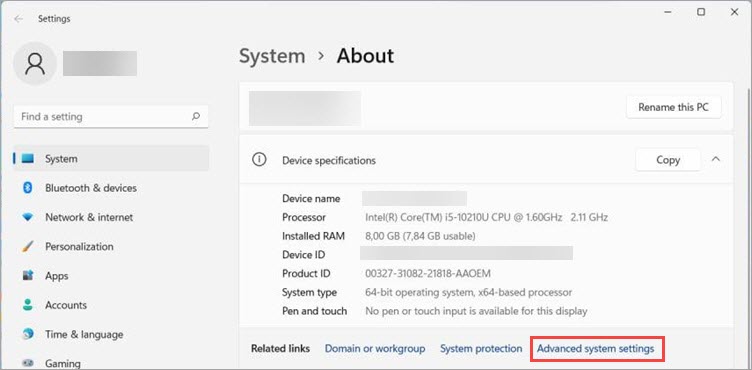
- Select Advanced system settings.
- Follow the steps 5-11 from the instructions above.
The full dump file has been created. By default, the dump file is saved in the Windows folder on the system drive with the name MEMORY.DMP.
What to do if there is no a full memory dump on the list
- Launch the Windows registry editor. Press +R on the keyboard, type regedit and click ОК.
- If the system prompts you for an administrator password or confirmation, enter the password or provide a confirmation.
- Open the registry branch HKEY_LOCAL_MACHINE \SYSTEM\CurrentControlSet\Control\CrashControl.
- Set the parameter CrashDumpEnabled to 1.
A full memory dump will be available now in a drop-down list.
How to send the dump file to Kaspersky Customer Service
- Add the file to an archive. See this article for instructions.
- Submit a request to Kaspersky Customer Service by choosing the topic of your request.
Attach the archive with a dump file to your request.