Upgrading integration (QRadar)
This section describes how to finish the integration of Kaspersky CyberTrace with QRadar after the files of Kaspersky Threat Feed Service for QRadar have been upgraded to the files of Kaspersky CyberTrace.
The actions described in this section relate to upgrading from Kaspersky Threat Feed Service for QRadar to Kaspersky CyberTrace 3.0. If you want to upgrade Kaspersky Threat Feed Service for QRadar to Kaspersky CyberTrace 3.1, perform the actions provided in this section (using the Kaspersky CyberTrace 3.0 distribution kit) and then the actions provided in section "Upgrading Kaspersky CyberTrace integration (QRadar)" (using the Kaspersky CyberTrace 3.1 distribution kit).
Finishing the integration of Kaspersky CyberTrace with QRadar consists of the following actions:
- Adding support of Ransomware URL Data Feed
- Adding the capability to match events against the black list
- Adding events that correspond to categories for OSINT and third-party feeds (if necessary)
If Device Support Modules (DSMs) are updated automatically in QRadar, the following features are included in the latest DSM:
- Support of Ransomware URL Data Feed
- Detection against the black list
- Categories of OSINT feeds
Adding support of Ransomware URL Data Feed
Add the KL_Ransomware_URL category to QRadar manually only if DSMs are not updated automatically. To add the KL_Ransomware_URL category to QRadar, perform the actions described in sections "Importing QIDs to QRadar", "Sending a set of events to QRadar", and "Mapping events to QIDs". The KL_Ransomware_URL category is included in the sample_initiallog.txt and sample_qid.txt files of the latest distribution kit of CyberTrace.
Adding detection against the black list
Add the KL_BlackList_URL, KL_BlackList_Hash_MD5, KL_BlackList_Hash_SHA1, KL_BlackList_Hash_SHA256, and KL_BlackList_IP categories to QRadar manually only if DSMs are not updated automatically. Do this as described in subsection "Adding support of Ransomware URL Data Feed" above.
Adding categories for APT feeds
Add the KL_APT_URL, KL_APT_IP, and KL_APT_Hash_MD5 categories to QRadar manually only if DSMs are not updated automatically. Do this as described in subsection "Adding support of Ransomware URL Data Feed" above.
Adding categories for OSINT and third-party feeds
Add the OSINT feed categories to QRadar manually only if DSMs are not updated automatically. Third-party feed categories must be added to QRadar manually in any case.
You add categories for OSINT and third-party feeds in different ways depending on the QRadar version you use. In any case, you must define the categories to add, as follows:
- For OSINT feeds, the categories are specified in the Feed Service configuration file.
The categories are specified in the
categoryattribute of theFieldelements. - For third-party feeds, specify the categories as feed names followed by an underscore (
_) and field types (namely,%FEEDNAME%_%FIELDTYPE%).Here,
%FEEDNAME%—Name of the feed as it was specified when the feed was added.%FIELDTYPE%—Type of the field against which the matching is performed.
If the QRadar application that you use does not have DSM Editor (this is true for QRadar earlier than v7.2.8), create two text files for your feeds that have sample events and corresponding QIDs in the same way as the sample_initiallog.txt and sample_qid.txt files have data for Kaspersky Threat Data Feeds. For these text files, perform the procedures described in sections "Importing QIDs to QRadar", "Sending a set of events to QRadar", and "Mapping events to QIDs". For more information about the contents of the sample_initiallog.txt and sample_qid.txt files, see section "Importing QIDs to QRadar".
If the QRadar application that you use has DSM Editor (QRadar v7.2.8 or later), use DSM Editor to add the categories for OSINT and third-party feeds.
To add a new category to QRadar by using DSM Editor:
- In QRadar, select Admin and under Data sources, in the Events section, select DSM Editor.
DSM Editor opens and the Select Log Source Type window opens above it.
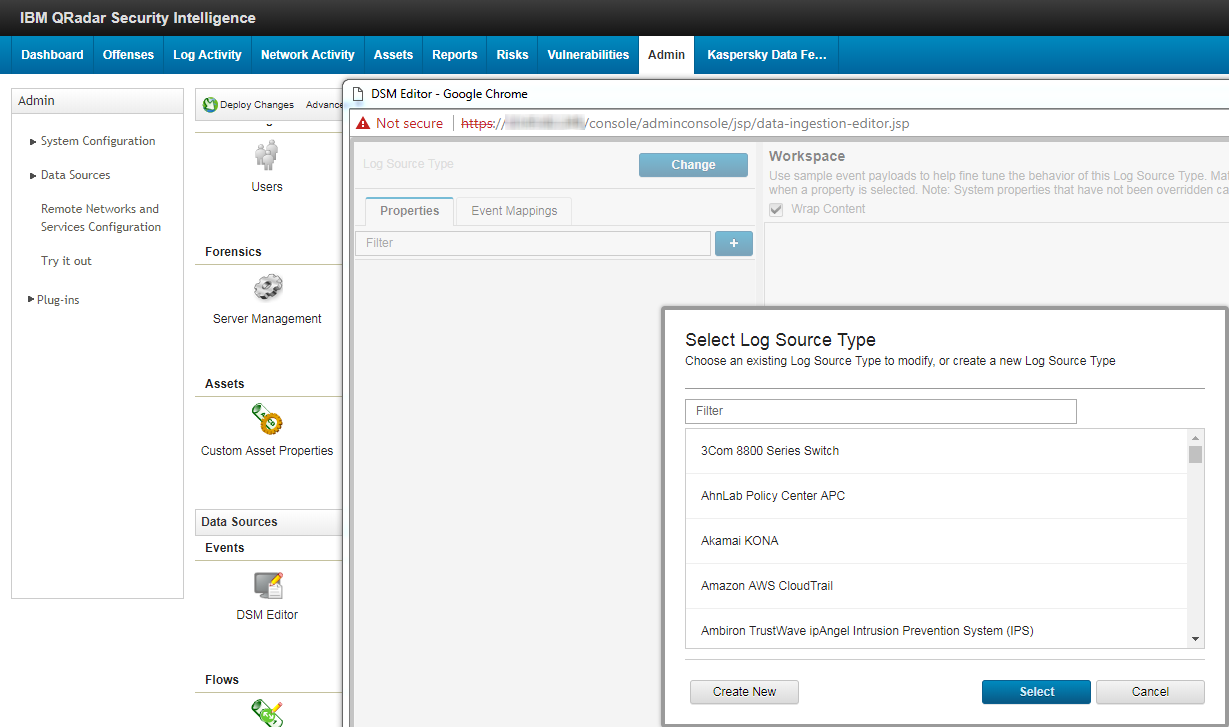
Selecting the log source type
- In the list, select Kaspersky Threat Feed Service and click Select.
DSM Editor is filled with data.
- In DSM Editor, select the Event Mappings tab and click the Add button (+).
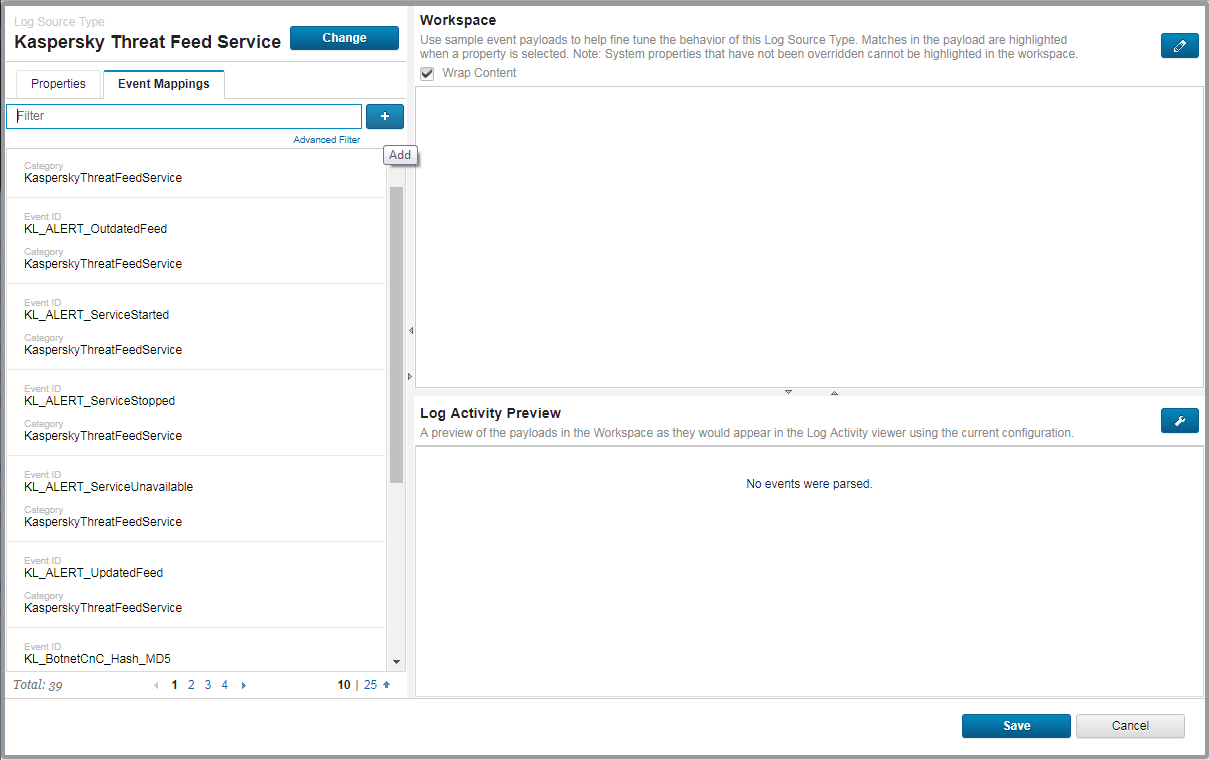
Adding a new event mapping
The Create a new Event Mapping window opens.
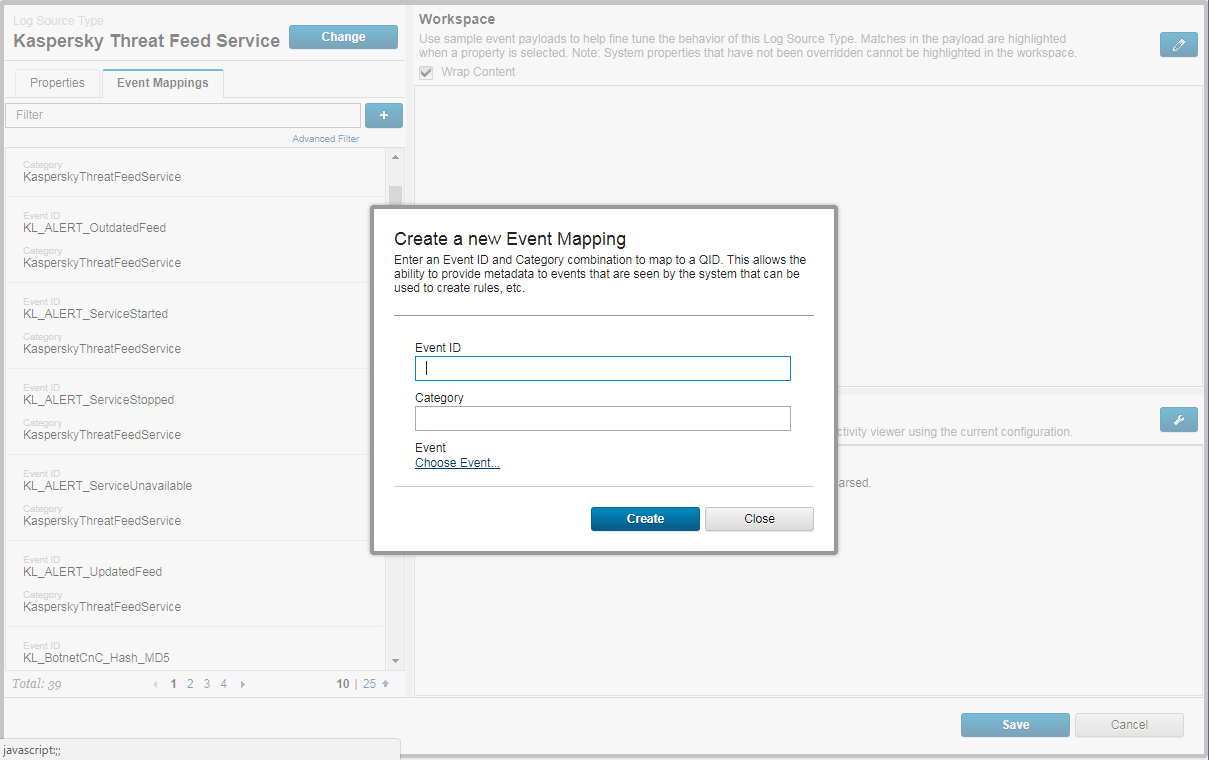
The Create a new Event Mapping window
- Click the Choose Event link.
The Event Categorizations window opens.
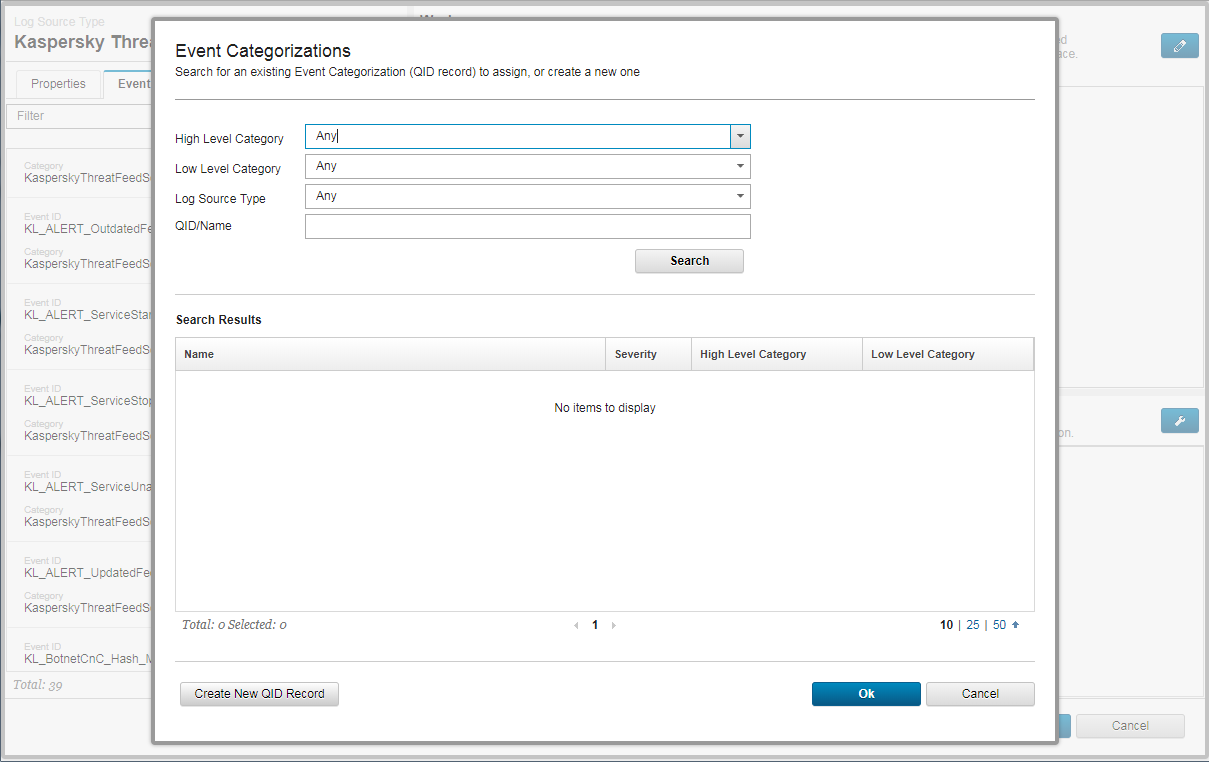
Selectiing a QID record
- Click the Create New QID Record button.
A new Event Categorizations form appears, in which to enter fields in the new QID record.
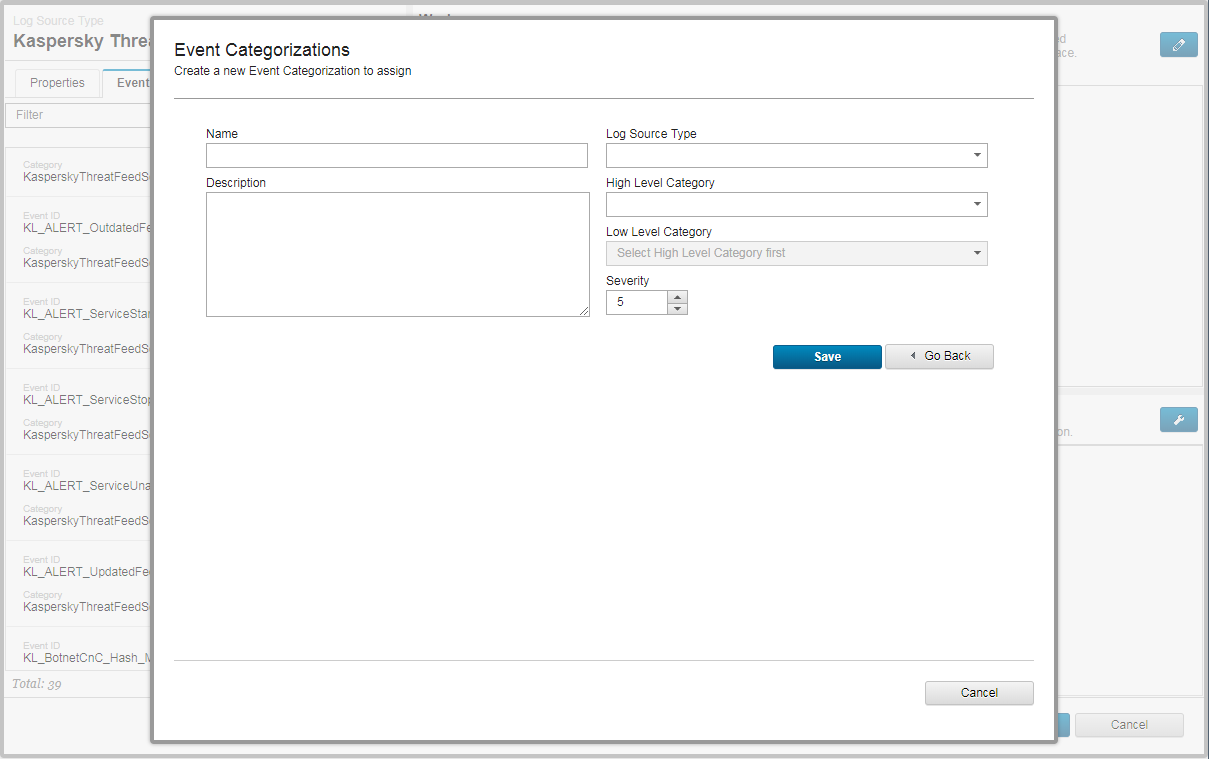
Creating a new QID record
- Fill in the form as follows:
- In the Name text box, specify a category as described earlier in this section.
- In the Log Source Type text box, specify
Kaspersky Threat Feed Service. - Fill in other fields as you see fit.
- Click Save.
The window closes and the QID/Name text box of the previous window contains the added category.
- Click Search.
In the Event Categorizations window from step 4, the Search Results table contains a row with the new QID record.
- In the Search Results table, select the row with the new QID record and click OK.
The Event field in the Create a new Event Mapping window contains the new QID.
- Fill in the remaining fields in the Create a new Event Mapping window as follows:
- In the Event ID text box, specify the category that is being added.
- In the Category text box, specify
KasperskyThreatFeedService.
Click Create.