Installing Kaspersky Threat Feed App
Kaspersky Threat Feed App is installed from a file, like other Splunk apps.
To install Kaspersky Threat Feed App:
- Locate the Kaspersky Threat Feed App application file.
This file is named
Kaspersky-Threat-Feed-App-for-Splunk.tar.gz. - In Splunk Web, go to the home page.
- On the home page, click the Manage Apps icon.
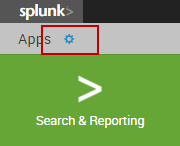
Manage Apps icon
- On the Apps page, click the Install app from file button.
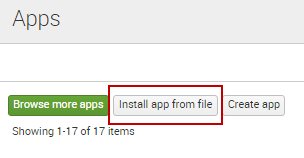
Install app from file button
- In the Upload an app message box, click the Choose File button and select the
Kaspersky-Threat-Feed-App-for-Splunk.tar.gzapplication file.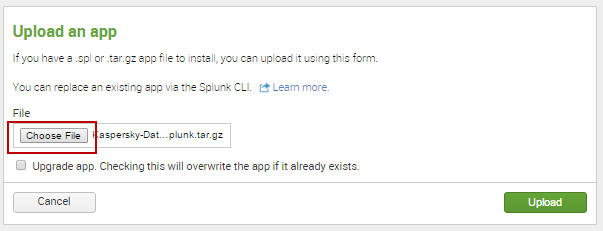
Choose File button
- In the Upload an app message box, click the Upload button.
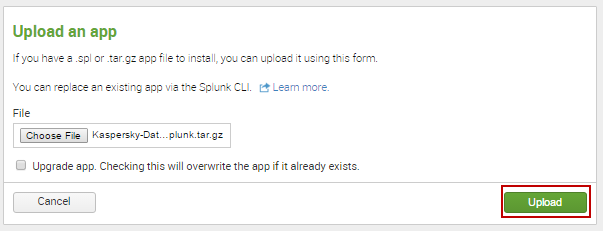
Upload button
- In the Restart required message box, click the Restart Splunk button.
This step can be skipped, depending on the Splunk version. If Splunk does not display the Restart required message box, skip this step.
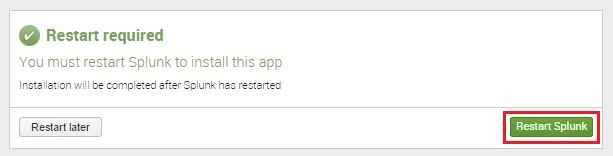
Restart Splunk button
- When Splunk starts again, the Apps page will open with information about successful installation of Kaspersky Threat Feed App. Kaspersky Threat Feed App will appear in the list of apps on the Splunk home page.
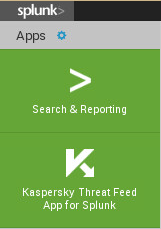
Kaspersky Threat Feed App in the list of apps