Creating integration with Tigerpaw
After you connect to the Administration Server, the integration properties window opens, where you can create an integration between Tigerpaw and Kaspersky Security Center by means of Kaspersky Security Integration Tool for MSP.
Creation of an integration between Tigerpaw and Kaspersky Security Center is required only when you launch Kaspersky Security Integration Tool for MSP for the first time.
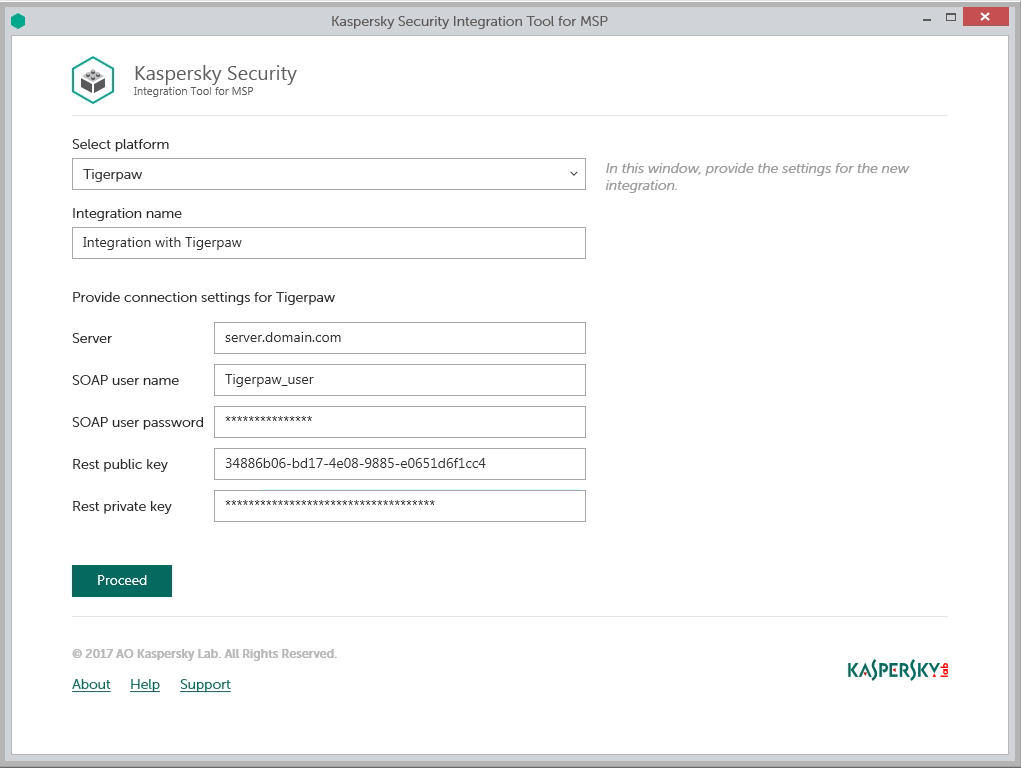
Specifying Tigerpaw integration settings
To create integration with Tigerpaw:
- In the Integration Settings window that opens after you connect to the Administration Server, specify the following settings for the newly created integration:
- Select platform—Select the integration platform from the drop-down list. The list contains the names of all platforms that Kaspersky Security Center can be integrated with. For integration with Tigerpaw, select Tigerpaw.
- Integration name—Name of the new integration. This field cannot be blank. By default, the integration name is Integration with <Platform_Name>. The integration name is displayed in the Kaspersky Security Integration Tool for MSP window as a link that allows you to view and access the integration properties.
- Server—Address of the computer on which the Tigerpaw server is installed. This field cannot be blank.
- SOAP user name—ASMX API user name that you created for your integration. This field cannot be blank.
- SOAP password—Password for the ASMX API user that you created for your integration. This field cannot be blank.
For details about how to obtain the ASMX API user name and password refer to section Configuring ASMX API connection parameters.
- Rest public key—Public key generated by Tigerpaw for the rep account that you use for your integration. This field cannot be blank.
- Rest private key—Private key generated by Tigerpaw for the rep account that you use for your integration. This field cannot be blank.
Tigerpaw generates both public and private keys. For details about how to generate the keys, see section Configuring REST API connection parameters.
- Click the Proceed button when you have finished specifying the integration settings.
These settings are saved and then used by Kaspersky Security Integration with Tigerpaw to access Tigerpaw items.
Kaspersky Security Center is now integrated with Tigerpaw.