General service order creation settings
In the General section of the Service orders tab, you can configure general settings for service order creation. General settings are applicable to all service orders that have been automatically created in Tigerpaw as a result of events or computer status changes that occur in Kaspersky Lab products. General settings provide desired initial values to the service order attributes so that service orders are created correctly in Tigerpaw.
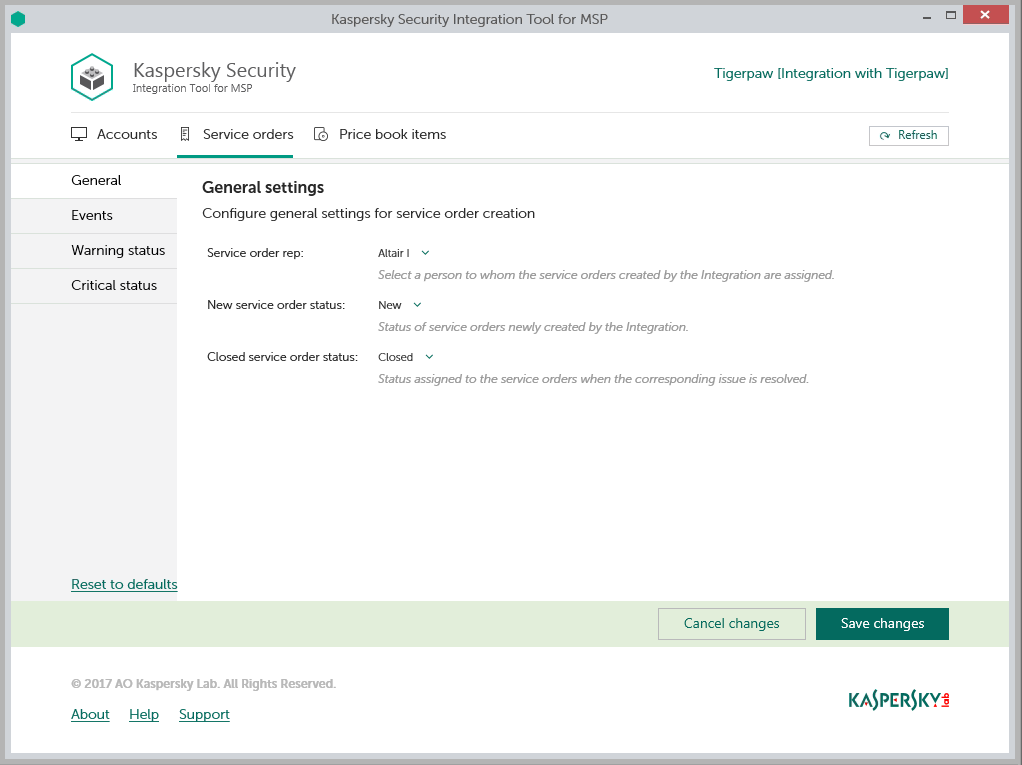
Configuring general service order creation settings
To configure general settings for service order creation:
- In the Kaspersky Security Integration Tool for MSP window, click the Service orders tab.
- In the left pane, select the General section to configure general service order creation settings.
- Edit the following settings:
- Service order Rep—In the drop-down list, select the person to assign the newly created service orders to, when they are automatically created in Tigerpaw as a result of an event occurrence or a change in computer status. This value is required.
- New service order status—In the drop-down list, select the status to be assigned to new service orders, which are automatically created in Tigerpaw as a result of an event occurrence or a change in computer status. This value is required.
- Closed service order status—In the drop-down list, select the status to be assigned to automatically closed service orders. This status is assigned to service orders that were created based on a computer status change and then automatically closed by Kaspersky Security Integration Service for MSP, when the corresponding issue is resolved. This value is required.
- When you finish configuring general service order creation settings, click the Save changes button to save the settings.
General service order creation settings are configured and service orders in Tigerpaw are created in accordance with the specified rules.
You can cancel changes and reset general service order creation settings to their last saved values.
To cancel changes of general service order creation settings and restore last saved values:
- Open the Service orders tab and in the left pane select the General section.
- Click the Cancel changes button.
You can also reset general service order creation settings to their default values.
To reset general service order creation settings to their default values:
- Open the Service orders tab and in the left pane select the General section.
- Click the Reset to defaults link.