Quick Start with Kaspersky Transforms for Maltego
This chapter describes how you can start using Kaspersky Transforms for Maltego.
Getting started with Kaspersky Transforms for Maltego involves three steps:
- Installation.
- Requesting a token.
- Applying the token.
- Performing a transform.
An overview of each step is given below.
Kaspersky Transforms for Maltego installation
The following procedure guides you through installation of Kaspersky Transforms for Maltego. For more information, see section "Installing Kaspersky Transforms for Maltego".
To install Kaspersky Transforms for Maltego:
- Run the Maltego client that you use.
- On the Home tab, click the Transform Hub button.
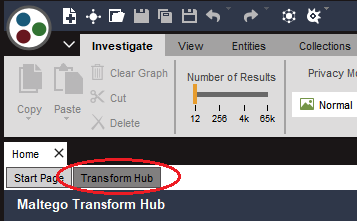
Activating Transform Hub pane
- In the Transform Hub pane, click the Install button of the
KasperskyTransform Hub member.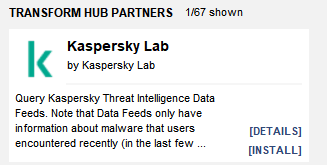
Installing the Transform Hub member
- Confirm the operation by clicking Yes in the Install Transforms dialog box that opens.
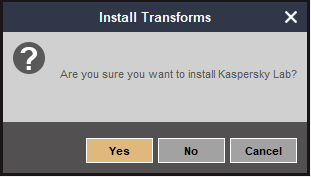
The Install Transforms dialog box
The
KasperskyTransform Hub member will be installed and a dialog box containing summary information will be displayed.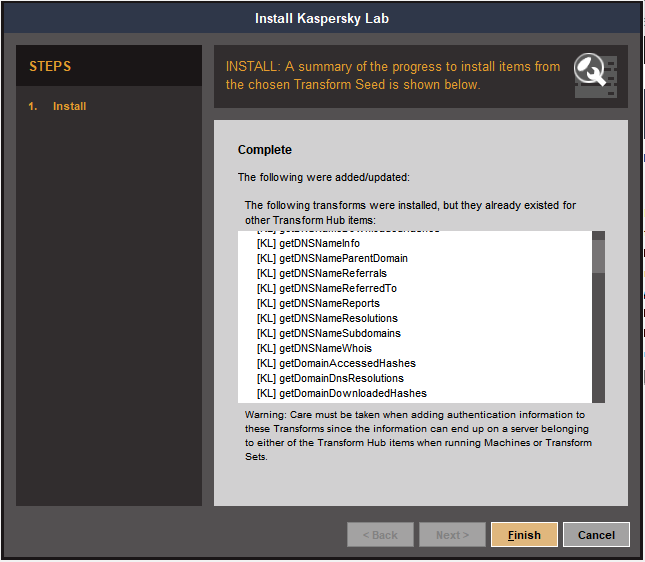
Summary information
Requesting a token
To use Kaspersky Transforms for Maltego, you must acquire an API token.
If you have a Commercial license, you can get an API token on the settings page of your Kaspersky Threat Intelligence Portal account.
To request a token for demo usage:
- Sign in to Kaspersky Open Threat Intelligence Portal by using your Kaspersky Account.
If you do not have a Kaspersky Account, create it.
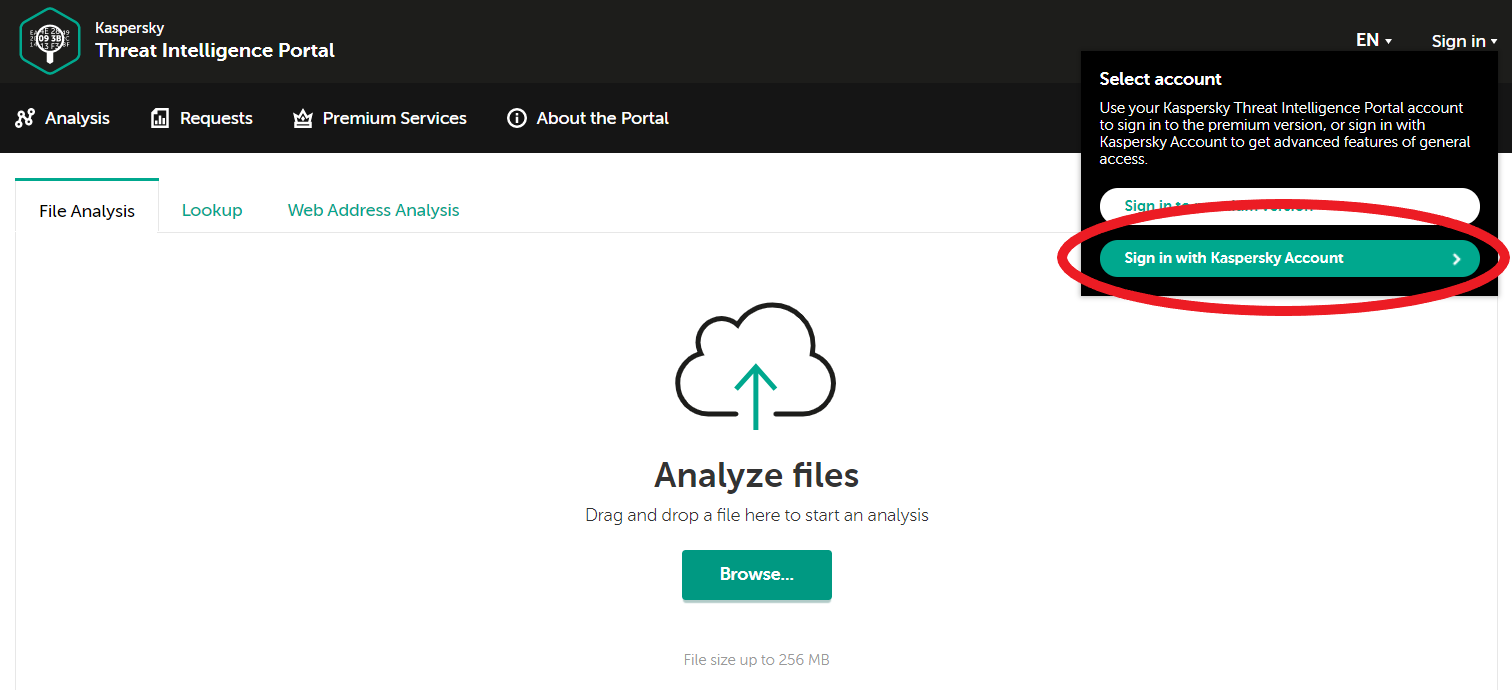
Signing in to Kaspersky Open Threat Intelligence Portal
- Click your email address at the top of the page, and then select Request token.
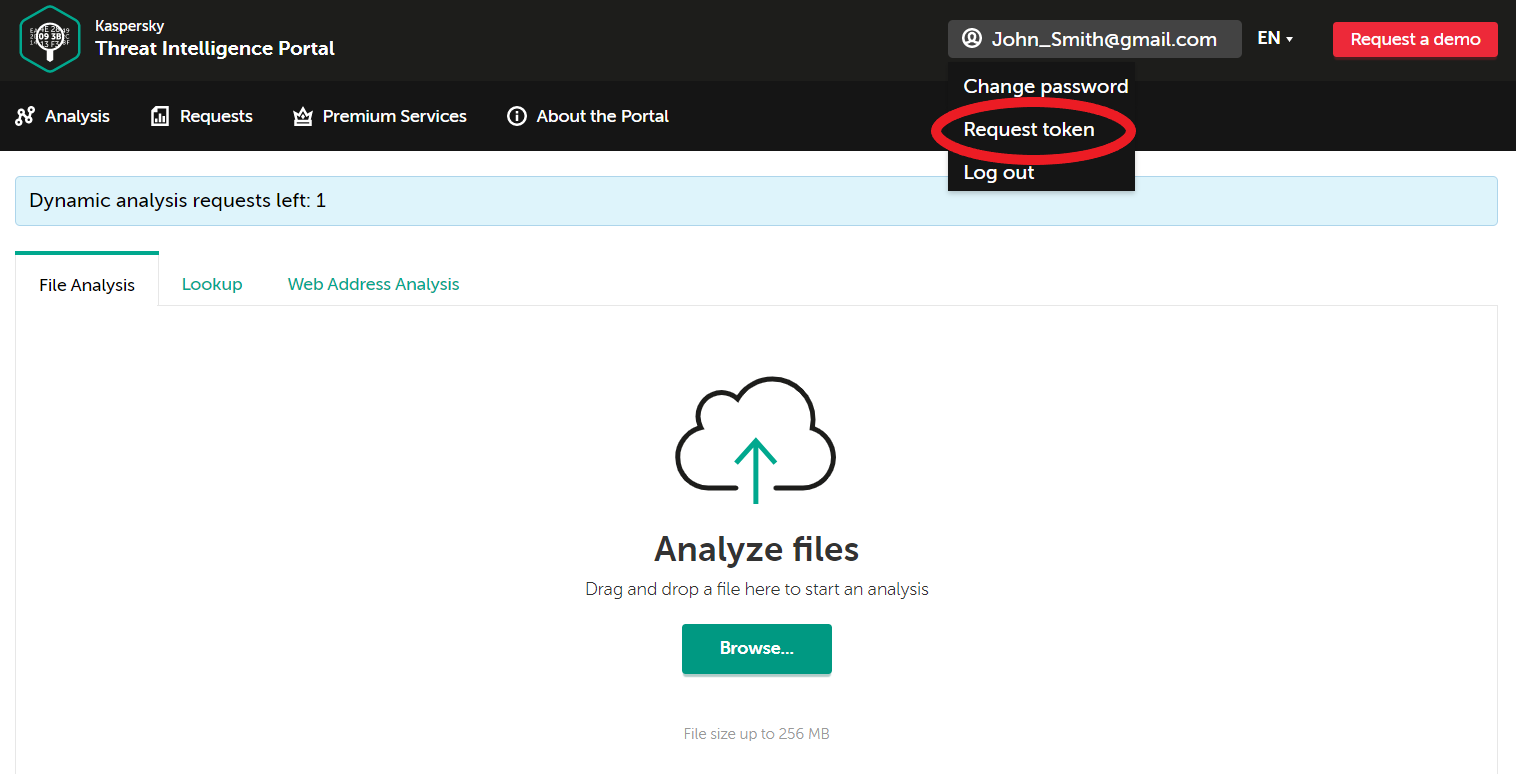
Accessing the Request API Token page
- On The Request API Token page that opens, you can use the calendar to specify a validity period or expiration date for the token.
By default, one year is specified.
The validity period for the token cannot be changed after it is generated. You can only request another token, and then specify a new required date.
- Click the Request token button.
The generated token appears in the text field. You can view your token at any time on the Request API Token page.
Information about the token's validity period is displayed below the text field. A warning is displayed if there is less than one week left until the token expires.
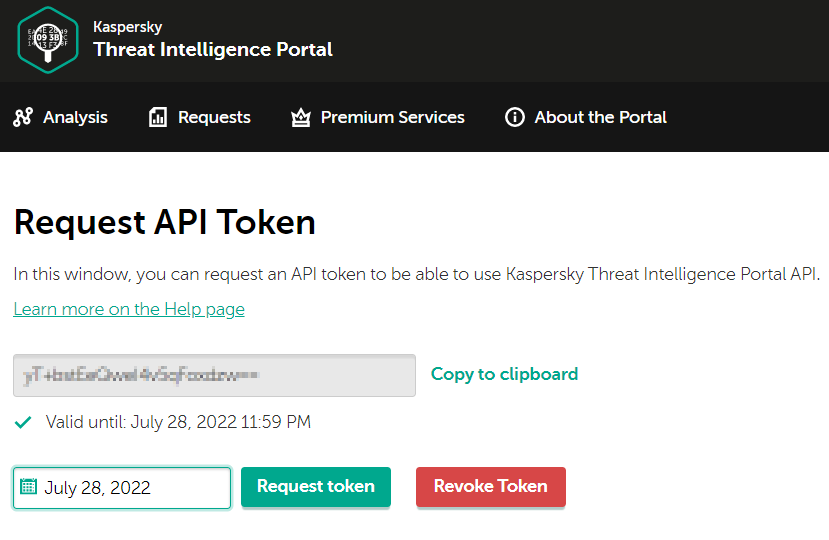
The Request API Token page
- If necessary, you can copy the token by clicking the Copy to clipboard button.
Applying the token
To apply the API token:
- Click the Details button of the
KasperskyTransform Hub member. - In the Transform Seed Details window that opens, click Settings.
- Enter or paste the token into the Token field, and then click Close.
The token will be used in every transform.
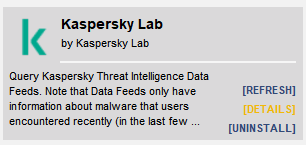
Displaying the Transform Hub member details
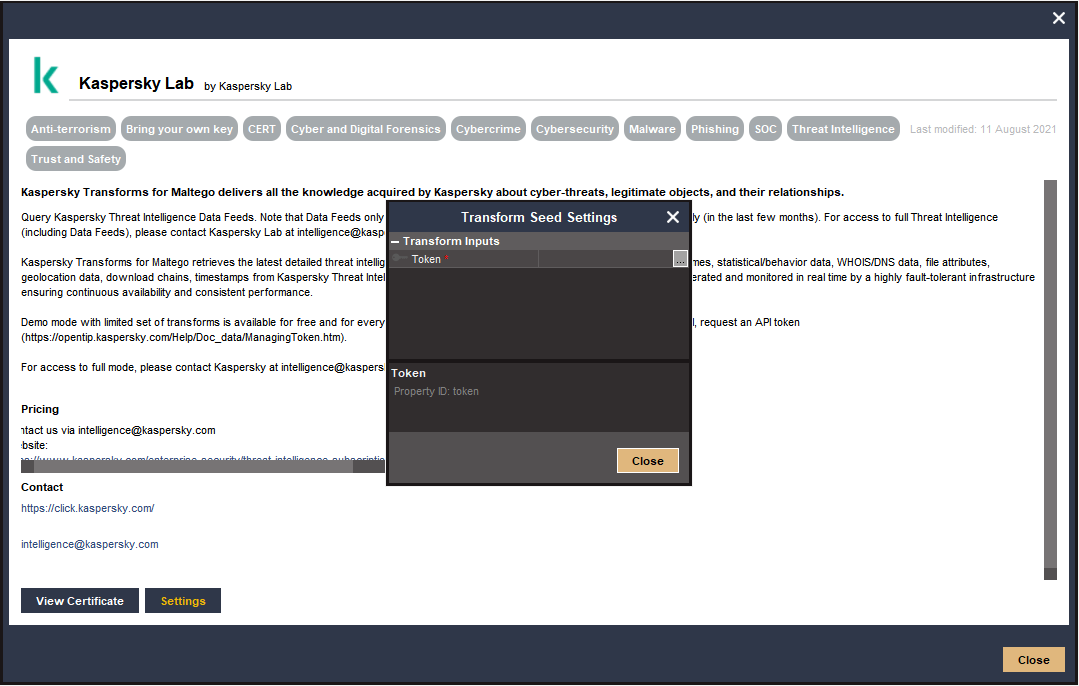
Transform Hub member settings
Performing a transform
To use transforms provided by Kaspersky Transforms for Maltego with a Commercial license, you must accept the Terms and Conditions and the Statement About Data Provision in your Kaspersky Threat Intelligence Portal account.
To perform a transform:
- Right-click an entity that you want to perform a transform on.
- In the context menu, select the transform you want to perform, and then click the Run (
 ) button next to your selection.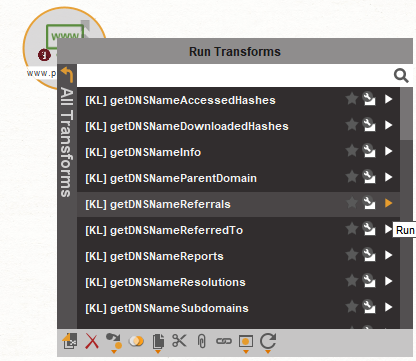
Performing a transform
- Check the token in the Token field of the Required inputs dialog box, that opens.
Enter another token if required.

The Required inputs dialog box
If you select the Remember these settings check box, the token will be automatically used later for this transform in the future. You can change the token at any time by changing the settings of the transform.
The Maltego client either performs the transform or displays an error message. For information on possible problems and how to solve them, see section "Troubleshooting".
Page top