Upgrading the application without a restart
Upgrading the application without a restart provides uninterrupted server operation when the application version is updated.
Upgrading the application without a restart has the following limitations:
- You can upgrade the application without a restart starting with version 11.10.0. To upgrade an earlier version of the application, you must restart the computer.
- You can install patches without a restart starting with version 11.11.0. To install patches for earlier versions of the application, a computer restart may be required.
- Upgrading the application without a restart is not available on computers with enabled data encryption (Kaspersky encryption (FDE), BitLocker, File Level Encryption (FLE)). To upgrade the application on computers with enabled data encryption, the computer must be restarted.
- The application cannot be upgraded on a virtual machine without a restart. To upgrade the application on a virtual machine, you must restart the virtual machine.
After upgrading the application, installing a patch, changing the set of application components, or restoring, Kaspersky Endpoint Security restarts to begin using the new version. Restarting Kaspersky Endpoint Security may take up to one minute. During this time, the level of computer protection is reduced. After restarting the application, the computer's protection level will be restored.
How to select the application upgrade mode in the Administration Console (MMC)
How to select the application upgrade mode in the application interface
 button.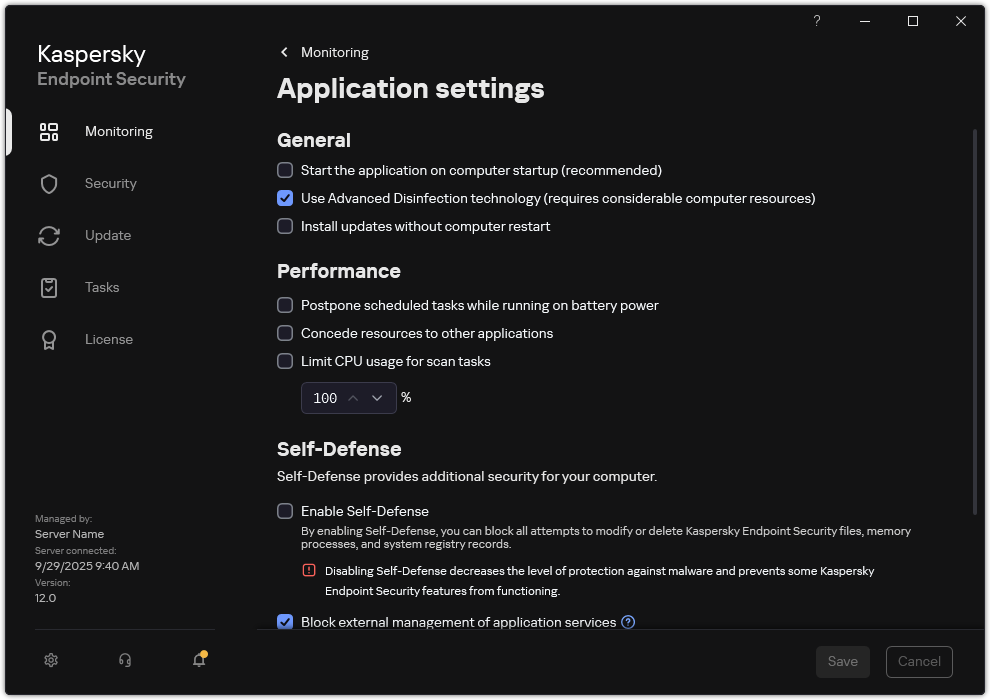
As a result, after upgrading the application without a restart, two versions of the application will be installed on the computer. The installer installs the new version of the application to separate subfolders in the Program Files and Program Data folders. The installer also creates a separate registry key for the new version of the application. You do not have to manually remove the previous version of the application. The previous version will be removed automatically when the computer is restarted.
You can check the Kaspersky Endpoint Security upgrade using the Kaspersky application version report in the Kaspersky Security Center console.
Page top