Enabling two-step verification for your own account
You can enable two-step verification only for your own account.
Before you start enabling two-step verification for your account, ensure that an authenticator app is installed on the mobile device. Ensure that the time set in the authenticator app is synchronized with the time set of the device on which Administration Server is installed.
To enable two-step verification for a user account:
- In the main menu, go to Users & roles → Users & groups, and then select the Users tab.
- Click the name of your account.
- In the user settings window that opens, select the Authentication security tab:
- Select the Request user name, password, and two-step verification code option. Click the Save button.
- In the two-step verification window that opens, click View how to set up two-step verification.
Click View QR code.
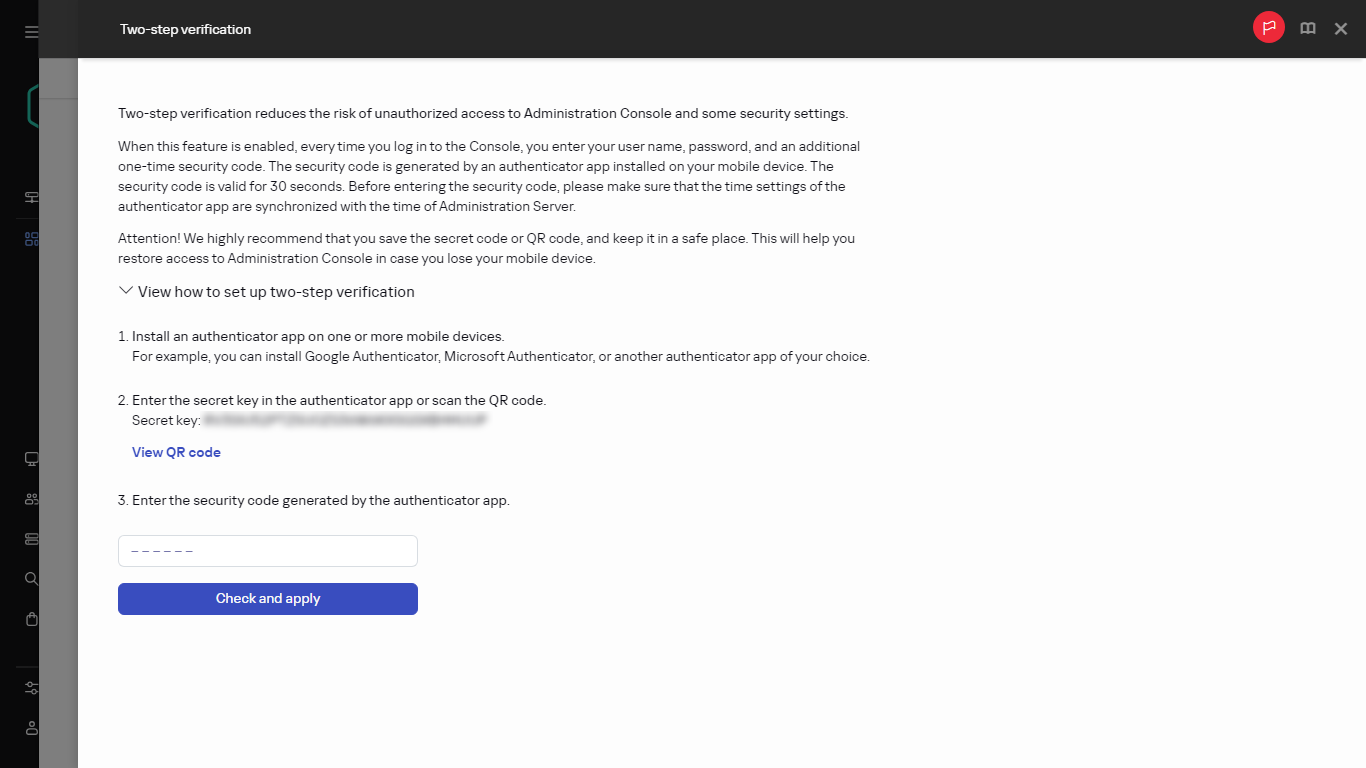
Generating a QR code for the authenticator app
- Scan the QR code by the authenticator app on the mobile device to receive one-time security code.
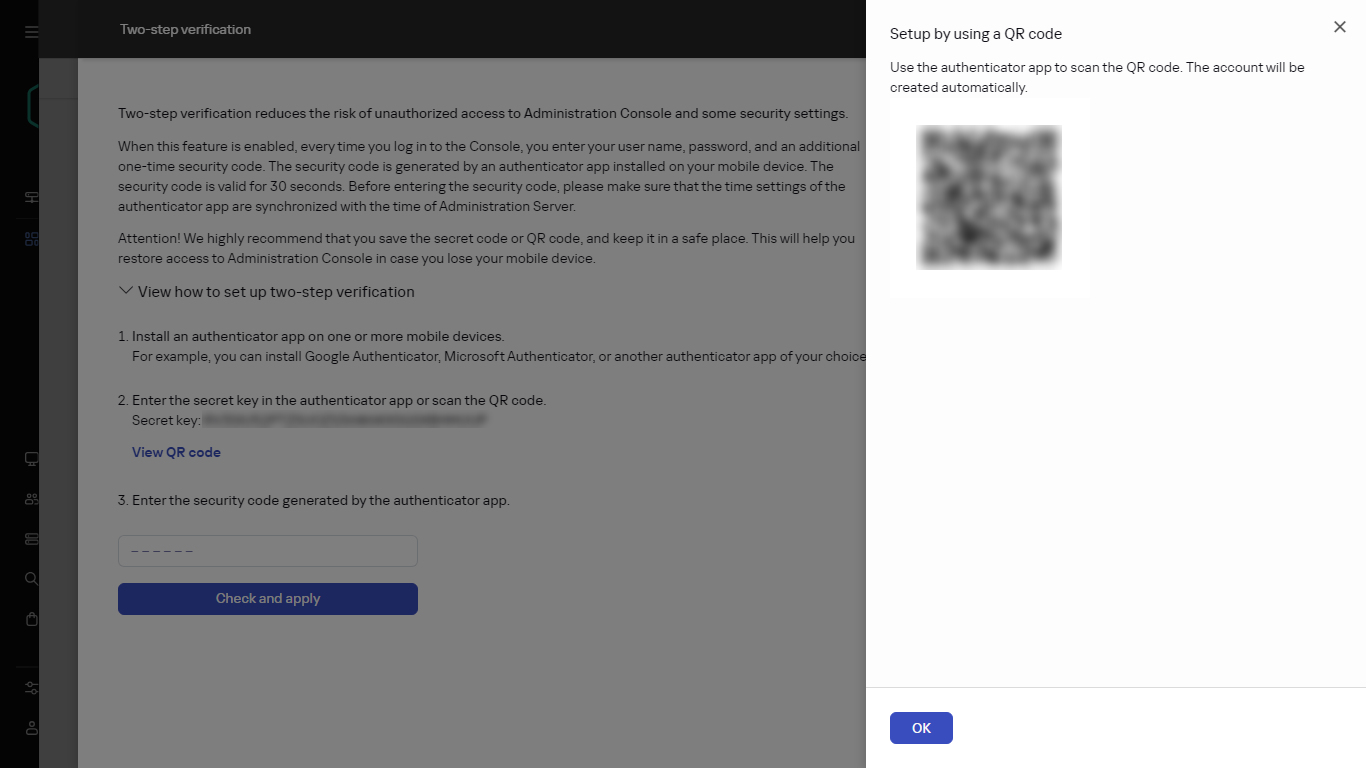
QR code for the authenticator app
- In the two-step verification window, specify the security code generated by the authenticator app, and then click the Check and apply button.
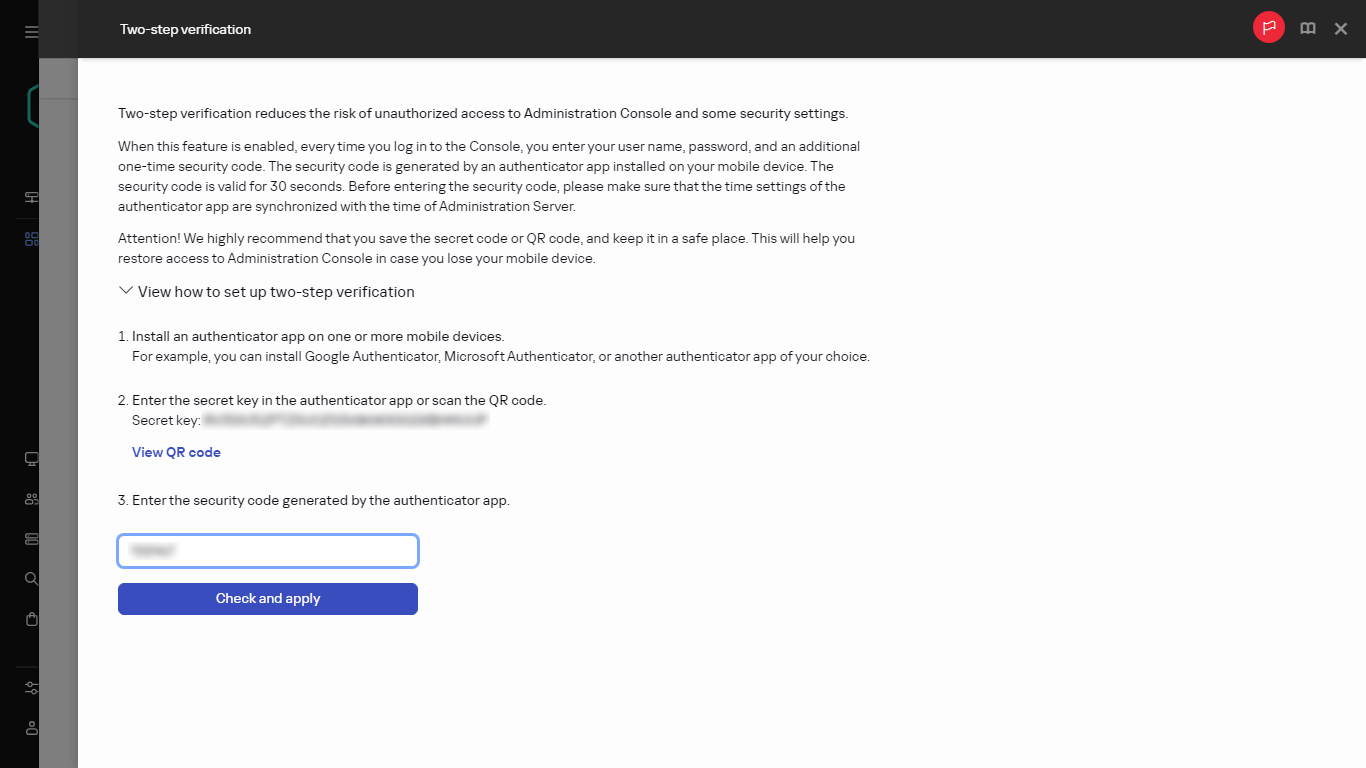
Entering the security code from the authenticator app
- Click the Save button.
Two-step verification is enabled for your account.
Scan the QR code by the authenticator app on the mobile device to receive one-time security code.
Page top