Manual feeds update
Kaspersky Threat Feed App for Splunk Cloud has the klupdatefeeds command implemented, which allows you to perform two actions:
- Display the feeds that are available with the imported certificate
- Start a manual feeds update
This command should be executed on the Search tab.
The following message can be displayed after the klupdatefeeds command is executed:Kaspersky_Threat_Feed_App_for_Splunk_Cloud status='Error while downloading Kaspersky Threat Data Feeds: an instance of the kl_feed_for_splunk.py script is already running'
This means that Splunk has launched automatic feeds updating. The klupdatefeeds command fails when the feeds update is active. If you only want to update the feeds manually, disable the alert intended for feeds automatic updating.
Displaying available feeds
To display the feeds that are available with the imported certificate, specify the following search request:
| klupdatefeeds check
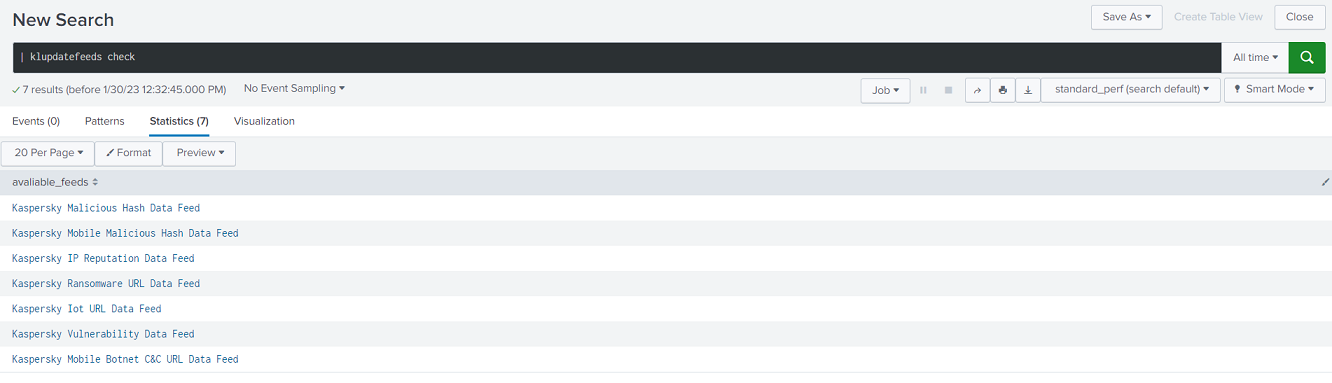
Getting the list of available feeds
Manual feeds updating
To start the manual feeds update, specify the following search request:
| klupdatefeeds update
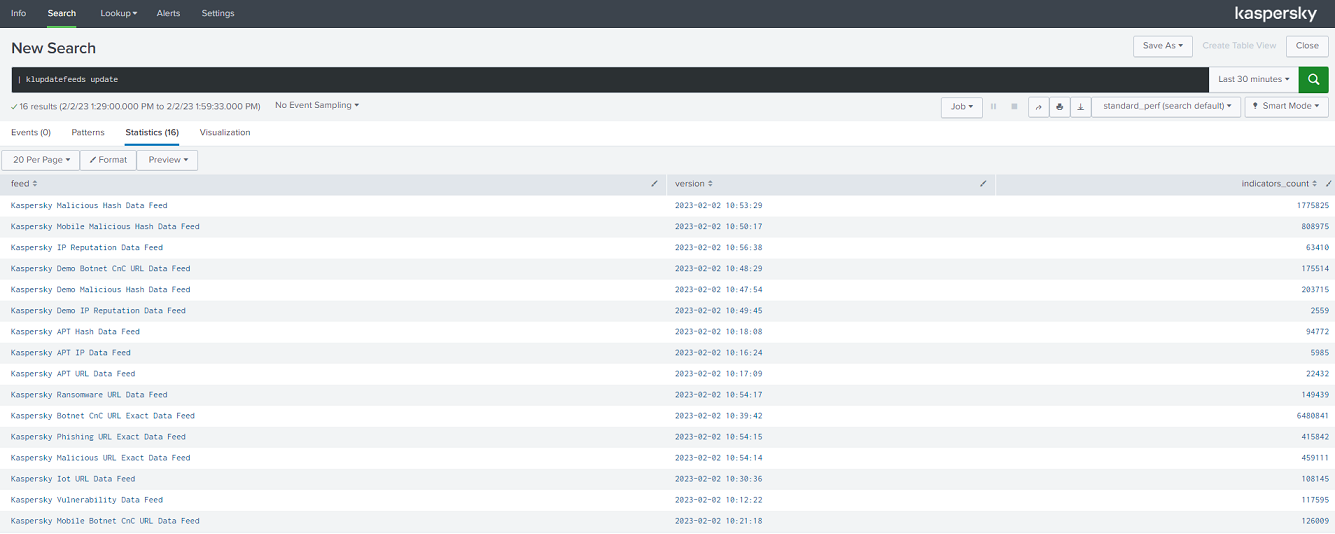
Starting manual feeds update
In the table above, the indicator_count value for the updated feeds may not correspond to the limits set in the Settings window because the indicators from the context are also taken into account.
Feeds update may take up to 20 minutes.
Page top