Service orders for computer statuses
In the Warning status and Critical status sections of the Service orders tab, you can configure service order creation rules for the computer statuses. This allows service orders to be created in Tigerpaw when the computer status in Kaspersky Security Center changes to Warning or Critical. You can edit service order creation settings either for an individual computer status or for several statuses at the same time.
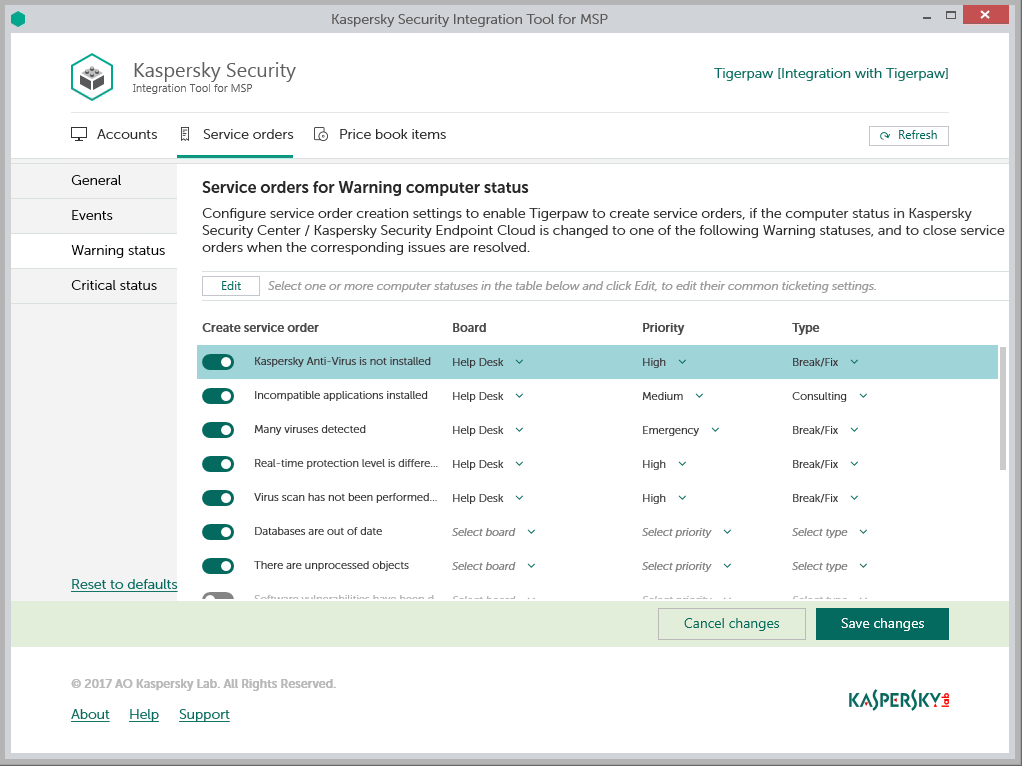
Configuring service order creation for computer statuses
To set up service order creation for computer status:
- In the Kaspersky Security Integration Tool for MSP window, click the Service orders tab.
- In the left pane, select the Warning status or Critical status section to configure service order creation for computer statuses.
- In the Create service order column, use the toggle buttons to enable or disable service order creation for the corresponding status descriptions.
By default, service order creation is enabled for all computer status descriptions.
- Edit the service order creation settings.
You can edit the main service order creation settings, which are displayed in the main screen, as well as additional settings, which are displayed in the additional pop-up window.
- To edit the main service order creation settings, select the line that contains the status description and edit its settings by selecting the required values in the corresponding fields.
- To edit both the main and additional service order creation settings, select the one or more lines that contain the event severities and click the Edit button above the table.
Editing service order creation settings for multiple computer statuses is useful if you want to assign the same settings to these computer statuses. If you want the service order creation settings to be different, edit them individually for each computer status.
You can edit the following service order creation settings:
- Board—Select the board to assign the service order to. Boards are configured in Tigerpaw.
- Priority—Select the priority for the service orders created in Tigerpaw. Assigning priorities to the service orders created for computer status change is used to prioritize corresponding service orders in Tigerpaw. The service order priority allows you to respond to the issues in order of their importance, so that more urgent problems can be resolved sooner. This value is required.
- Type—Select the type to be assigned to the service order.
- When you finish configuring service order creation for computer statuses, click the Save changes button to save the settings.
Service order creation for computer status is configured and service orders in Tigerpaw are created in accordance with the specified rules.
You can cancel changes and reset service order creation settings to their last saved values.
To cancel changes of service order creation settings for computer statuses and restore last saved values:
- Open the Service orders tab and in the left pane select the Warning status or Critical status section.
- Click the Cancel changes button.
You can also reset service order creation settings to their default values.
To reset service order creation settings for computer statuses to their default values:
- Open the Service orders tab and in the left pane select the Warning status or Critical status section.
- Click the Reset to defaults link.