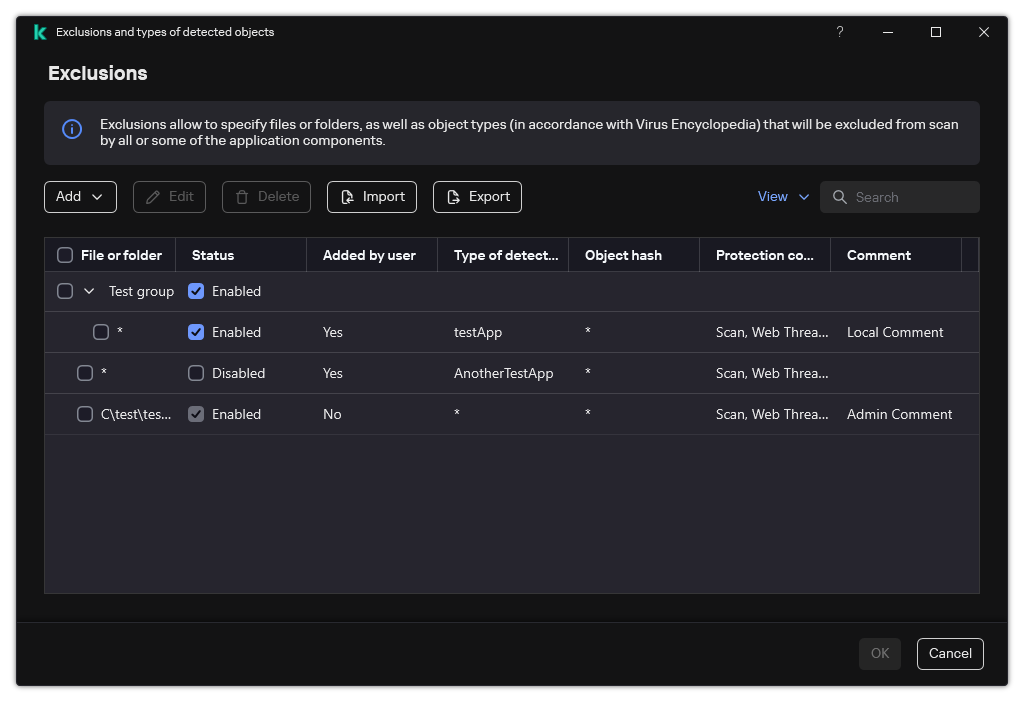
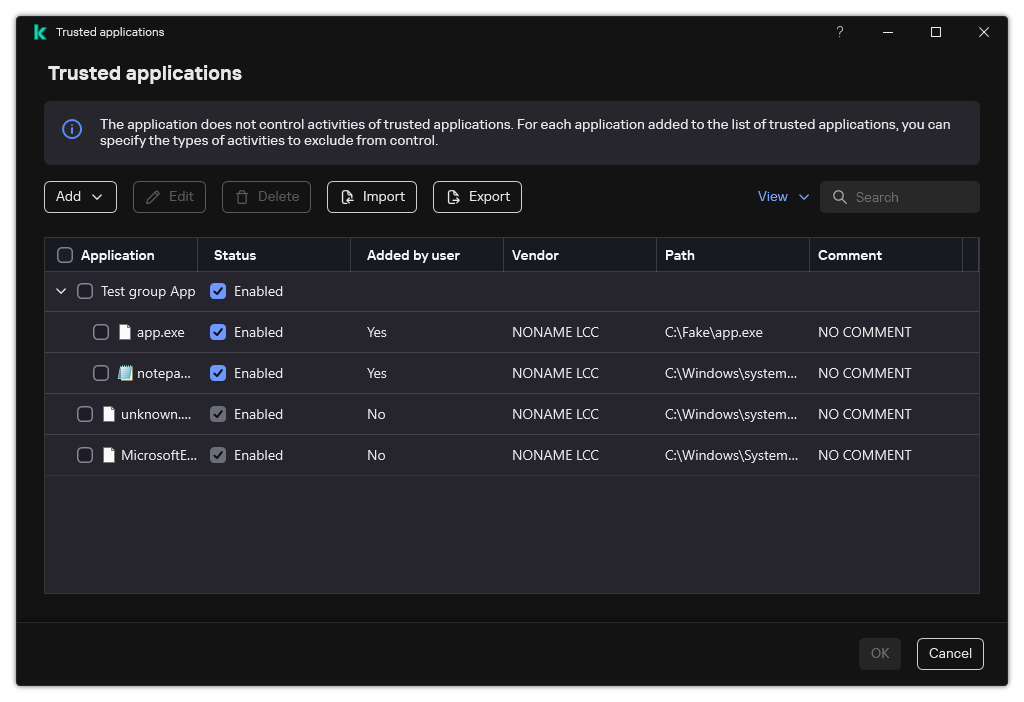
A trusted zone is a system administrator-configured list of objects and applications that Kaspersky Endpoint Security does not monitor when active. The trusted zone consists of the following lists: scan exclusions and trusted applications. You can export these lists to XML files and other formats. Then you can modify the file to, for example, add a large number of exclusions of the same type. You can also use the export/import function to back up the list of exclusions and the list of trusted applications, or to migrate the lists to a different server.
The application uses the following formats for exporting and importing the list of exclusions:
XML is available in Administration Console (MMC), Web Console, and Cloud Console.
DAT is available only for import in the Administration Console (MMC). The purpose of this format is to maintain compatibility with older versions of the application. You can convert a DAT file to XML in the Administration Console (MMC) to migrate exclusion lists to Web Console.
CSV is only available in the local interface of the application.
Kaspersky Endpoint Security uses the XML format for exporting and importing the list of trusted applications.
In the Kaspersky Security Center Administration Console tree, select Policies.
Select the necessary policy and double-click to open the policy properties.
In the policy window, select General settings → Exclusions and object types.
Under Scan exclusions and trusted applications, select the component of the trusted zone that you want to export or import: Scan exclusions or Trusted applications.
Click Settings.
To export the list of rules:
Select the exclusions that you want to export. To select multiple ports, use the CTRL or SHIFT keys.
If you did not select any exclusion, Kaspersky Endpoint Security will export all exclusions.
Click the → Export button.
In the window that opens, specify the name of the XML file to which you want to export the list of exclusions, and select the folder in which you want to save this file.
Save the file.
Kaspersky Endpoint Security exports the entire list of exclusions to the XML file. Kaspersky Endpoint Security also supports exporting the list of exclusions to a DAT file.
List of trusted applications
To import the list of exclusions:
Click the → Import button.
In the window that opens, select the XML file from which you want to import the list of exclusions.
Open the file.
If the computer already has a list of exclusions, Kaspersky Endpoint Security will prompt you to delete the existing list or add new entries to it from the XML file. Kaspersky Endpoint Security also supports importing a list of exclusions from a DAT file.
In the main window of the Web Console, select Assets (Devices) → Policies & profiles.
Click the name of the Kaspersky Endpoint Security policy.
The policy properties window opens.
Select the Application settings tab.
Go to the Trusted Zone section.
To export the list of rules:
Click the Malware Scan exclusions link.
Select the exclusions that you want to export.
Click the → Export button.
Kaspersky Endpoint Security exports the list of exclusions to a JSON file in the default downloads folder.
To export the list of trusted applications:
Select the trusted applications that you want to export.
Click the → Export button.
Kaspersky Endpoint Security exports the list of trusted applications to a JSON file in the default downloads folder.
To import the list of exclusions:
Click the Malware Scan exclusions link.
Click the → Import button.
In the window that opens, select the JSON file from which you want to import the list of exclusions.
Open the file.
If the computer already has a list of exclusions, Kaspersky Endpoint Security will prompt you to delete the existing list or add new entries to it from the JSON file.
To import a list of trusted applications:
Click the Applications link.
Click the → Import button.
This opens a window; in that window, select the JSON file from which you want to import the list of trusted applications.
Open the file.
If the computer already has a list of trusted applications, Kaspersky Endpoint Security will prompt you to delete the existing list or add new entries to it from the JSON file.
In the application settings window, select General settings → Exclusions and types of detected objects.
Settings of exclusions
To export the list of rules:
In the Exclusions block, click the Manage exclusions link.
Select the exclusions that you want to export.
Click Export.
Confirm that you want to export only the selected exclusions, or export the entire list of exclusions.
In the window that opens, specify the name of the CSV file to which you want to export the list of exclusions, and select the folder in which you want to save this file.
Save the file.
Kaspersky Endpoint Security exports the entire list of exclusions to the CSV file.
List of exclusions
To export the list of trusted applications:
In the Exclusions block, click the Specify trusted applications link.
Select the trusted applications that you want to export.
Click Export.
Confirm that you want to export only the selected trusted applications, or export the entire list.
This opens a window; in that window, enter the name of the XML file to which you want to export the list of trusted applications, and select the folder in which you want to save this file.
Save the file.
Kaspersky Endpoint Security exports the entire list of trusted applications to the XML file.
List of trusted applications
To import the list of exclusions:
In the Exclusions block, click the Manage exclusions link.
Click Import.
In the window that opens, select the CSV file from which you want to import the list of exclusions.
Open the file.
If the computer already has a list of exclusions, Kaspersky Endpoint Security will prompt you to delete the existing list or add new entries to it from the CSV file.
To import a list of trusted applications:
In the Exclusions block, click the Specify trusted applications link.
Click Import.
This opens a window; in that window, select the XML file from which you want to import the list of trusted applications.
Open the file.
If the computer already has a list of trusted applications, Kaspersky Endpoint Security will prompt you to delete the existing list or add new entries to it from the XML file.
 →
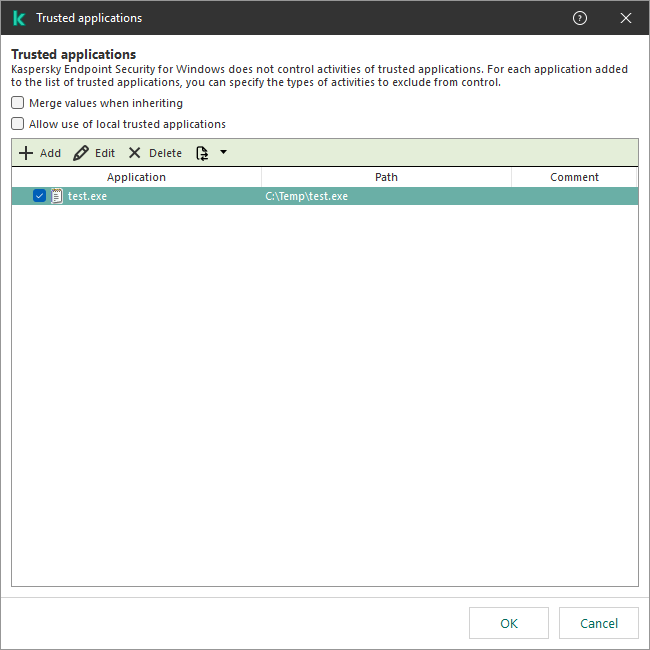
→ 
 button.