Log forwarding
When you contact Technical Support, Kaspersky experts may ask you to provide event and audit logs. In the Kaspersky Thin Client interface, you can forward logs to a log server, from where the experts can download them.
The log server must first be deployed in your organization's infrastructure. For detailed information on server deployment, please refer to the Administrator's Guide for this server.

The maximum file sizes for the event log and audit log are 150 MB and 512 MB, respectively. When the file size of the event or audit log reaches its corresponding limit, Kaspersky Thin Client deletes the existing logs and starts to record new ones. Each time event and audit logs are updated, the current version of Kaspersky Thin Client is recorded at the beginning of the log.
To forward Kaspersky Thin Client audit and event logs:
- In the Kaspersky Thin Client control panel, click
 and select Tools in the menu that opens.
 - In the window that opens, select the Event and audit logs section (see the figure below).
This section displays the event log entries. Audit log entries are not displayed in the Kaspersky Thin Client interface.
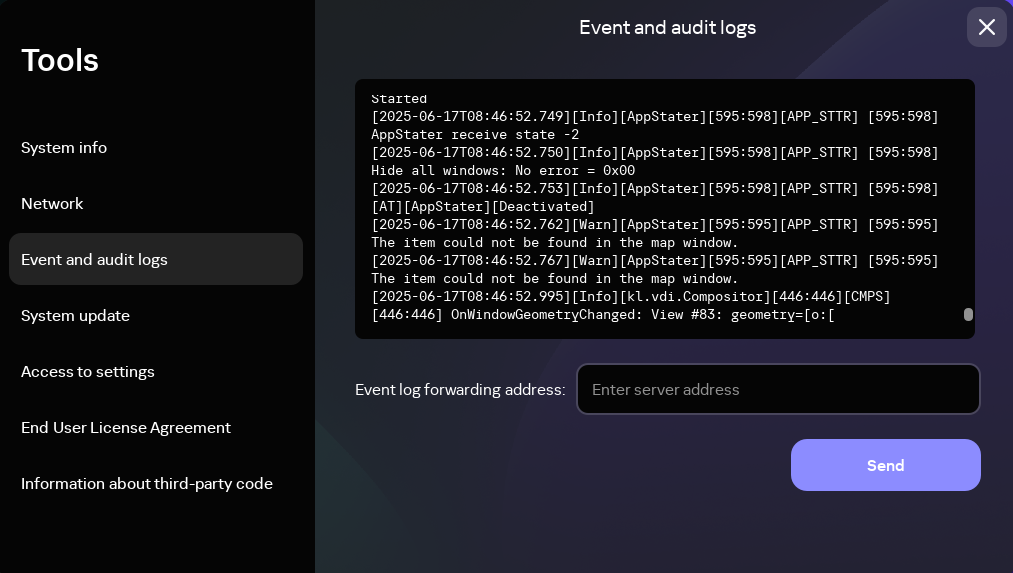
Tools. Event and audit logs section
This displays information about registered events of Kaspersky Thin Client.
- In the Event log forwarding address field, enter the address of the destination server that should receive audit and event logs, and click the Send button.
If the thin client belongs to an administration group, the log server address can be enforced via the Web Console. If this is the case, you will not be able to change it in the Kaspersky Thin Client interface.
We recommend verifying the correct address of the destination server to which you are sending logs. If the wrong address is indicated, logs could be exposed to third parties.
- In the window that opens, confirm that you want to forward audit and event logs.
If the device is not a member of an administration group and this is the first time you are sending event and audit logs to the log server, you will see a window prompting you to add a certificate to connect to the log server.
Check the settings of the certificate that you are adding and click the Add certificate button. The certificate will be added to the system certificate store of Kaspersky Thin Client and will be used for subsequent connections.
Kaspersky Thin Client audit and event logs will be forwarded to the specified server.
Page top