Answers to frequently asked questions
Press Ctrl+F to expand all topics in this section, type your search query and find the answer.
- In case you purchased the code via the Kaspersky website or My Kaspersky, contact Kaspersky Customer Service by choosing the topic and filling out the form.
- If you made your purchase via a different Kaspersky partner, contact them directly.
You will need to provide the following information:
- The date of the purchase
- Your full name
- The email address that you have used for the purchase
- Order number from the confirmation email
You don't need an activation code for Kaspersky Standard, Plus, Premium. For details, see the article.
Normally, the e-mail message with the activation code for Kaspersky Internet Security, Kaspersky Internet Security for Mac, Kaspersky Anti-Virus, and Kaspersky Total Security is delivered within an hour. If you did not receive the message, check your Spam or Junk email folders in case it was moved automatically there by mistake. If you still cannot locate the message with an activation code or if you have entered a wrong e-mail address, contact us or our retail partners.
- In case you purchased the code via the Kaspersky website or My Kaspersky, contact Kaspersky Customer Service by choosing the topic and filling out the form.
- If you made your purchase via a different Kaspersky partner, contact them directly.
You will need to provide the following information:
- The date of the purchase and order number from the confirmation e-mail
- Your full name and the e-mail address that you have used for the purchase
You can disable auto-renewal through the provider from whom you bought the subscription.
If you purchased the subscription on the Kaspersky website, follow the instructions depending on your provider:
- For 2Checkout, use this guide.
- For Nexway, use this guide.
- For Digital River, use this guide.
If you purchased the subscription through your Internet service provider (ISP), disable auto-renewal in your ISP personal cabinet or by contacting the support service of your ISP.
To cancel subscription for a mobile application, follow
Until you disable auto-renewal, funds for the next period will be withdrawn automatically.
After you disable auto-renewal, the current license will be valid until its expiration date.
The applications have different additional features. See
Kaspersky Standard, Plus, Premium is a new Kaspersky solution that protects your digital life with technologies that go beyond anti-virus. The solution includes multiple plans that vary by the level of protection and the number of features and services. For a detailed comparison of subscription plans, see Online Help.
Kaspersky Anti-Virus provides basic protection of your computer. This application can only be used to protect a Windows-based computer.
Kaspersky Internet Security includes all Kaspersky Anti-Virus features and provides additional protection for your computer and data. You can install Kaspersky Internet Security on a Windows, MacOS or Android device.
Kaspersky Total Security includes all Kaspersky Internet Security features and further allows you to backup your files regularly, move your personal data to a data vault, protect your passwords, protect your children from harmful content and control their digital life.
Kaspersky Security Cloud contains the same features as Kaspersky Total Security and further uses adaptive security technologies that adjust to your needs. You can install Kaspersky Security Cloud on a Windows, MacOS, iOS or Android device.
To learn more about Kaspersky Security Cloud and Kaspersky Total Security differences, see
When you place a purchase order for a solution on the Kaspersky website, the order is processed by one of our e-commerce partners. Kaspersky e-commerce partners are intermediate sellers that process your order on the Kaspersky website. Some of them are also responsible for charging money from your account when your license is renewed automatically. Working through e-commerce partners is a common practice among large international companies. Partners work according to local trade legislation and help us organize sales in different countries more efficiently. If you know from which partner you purchased a solution, your Customer Service request will be processed faster.
You can identify your e-commerce partner in the following ways:
Here are some possible reasons:
- You forgot about one of your subscriptions or licenses. Check your subscriptions on My Kaspersky or in your email. For the instructions, see this article.
- You have a license or subscription, you remember about it but you don't use it because you have already purchased another suitable subscription or license. Use the expiring subscription or license on a different device or wait until its term ends.
- You used a Kaspersky application before but have already uninstalled it. The notifications are sent by error. Submit a request to Kaspersky Customer Service by choosing the topic of your request.
When buying a subscription or license, you can choose the number of devices you want to protect. You can also change a device at any moment. For example, you can remove a MacOS device and add an Android device instead. We recommend that you manage your devices, subscriptions, and settings in your My Kaspersky account.
For the number of available devices and compatibility with operating systems, see the Kaspersky website.
To activate the application on multiple devices:
- Install the application on as many devices as your subscription allows. For instructions, see
- Connect the application on all devices to the same My Kaspersky account or use the same activation code on all the devices. For instructions, see Online Help for a specific application.
Each time you try to activate a Kaspersky application on your computer the application will check your computer for previously used activation codes:
- If the previous license has been found, the license term is renewed for a full period.
- In case the application was unable to find the previous license, you will see a window prompting you to enter the previous activation code manually. Select the Enter the previous activation code checkbox, type the code into the field and then click Next.
If you enter a
You will encounter an error if there is an issue with the code you have entered:
- The code is invalid, blocked or not found by the activation server.
- The code is not applicable in the region where the renewal is performed.
- The code has already been used for renewal or was issued as a promo campaign for free.
In this case, select I agree to decrease license validity period and click Next. The application will activate the license with a shorter term.
Each time you try to activate a Kaspersky application on your computer the application will check your computer for previously used activation codes:
- If the previous license has been found, the license term is renewed for a full period.
- In case the application was unable to find the previous license, you will see a window prompting you to enter the previous activation code manually. Select the Enter the previous activation code checkbox, type the code into the field and then click Next.
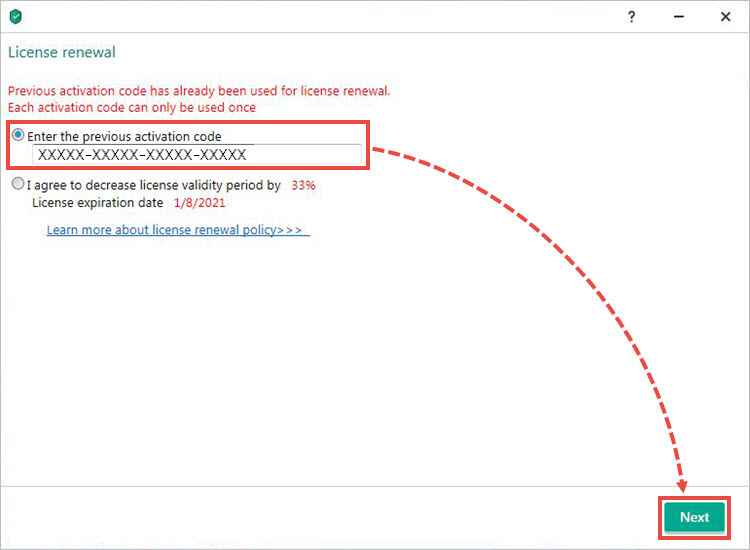
If you enter a
You will encounter an error if there is an issue with the code you have entered:
- The code is invalid, blocked or has already been used for renewal.
- The code was not found by the activation server or was issued as a promo campaign for free.
- The code is not applicable in the region where the renewal is performed.
In this case, select I agree to decrease license validity period and click Next. The application will activate the license with a shorter term.
If you experience any issues when installing a Kaspersky application, see the solutions in the Installation errors section.
- Right-click the application icon in the lower-right corner of the taskbar and click Exit. If the application icon is hidden, click
 .
. - If the confirmation window appears, click Confirm.
- Open Control Panel. See the instructions on the Microsoft support website.
- Go to Programs and Features. Select your Kaspersky application and click Uninstall/Change.
- If the application is password-protected, enter the user name and password. Click Yes.
If you have forgotten the password, reset it. For instructions, see - Click Next.
- Enter the password again if necessary. Click Next.
- Save the activation code in My Kaspersky for future use:
- If you were signed in to My Kaspersky, click Next.
- If you were not signed in, click Save and follow the application instructions. Click Next.
- Select the checkboxes beside the data you want to save. Click Next.
- Click Remove.
- Click Yes to reboot the computer.
When you use the kavremover tool, the following information and settings are also removed:
- License or subscription information. Make sure you have the activation code or license key saved before using the tool. We recommend connecting the application to your My Kaspersky account, where your license or subscription information will be saved. See this
- All application settings. If you want to save the application settings, export them. See the Online Help page for instructions on how to import and export settings, using Kaspersky Internet Security as an example.
To remove the application:
- Download the kavremvr.exe executable file.
- Run the file and carefully read through the End User License Agreement. Click Аccept if you agree to the terms.
- Enter the security code from the image.
- Select the Kaspersky application you want to remove and click Remove.
- Wait until you receive a notification that the application was successfully removed, click ОК and restart the computer.
During installation of a Kaspersky application, you may get the error with the code 27300. The text of the error message contains the code of the error and the driver that causes the problem.
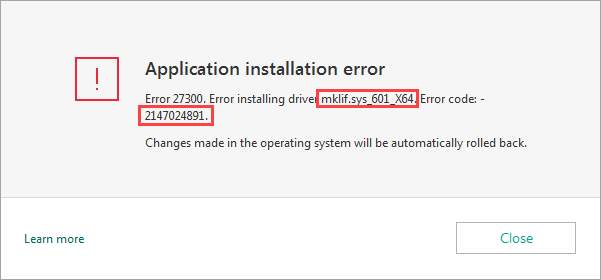
Solution
Find the solution matching the driver and the error code in the text of your error message inThe activation code may be needed for activating the application after installation, transferring it to a different device, or in case of license issues. For instructions on how to find the activation code, see this article.
If you cannot find the activation code, go to subscription details on My Kaspersky. Sign in to My Kaspersky. Go to the Subscriptions section.
Your 20-digit activation code will be shown in the Activation code field in the subscription information block.
You can also send the activation code to your email via My Kaspersky. To do so:
- Sign in to My Kaspersky.
- Click your email address in the upper-right corner and select Manage your account.
- Go to the Activation codes tab. If necessary, you can change the email address to which the code will be sent. Click Send.
You can activate an application with the same activation code a limited number of times due to anti-piracy measures. The error may appear in the following cases:
- You installed and activated the application on a new device.
- You reinstalled the application after upgrading the operating system on your computer.
- You removed the license and activated the application several times.
To reset the activation counter, submit a request to Kaspersky Customer Service by choosing the topic of your request. In your request, please provide the following information:
- If you purchased your license on the Kaspersky website, specify the email address you entered when completing the purchase.
- If you purchased your license in the online store of a different company, attach a screenshot or copy of the email sent to you with your activation code.
- If you purchased the application offline on a CD, attach a photograph of the card or brochure with the activation code printed on it.
- If you purchased the activation card, attach a photograph of the flip-side of the card with the activation code printed on it.
If you have auto-renewal enabled, you do not need to enter an activation code when the license expires. The license term is updated automatically after the purchase of the renewal.
It may take up to 24 hours between the payment and the update of the expiration date in the application window.
For Kaspersky Standard, Plus or PremiumIf the renewed subscription is used on multiple devices and its term failed to update on some of them, do the following:
- Open the application and select your profile.
- In the subscription section, click Details.
- Click Update status.
If the renewed subscription is used on multiple devices and its term failed to update on some of them, do the following:
- Open the application and click License in the lower-right corner.
- Click Update status.
If refreshing the status did not help, try deleting the license and then activating the application once again with the same activation code. See this
Cause
The error "Activation code is invalid for this region" occurs if you attempt to activate the application with an activation code that was intended for use in another country or region. For example, you may have gotten this error if you bought or downloaded Kaspersky Total Security in your home country and then tried to activate it while abroad.
Solution
To avoid this error, activate the application in the country you purchased it in.
This error can also occur if you are using VPN while activating the application. For example, you have Secure Connection enabled in
If the issue persists, submit a request to Kaspersky Customer Service by choosing the topic of your request. In your request, provide the following information:
- Region where you tried to activate the application
- Activation time and date
- Activation code of 20 symbols (four groups of five characters)
- IP address of the computer on which the application is installed. To find out your IP address, you can use one of these services.
- Your Internet service provider and a screenshot of the main application window of the application you tried to activate. See this
- Sign in to My Kaspersky. If you do not have an account, create it.
- Go to Subscriptions.
- Add your activation code to the corresponding field. If the activation code is added successfully, the page will display a new subscription.
- Click on the subscription that you have added.
The page will display the subscription details in the following blocks:
- Top block with the application name: subscription or license status, subscription or license expiration date, activation code, number of devices that can be covered by the subscription.
- My devices: information about connected devices.
- Apps: applications that can be used under your subscription or license.
- Users: information about the users with whom you have shared the subscription or license.
- Additional info: subscription or license activation date and expiration date, days until the subscription or license expires, license key.
It is impossible to extend the number of protected devices in the current license.
For example, if you bought a license for three devices, you can use it at your choice: for one, two or three devices. You cannot add a few more devices and accordingly recalculate the price in the license.
When the license expires, you can renew it and select the option with more devices.
It is impossible to reduce the number of protected devices in the current license.
For example, if you bought a license for three devices, you can use it at your choice: for one, two or three devices. You cannot reduce the number of devices and accordingly recalculate the price in the license.
After the license expires, you can buy a new one with fewer number of devices.
For Kaspersky Standard, Plus, Premium, see the instructions in Online Help.
For Kaspersky Internet Security, Kaspersky Internet Security for Mac, Kaspersky Anti-Virus, Kaspersky Total Security, and Kaspersky Small Office Security, you can enter an activation code in the Activation window.
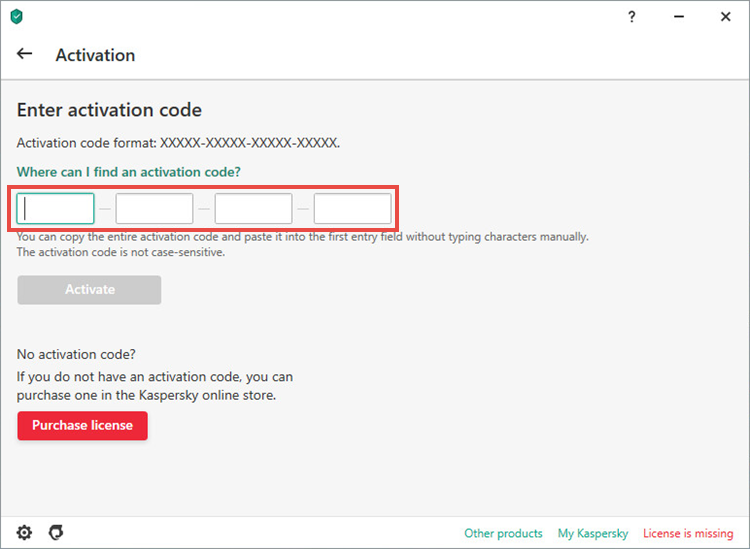
To learn how to open the Activation window, see the instructions below:
Cause
Your keyboard layout is switched to a different language or an application that automatically switches a keyboard layout (e.g. Punto Switcher) is installed on your computer.
Solution
- Make sure that your keyboard layout is switched to English. Try entering the code again.
- Quit the applications that may switch your keyboard layout. Try entering the code again.
- Type the code in the text editor, e.g. Notepad. Copy the code into the field.
If the application has accepted your activation code but an error occurs, try to find a solution in the Activation errors section.
In case of some activation issues, we recommend deleting a license key from an application and activating the application once again.
Before deleting the key from the application, check whether the
To delete the key and activate the application again:
- For Kaspersky Standard, Plus, or Premium, see this article for instructions.
- For Kaspersky Internet Security, Kaspersky Anti-Virus or Kaspersky Total Security, see this article for instructions.
Cause
Your activation code is intended for an old version of the application.
Solution
To activate an application, submit a request to Kaspersky Customer Service by choosing the topic of your request.
In your request, specify the following:
- Purchase date and place
- Activation code
- A photograph of the activation code from the product packaging if you have it
- A photograph of your receipt of purchase if you kept it
- The owner’s email address
- Make sure that you have a subscription or activation code for your application.
- Remove the application from your old device. For instructions, see Online Help and
If the device doesn’t work, move on to the next step. - Download the application you have been using from the Kaspersky website or My Kaspersky.
- Install and activate the application.
For more detailed instructions on how to transfer a Kaspersky application license from one device to another, see
When you reinstall the operating system, a Kaspersky application is removed from your computer along with the license or subscription information. To restore your computer’s security, complete the steps below.
- Proceed as follows:
- If you don't have an activation code, recover it using the instructions from this article.
- If you have an activation code, move to the next step.
- Download the application that gets activated with your code from the Kaspersky website. To learn what applications can be activated with your code, see this article.
- Install and activate the application.
For more detailed instructions on restoring a license or subscription after reinstalling the operating system, see this article.
If you didn't receive an email with the purchased activation code to the email address you specified when making the purchase, contact the store where you made the purchase.
You can recover your activation code without connecting to My Kaspersky in the following cases: If you purchased the activation code in an online store.
- In this case, contact this store. See this article for instructions.
- If you purchased a card or a box with the code printed on it. In this case, contact Kaspersky Customer Service. Attach a screenshot of the license key to your request. For details, see this article.
If you have a device where the Kaspersky application is activated, connect this device to My Kaspersky and activation code recovery will be fast and easy. See this article for instructions.
If you have bought a subscription for Kaspersky Standard, Plus, or Premium on the Kaspersky website, the information about your purchase will appear in your My Kaspersky account. The activation code is not required. The application will be activated automatically after you download it from My Kaspersky and install it. For more information, see Online Help.
If there is no information about your purchase in My Kaspersky, contact Kaspersky Customer Service by choosing the topic of your request.
When you reinstall the operating system, a Kaspersky application is removed from your computer along with the license or subscription information. To avoid losing the information and maintain computer protection, we recommend that you connect your application to My Kaspersky before reinstalling the operating system. For instructions, see
To learn how to find your activation code, see the following articles:
- For Kaspersky Standard, Plus, Premium
- For Kaspersky Anti-Virus, Kaspersky Internet Security, Kaspersky Total Security
If you didn’t manage to find your activation code or cannot connect your device to My Kaspersky, restore it using the screenshot with the license key. For instructions, see the following articles:
- For Kaspersky Standard, Plus, Premium
- For Kaspersky Anti-Virus, Kaspersky Internet Security, Kaspersky Total Security
If you have already reinstalled the operating system and lost the license or subscription information, see
If you purchased a subscription on the My Kaspersky website, the application is activated automatically when you connect the device to My Kaspersky.
If you purchased a subscription using a method that does not provide automatic activation of the application, you need to add an activation code on the My Kaspersky website. To do so:
- Sign in to My Kaspersky.
- Go to the Subscriptions section and enter an activation code for Kaspersky Security Cloud.
- Click Add.
The application will be activated automatically when you connect your device to My Kaspersky.
If you purchased a boxed version of the application, please follow the instructions included in the distribution kit.
In Kaspersky applications for Windows, you require a password for closing the application, removing it from the computer or changing its settings. If you forgot the password, reset it.
- Download the archive with the password resetting tool. Open the folder with the archive.
- Right-click the archive and select Extract files.
- Specify the folder to which the files will be extracted and click Extract.
- Boot the computer in Safe Mode. See this article for instructions.
- Open the folder with the files extracted from the archive and run the KLAPR.bat file.
The command prompt will open. - Press any key on the keyboard. You will get a notification about successful reset of your password.
- Close the command prompt and restart the computer.
If you forgot another password, see
When trying to open a website, you may get the notification “Prevented visiting a website...” or “Visiting an untrustworthy website has been prevented”. The website may be displayed incorrectly or fail to open completely.
Cause
- The website may contain phishing links, malicious code or other threats.
- When the website is accessed, content from the higher-level website may be loaded, which may be considered unsafe by Kaspersky Security Network.
- The site may contain content considered sensitive. If Parental Control is enabled, such website will be blocked.
- Issue with a website certificate. This may be a sign of a fake website, also the issue can be caused by an expired website certificate, or a website certificate based on a Windows root certificate that has expired.
For example, on September 30, 2021 a DST Root CA X3 certificate has expired. To view the Windows root certificate on which the website is based, in the Kaspersky notification click View certificate and open the Certification path tab.
Solution
See
When opening a website, a warning message may appear stating that "Certificate verification problem detected" or "Authenticity of the domain to which encrypted connection is established cannot be guaranteed".
The website may not be safe. There is a possibility that intruders may steal your account data and other personal information. We do not recommend visiting such websites. For detailed information about what can cause the message to appear, see this article.
If the warning appears not for websites but for applications installed on your computer, this means that default encrypted connections scan settings have been changed. To fix the issue, restore the settings to default.
If you are sure that the website is safe (for example, if it's an official page of Microsoft or your bank), add it to exclusions. For instructions, see the following articles:
- Check the system date and time. For the instructions, see
- If the system date and time are correct, but the issue persists, reactivate the application with a valid activation code. For the instructions, see
- If the instructions above did not help, reinstall the application. For the instructions, see this article.
From the requests received by our Customer Service team we've learned that some of our users use the word "password" to describe access codes, activation codes, and passwords both to applications and My Kaspersky accounts.
If you forgot:
- A password for uninstalling, closing or configuring an application, see
- A password to a My Kaspersky account, see Online Help.
- A “password” for activating an application / activation code, see
- A “password” to Kaspersky Safe Kids / access code, tap Forgot access code? and follow the instructions to recover it.
- A “password” to Kaspersky Password Manager / main password, it cannot be recovered.
- A “password” to Kaspersky for Android / secret code, see Online Help.
- A password to a data vault, it cannot be recovered.
If Kaspersky antivirus databases won't update or an error occurs during the update, see the Update errors section.
If you get the error "Some protection components are corrupted", then your Kaspersky application does not provide solid security for your data.
Solution
Update antivirus databases and restart your computer. For instructions, see
To find an application, proceed as follows:
- Click
 on the taskbar.
 - Type Kaspersky. All Kaspersky applications installed on your computer will appear in the list of search results.
- Click the application name to run it.
If you experience any issues when running the application, see - If the application does not appear in the list of results, install it once again. See the installation guide for:
Cause
A scan task (quick scan, full scan or selective scan) freezes or stops.
- Hardware of your computer does not meet system requirements for Kaspersky applications.
- iChecker or iSwift technologies are disabled in the settings of a Kaspersky application. For details about iChecker and iSwift, see Online Help.
Solution
- Make sure your computer meets the system requirements. For system requirements, see Online Help:
- Enable iChecker and iSwift. See this article for instructions.
When trying to update the databases, you may encounter an error with checking the databases and application modules. In this case, in the Database Update window in the Last update field you will see the status Failed. Click this status. In the Reports window, you will see a line with the databases and application modules check error.
Cause
- Kaspersky application or server malfunctions
- Power interruption during the database update
- Use of a caching proxy server
- A third-party application conflict on the computer
Solution
Try launching the database update again. If you encounter the same error, reinstall the application. For details, see
The Databases are corrupted error appears upon database update attempt.
Solution
Reinstall your application.
- In case your website is blocked, make sure the website was not hacked and does not contain malicious code or phishing links.
In case your application is blocked, move on to the next step. - Check the website or the application file using Opentip. See the Online Help page for instructions.
- If the website or the file was identified as safe, report a false detection to Kaspersky Customer Service by choosing the topic of your request. In your request, provide the following information:
-
- Request type: Malware
- Request topic: False positive
- The file or the link to your website that is detected as a false positive
- The version of your operating system
- The name and version of your Kaspersky application
- The databases update date in the Kaspersky application
When opening Protected Browser, you may get the error message: "Run error. Failed to run Protected Browser: 0x80000221” or the “Failed to run Protected Browser” notification in the lower part of the screen.
The error may be caused by modification of standard Windows libraries.
To fix the issue, choose one of the following solutions:
- Set another default browser to proceed to websites. For instructions, see the following articles:
- Rename the Common folder where the Protected Browser settings are stored. See this article for instructions.
Your PC may be infected in the following cases:
- Unknown applications, folders, or icons appear on your PC.
- Pop-ups appear repeatedly with interface similar to anti-virus software or Microsoft support notifications. You can see warning messages about viruses, vulnerabilities, and system problems inside those windows. The warning windows occasionally show a telephone number to contact for resolving the issue.
- The PC is working slower than usual.
- The mouse pointer moves independently, browser or other application windows open by themselves.
- You receive a lot of spam, often with threats: your computer has been hacked, personal data or browsing history has been copied. You are asked to pay ransom in bitcoins to prevent the data from being published.
To disinfect your PC, do the following:
- In a Kaspersky application, enable detection of legitimate programs which can be used by cybercriminals. See this article for instructions.
- Get rid of spam emails:
- Check if your email address has been leaked using a special website.
- If the check shows that your email address got involved in a data leakage, change your password.
If you used similar passwords on other websites, change your passwords on those websites as well. - Delete all emails that contain spam.
For Windows 8, 8.1, 10, 11:
- Press +S on your keyboard.
- Type cmd in the search field.
- Do one of the following:
- If you want to run the command prompt with administrator privileges, right-click Command Prompt and select Run as administrator.
- If you want to run the command prompt without administrator privileges, click Command Prompt.
For Windows 7:
- Click Start → All Programs → Accessories.
- Do one of the following:
- If you want to run the command prompt with administrator privileges, right-click Command Prompt and select Run as administrator.
- If you want to run the command prompt without administrator privileges, click Command Prompt.
You can also use Windows PowerShell instead of the command prompt. See the Microsoft website for more information.
For Windows 11:
- Open any folder on your computer.
- Click View → Show → Hidden items.
For Windows 10:
- Open any folder on your computer.
- Go to the View tab.
- Click Show/Hide.
- Make sure the Hidden items checkbox is selected.
For other Windows versions, see
Go to Kaspersky Forum and select an application, for example, Kaspersky Password Manager.
- Open the contact page of Kaspersky Customer Service.
- Choose a convenient communication channel and click Contact Customer Service.
- Fill out the form and use the suggested articles and resources.
- If they don’t help, click Did not find your answer? Contact Customer Service.
- Fill out the rest of the fields and click Submit.
The request will be sent to Kaspersky Customer Service.
Press Ctrl+F to expand all topics in this section, type your search query and find the answer.
If you have changed the device, reset it or reinstalled the operating system, Kaspersky for Android may ask you to activate the application.
If you cannot remember the activation code, restore it. To do so, submit a request to Kaspersky Customer Service by choosing the topic of your request. In your request, provide the following information:
- The email address registered with your Google account.
- Your order number in the format GPA.XXXX-XXXX-XXXX-XXXXX or a screenshot of your payment confirmation email. If you are not sure how to take a screenshot, see
- If you cannot send a screenshot of your payment confirmation email, send a screenshot of the statement from payments.google.com where your subscription purchase is shown.
For instructions on activating Kaspersky for Android, see Online Help.
- In case you purchased the code via the Kaspersky website or My Kaspersky, contact Kaspersky Customer Service by choosing the topic and filling out the form.
- If you made your purchase via a different Kaspersky partner, contact them directly.
You will need to provide the following information:
- The date of the purchase
- Your full name
- The email address that you have used for the purchase
- Order number from the confirmation email
You can install Kaspersky for Android from the app stores of Google, Huawei, or other providers.
To install the app:
- Open the store app or website on your device.
- Type Kaspersky in the app's search field and select the application.
- Open the app page and tap Install.
- Open the app and view the list of permissions that Kaspersky for Android needs.
- If you agree to grant the app these permissions, go to device's Settings, find Kaspersky app and allow the app access to manage all files.
- If you refuse to grant the app required permissions, uninstall the app.
For details, see this article.
If the installation freezes at the Starting screen, reinstall the app. To do so:
- Uninstall Kaspersky for Android. See Online Help for instructions.
If you have Uninstallation protection installed and you don't remember your secret code, recover it first. Then uninstall the application. - Install Kaspersky for Android again. See Online Help for instructions.
If Kaspersky for Android stops unexpectedly or returns an error when running in a background mode, proceed as follows:
- Add Kaspersky for Android to exclusions for the battery saving mode.
- Lift the limitations for running in a background mode if such limitations are set on your device.
- Allow autorun for the application. For more information about the settings, see the instructions for your device model on a vendor’s website.
For the list of known issues in Kaspersky for Android, see Online Help. Some issues apply only to subscription features available.
Press Ctrl+F to expand all topics in this section, type your search query and find the answer.
To restore access to your account, reset your password:
- On the My Kaspersky sign-in page, click the Forgot your password link.
- Enter the email address you used to create your account and click Continue.
If the specified email address is registered on the website, a message containing a link for resetting the password will be sent. - Click the link in the message. In the window that opens, type a new password and confirm it.
- Enter a security code if you have set up two-step verification for your account.
- Click Continue.
If you did not receive a message, check your spam folder or that the email address you entered is correct, and try again. If you still did not receive a message, the email address you specified is probably not registered on the website. Submit a request to Kaspersky Customer Service by choosing the topic of your request.
To recover the password for your My Kaspersky account, submit a request to Kaspersky Customer Service by choosing the topic of your request.
- Click your email address in the upper-right corner.
- Click Manage your account.
- In the window that opens, go to the Email address tab.
- In the New email address field, enter the new email address.
- In the Password field, enter your account password.
- Click Save.
A message containing a link for confirming the new email address will be sent to the specified email address. - Click the link in the message to confirm changing the email address.
- Sign in to My Kaspersky.
- Click Resend verification email at the top of the page.
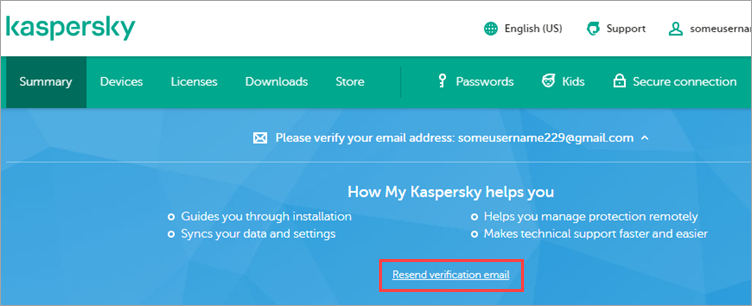
- Click on the link that is sent to your email address.
Cause
You exceeded the maximum number of connections to your My Kaspersky account. An account has the following limitations:
- The maximum number of connected devices is 500.
- The maximum number of licenses added to an account is 100.
- The maximum number of child profiles is 100 (if applicable).
- The maximum number of accounts connected to the shared subscription owner's account (even if multiple subscriptions purchased) is 50.
For detailed information, refer to the Terms of Use and Online Help.
Solution
- Disconnect unused devices from your account. See the Online Help page for instructions.
- Connect the application to your My Kaspersky account again.
