Managing audio playback and recording devices
You can connect several audio playback and recording devices to a thin client running Kaspersky Thin Client via a mini-jack or USB port to redirect these to the remote environment. In the Kaspersky Thin Client interface, you can switch between connected devices.
Audio volume and other settings are managed from the remote environment.
Connection via mini-jack is not supported on Dell Wyse 3040 thin clients.
If the thin client is included in an administration group, the values of settings specified in this article may be enforced through the Web Console. If this is the case, you will not be able to configure these settings in the Kaspersky Thin Client interface.
The settings specified in this article may be hidden in Kaspersky Thin Client.
To select audio playback and recording devices in Kaspersky Thin Client:
- In the Kaspersky Thin Client control panel, click
 and select Settings in the menu that opens.
 - In the window that opens, select the Audio section (see the figure below).
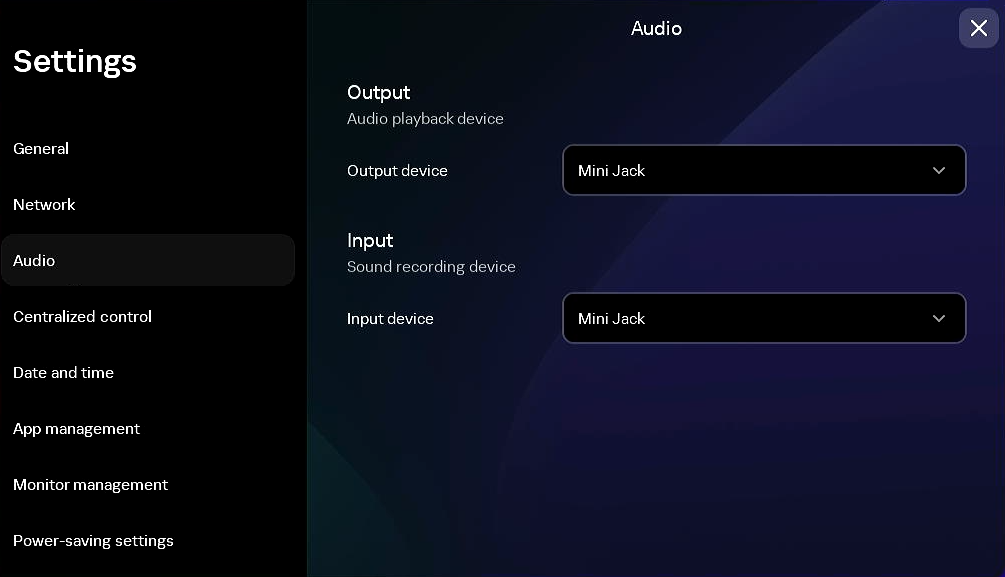
Settings. Audio section
- In the Output device drop-down list, select the audio playback device.
- In the Input device drop-down list, select the audio recording device.
You can also use audio playback and recording devices in the remote environment and switch between them in the connection panel.