Quick launch panel
The quick launch panel provides quick access to the app's main functions (see figure below).
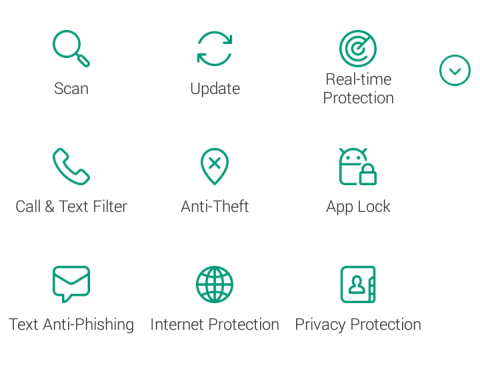
Quick launch panel
The quick launch panel is minimized by default. You can maximize the quick launch panel by pulling it up or by tapping the round expand button  .
.
The number and the design of the buttons on the quick launch panel can vary depending on the available functions.
The meaning of each button of the quick launch panel is explained in the table below.
Functions of quick launch panel buttons
Button |
Function |
|---|---|
(Scan) |
Scan the entire device, only installed apps, or a selected folder or file. |
(Update) |
Update the anti-virus databases to ensure the device has the latest protection. |
(Real-time Protection) |
Open Real-time Protection settings for the device. |
(Call & Text Filter) |
Open the window to select the Call & Text Filter mode. |
(Anti-Theft) |
Open Anti-Theft settings for the device. |
(App Lock) |
Open App Lock settings for the device. |
(Text Anti-Phishing) |
Open the window to turn on or turn off Text Anti-Phishing. |
(Internet Protection) |
Open the default Android browser with enabled scanning of websites for viruses and phishing. |
(Privacy Protection) |
Open the window to turn on or turn off Privacy Protection. |


