Configuring monitors and screens
Kaspersky Thin Client supports connection of two monitors.
When two monitors are connected, the system considers one as primary and the other as secondary. During a remote session, the connection panel is displayed on the primary monitor screen. The secondary monitor screen extends or duplicates the image of the primary monitor. In the Kaspersky Thin Client interface, you can select which monitor should be considered primary (hereinafter also "change the monitor layout").

If you want the remote session screen to be displayed on both monitors, enable them in the remote environment connection settings in the RDP or Basis.WorkPlace applications.
In the Kaspersky Thin Client interface, you can view information about monitors connected to the thin client and change the display layout of their screens, as well as configure the screen settings for each monitor separately.
To set up monitors and screens:
- In the Kaspersky Thin Client control panel, click
 and select Settings in the menu that opens.
 - In the window that opens, select the Monitor management section (see the figure below).
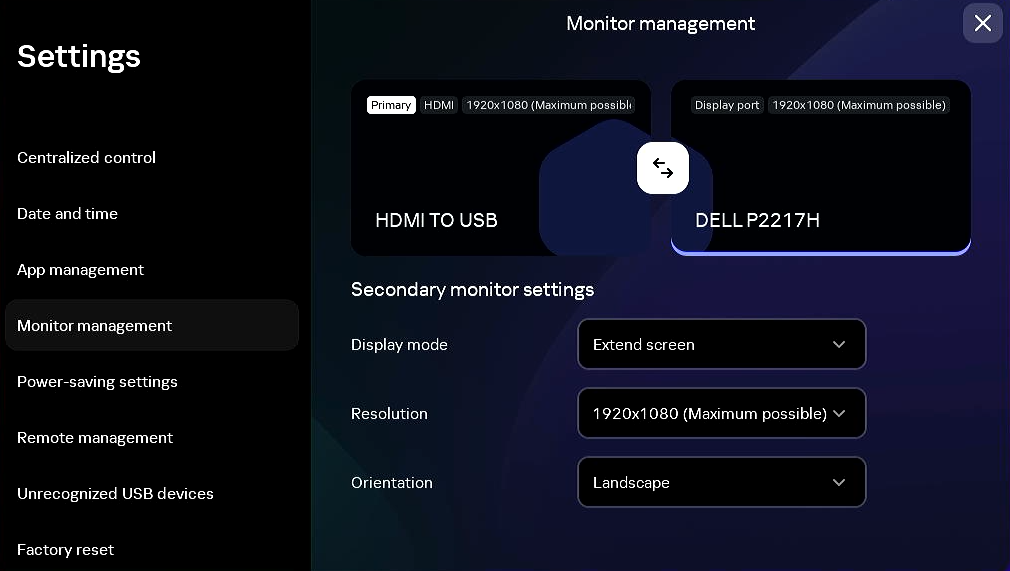
Settings. Monitor management section
- If you have two monitors connected to your thin client, you can change their layout. To do this, click the
 button.
 - If you want to customize the screen of a specific monitor, select the monitor. To do this, click its schematic image.
To highlight the monitor you are going to customize, hover over the schematic image of the monitors. A red frame appears on the customized monitor image.
- Configure the required settings:
- In the Display mode drop-down list, select the method for displaying images on monitor screens:
- Extend screen—the image spans across two monitors.
- Duplicate screen—the image of the primary monitor's screen is duplicated on the secondary one. If this option is selected, the settings listed below are not available for the additional display.
This option is only displayed if two monitors are connected to the thin client.
- In the Resolution drop-down list, select the desired resolution for the selected screen.
Supported resolutions are listed in the hardware and software requirements section.
If the Maximum possible value is selected, the highest value of the parameter supported by the monitor and Kaspersky Thin Client is set.
- In the Orientation drop-down list, select the screen position:
- Landscape: the standard screen position.
- Landscape flipped: the screen is rotated 180°.
- Portrait: the screen is rotated 90°.
- Portrait flipped: the screen is rotated 270°.
As you change each setting, a countdown window will be displayed.
- In the Display mode drop-down list, select the method for displaying images on monitor screens:
- In the window that appears, confirm the changes by clicking Save. If you want to discard your changes and return to customizing your settings, click Cancel.
The changes will be saved.