Remote connection to a thin client
An administrator can remotely connect to a thin client from their device for the purpose of remotely managing the thin client by using an RDP client to resolve problems or help the user configure Kaspersky Thin Client.
For remote management to work, the thin client must be On and connected to the network. Either the Allow automatically or Allow by request remote management access mode must be set for the thin client or its administration group in the Kaspersky Thin Client settings or in the remote management settings in the Web Console.
The thin client's IP address and remote connection password (hereinafter also referred to as "credentials") are necessary for a remote management.
To connect to a thin client for remote management purposes:
- Open the RDP client on the device from which you will connect to the thin client.
- Obtain the remote connection credentials in one of the following ways:
- If the thin client is connected to Kaspersky Security Center, copy the credentials in the Web Console interface:
- In the main window of the Web Console, select Assets (Devices) → Managed devices if you want to connect to a device from an administration group, or select Discovery & deployment → Unassigned devices if you want to connect to a device that is not part of any administration group.
- In the opened list, click the name of the thin client that you want to connect to.
- In the window that opens, select the Applications tab.
- Click the name of the Kaspersky Security Management Suite web plug-in.
- In the window that opens, select the Application settings tab.
- Go to the Data exchange section.
- In the Thin client connection data block, copy the remote connection account credentials by clicking the
 button next to them (see the figure below).
The password for remote connection in the Web Console is updated once a day and after each restart of the thin client.
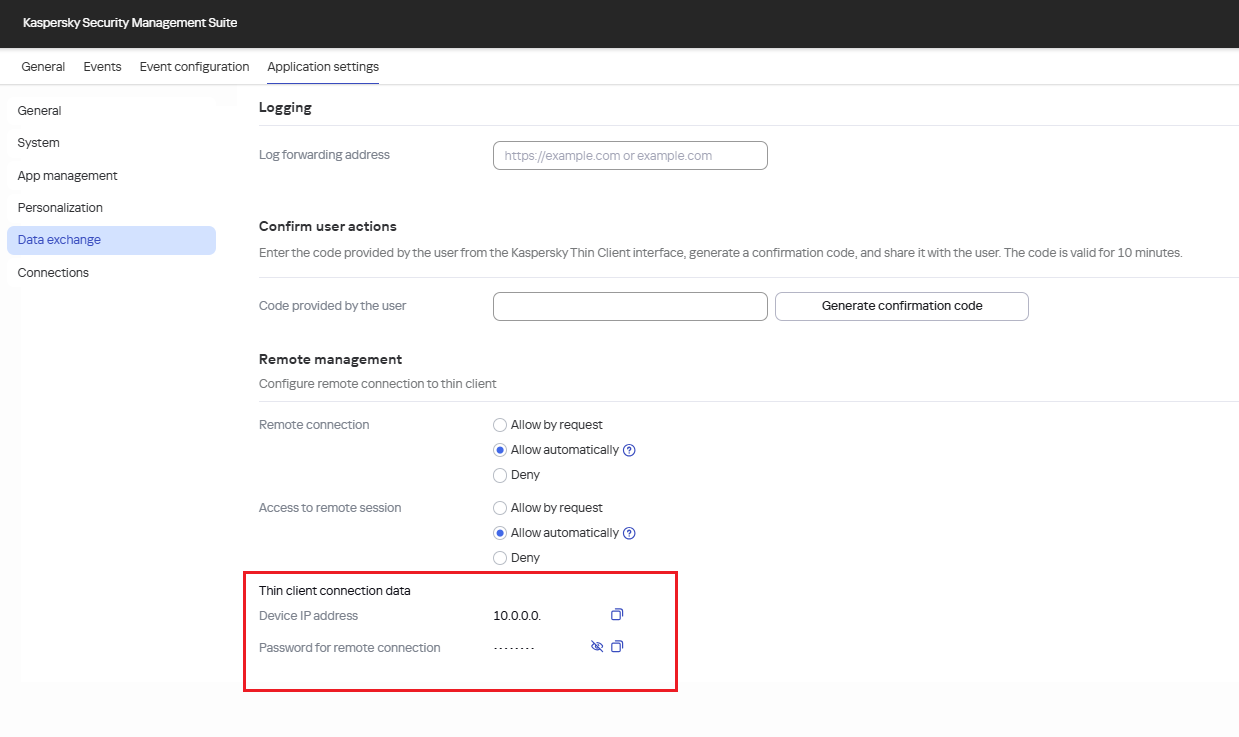
Configuration window for remote management of a thin client in the Web Console
- If the thin client is not connected to Kaspersky Security Center, request the default password from Technical Support and get the device's IP address in the Kaspersky Thin Client interface.
The default password is intended for temporary use. Use it only if the thin client is not yet connected to Kaspersky Security Center.
- If the thin client is connected to Kaspersky Security Center, copy the credentials in the Web Console interface:
- In the RDP client installed on your device, enter the received credentials and start connecting to the thin client.
- To connect to the thin client, depending on the specific remote management access mode that is configured in the Kaspersky Thin Client settings or in the remote management settings in the Web Console for the device or its administration group, do one of the following:
- If the Allow automatically mode is set, wait until the connection to the thin client is established.
The user can accept or reject your request within 30 seconds. If the user does not take any action during this time, the connection starts automatically.
- If the Allow by request mode is set, wait until the user accepts the remote management request in the Kaspersky Thin Client interface.
If you've successfully connected to the thin client, the remote environment screen access window is displayed.
- If the Allow automatically mode is set, wait until the connection to the thin client is established.
- To gain access to the remote environment screen, depending on the mode that is configured in the Kaspersky Thin Client settings or in the remote management settings in the Web Console for the device or its administration group, do one of the following:
- If the Allow automatically mode is set, wait until the connection to the thin client is established.
- If the Allow by request mode is set, wait until the user accepts the connection request in the Kaspersky Thin Client interface or terminates the remote session.
- If the mode is set to Deny, wait until the user terminates the remote session.
The Kaspersky Thin Client interface is displayed. You will gain access to the Kaspersky Thin Client remote management.
To terminate remote management of the thin client in the Kaspersky Thin Client interface,
in the connection panel, click the  button. In the opened window, click Terminate.